
Reconciling transactions (bank reconciliation)
Match the movements on your bank, cash and credit card accounts with invoices, expenses and your accounting.
Prerequisites
Set up your accounts: The accounts you want to reconcile must exist under Company → Settings → Banking. See Adding a bank account, cash box or credit card.
Link accounting accounts: If you do your bookkeeping in Blond, link every payment account to an accounting account — otherwise Blond can't create the counter-entries automatically.
Electronic bank statement: You need a statement from your bank in camt.053 format (XML), a CSV file, or a bank or credit card statement as a PDF. With most banks you order CAMT files once in your e-banking and can download them there afterwards.
Importing transactions
Open the Transactions area in the sidebar and click Import transactions.
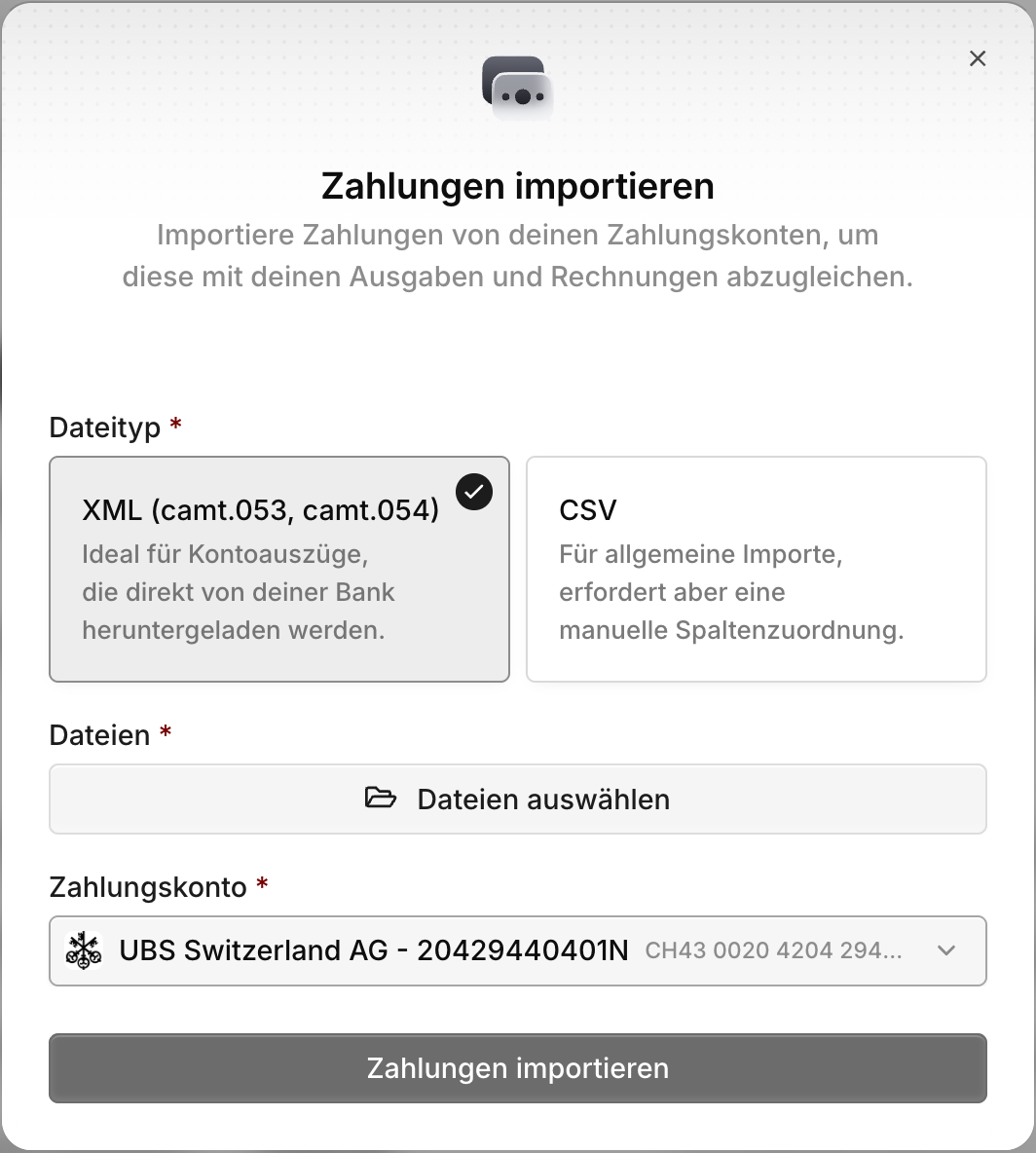
XML (CAMT): Ideal for statements downloaded directly from your bank. You can upload several .xml or .zip files at once.
CSV: For all other sources, such as credit card statements. After uploading you map the columns of your file to the fields in Blond (date, amount, description and so on).
PDF: For banks and credit cards without a CAMT export. Blond reads the rows from the statement — scanned documents included — and checks them against the opening and closing balance printed on the PDF.
Account: The payment account the transactions are imported to.
Prefer CAMT
CAMT files come straight from your bank's system and are the most reliable source. Only use PDF if your bank or credit card doesn't offer a CAMT export. Each PDF file uses one unit of your AutoScan quota — the same as reading a receipt.
Duplicates
Uploading the same file twice is harmless, PDFs included — Blond recognizes transactions it has already imported and skips them. When you review a PDF statement, those rows are marked Already imported. To undo an accidental import, use Delete unmatched transactions.
Review a statement
If the rows of a PDF statement add up exactly to the closing balance, Blond imports them right away — no extra step. If they don't add up, or a balance is missing from the PDF, Blond doesn't import anything yet and asks you to review the statement first.
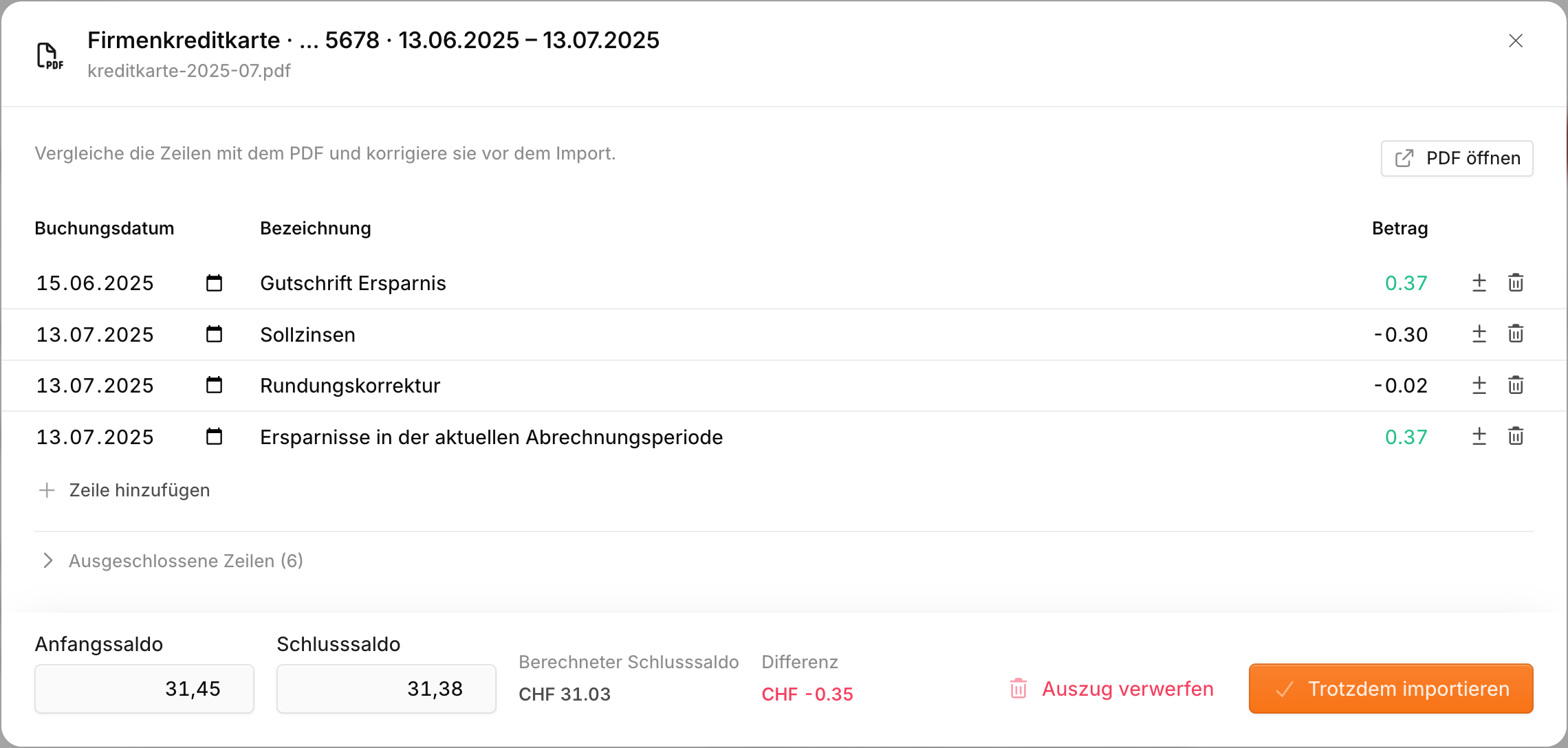
Compare the rows with the PDF (Open PDF) and correct whatever is off:
- Change a row's date, name or amount
- Flip the sign if a debit was read as a credit (or the other way round)
- Remove rows and restore them under Excluded rows — summary lines Blond filtered out itself end up there too
- Add a missing row
- Enter or correct the opening and closing balance
The goal is a Difference of 0.00 — then the rows match the statement. If a difference remains, you can still import with Import anyway. Your account balance in Blond won't match the statement afterwards, though.
When the review shows up: It opens automatically as soon as the statement has been read. If you close it or have left the page, a banner at the top of the Transactions area points out statements waiting for you — click Review to open them again.
Close or discard: Closing the review keeps your changes so you can continue later. Discard statement imports nothing and deletes the PDF. The scan still counts toward your AutoScan quota.
TIP
Use the arrow keys and ⏎ (Enter) to jump between rows, just like in a spreadsheet.
Reconciling transactions
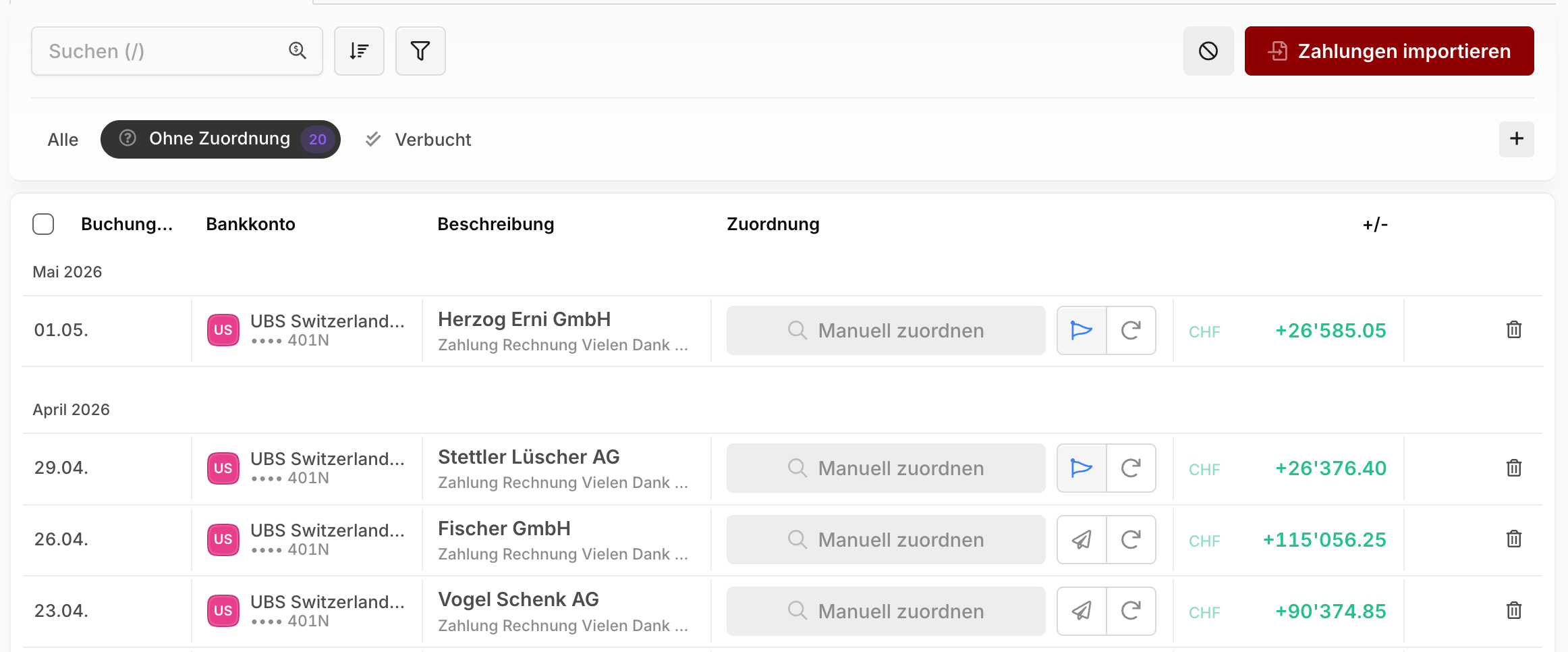
After the import, all new transactions appear in the Unreconciled tab. The goal is to assign each transaction to an entry in the system — only then does it count as reconciled.
Automatic matching
Blond tries to match as many transactions as possible automatically. Next to each transaction you see the result:
| Display | Meaning | What you do |
|---|---|---|
| Exact match | Unambiguous match via a reference number, usually from QR payments | Confirm with the check mark |
| Suggestion | Possible match based on date, amount and description | Check it and confirm with the check mark |
| Choose from … suggestions | Several entries could fit | Pick the right one from the list |
| Suggested split | The payment covers several entries together, e.g. two invoices in one transfer | Accept it as a whole or adjust it in the dialog |
| Expense Inbox | A receipt from your Expense Inbox fits the debit's amount and date | Confirm — Blond records the receipt as an expense |
| Match manually | Blond found nothing that fits | Match it yourself (see below) |
An amount shown in red means the suggested entry doesn't cover the transaction amount exactly. Check it carefully.
Confirm all at once: At the bottom of the list, Reconcile … payment(s) reconciles every transaction whose suggestion fits the amount exactly — including complete splits. You see an overview to check first.
Check again: If you've since recorded the missing invoice or expense, Recheck possible matches (arrow icon in the row) makes Blond search again. At the bottom of the list you can recheck all open transactions at once.
Receipts from the inbox
When you confirm a receipt from the Expense Inbox, Blond records it as an expense with the bank account's payment method and reconciles it right away. You don't need to record the receipt by hand first.
Proposals by Agent Blond
Agent Blond can go through the open transactions after every import and propose matches — including cases Blond can't recognize on its own, e.g. a booking to the right expense account. To turn this on, enable AI-assisted by Agent Blond in the import dialog. The setting applies to the whole company.
You recognize Agent Blond's proposals by the speech bubble icon next to the match. Hover over it to read its reasoning. Like all other suggestions, you still confirm them yourself.
Note
The option is only available if Agent Blond is enabled for your company and you do your bookkeeping in Blond. Each run uses AI credits.
Matching manually
If Blond made no match or a wrong one, remove the suggestion and click Match manually. You can also split the transaction amount across several entries:
Manual entry: Creates an entry directly in your accounting, e.g. for bank fees. Only visible if accounting is enabled and the payment account is linked to an accounting account.
Invoice: Records an incoming payment on one of your invoices (credits only). If the amount is smaller than the open invoice, a partial payment is recorded.
Expense: Assigns the transaction to a receipt, marks a supplier invoice's payment order as executed, or creates a new payment on a supplier invoice directly.
Expense Inbox: Picks a receipt from the Expense Inbox that hasn't been recorded yet.
Customer booking: Books the transaction as a credit or debit on a customer's customer account.
Undoing a match
You'll find a wrongly reconciled transaction in the Reconciled tab — use Undo reconciliation to release the match at any time. For several transactions at once, select them and choose the action from the bulk actions.
Missing receipt
If you're missing the receipt for a debit, click Request document in the row and choose the team member who has it — e.g. whoever paid with the company credit card. They get an email with the payment details and can simply reply with the receipt attached or upload it to the Expense Inbox. As soon as it arrives there, Blond automatically looks for the matching transaction.
You recognize already requested receipts by the pennant icon in the row.
TIP
The button only appears if your company has more than one member.
Foreign currencies
Account in a foreign currency: If you have a bank account in EUR, USD or another currency, choose the currency when adding the account. Transactions are then shown in the account currency, and the total at the bottom of the list is shown per currency. The imported statement must be in the same currency as the account.
Exchange difference: When a customer pays a EUR invoice into your CHF account, the credited amount usually differs slightly from the invoice because of the exchange rate. Match the invoice via Match manually and click Book exchange difference — Blond books the remainder to your financial income account (for credits) or financial expenses account (for debits). You set these accounts in the accounting settings.
Matching open invoices (QR reconciliation)
If you don't do your bookkeeping in Blond and just want to know which customers have paid, there's a simpler way: QR reconciliation under Invoices → QR reconciliation.
Upload a bank statement there — we recommend a camt.054 file, which contains only credits. On the left you see your bank's movements, on the right the matching open item:
- Confirm correct matches with the check mark — the invoice is marked as paid.
- If Blond doesn't find a matching invoice, pick it from the list yourself.
- Open payment orders are recognized too: you can confirm debits directly as executed payments of a supplier invoice.
QR reconciliation doesn't import transactions and doesn't create accounting entries — it only records payments on invoices.
TIP
If you run your accounting through Blond, use the full bank reconciliation in the Transactions area instead (top of this page) — it covers QR reconciliation as well.
Reconciliation status on the account sheet
If you do your bookkeeping in Blond, the account sheet (Accounting → Chart of accounts, open an account) of an accounting account linked to a payment account flags entries that aren't reconciled with a bank transaction yet.
Warning icon: No bank transaction is linked to this entry.
Pending icon: A match suggestion exists but hasn't been confirmed yet.
Hover the icon for details.
The counter at the top of the account sheet shows the number of open entries and follows the filters currently applied (date, amount, search and so on). Use the Only without bank reconciliation filter to hide everything else.
TIP
Opening balance entries and entries before your first imported bank transaction aren't flagged — reconciliation only starts with the first import.