
Set up emails
Customize the look of your outgoing emails and configure whether Blond sends them from the default address or from your own domain.
Find the email settings under Settings → Emails or directly at https://app.blond.swiss/organization/settings/mail.
TIP
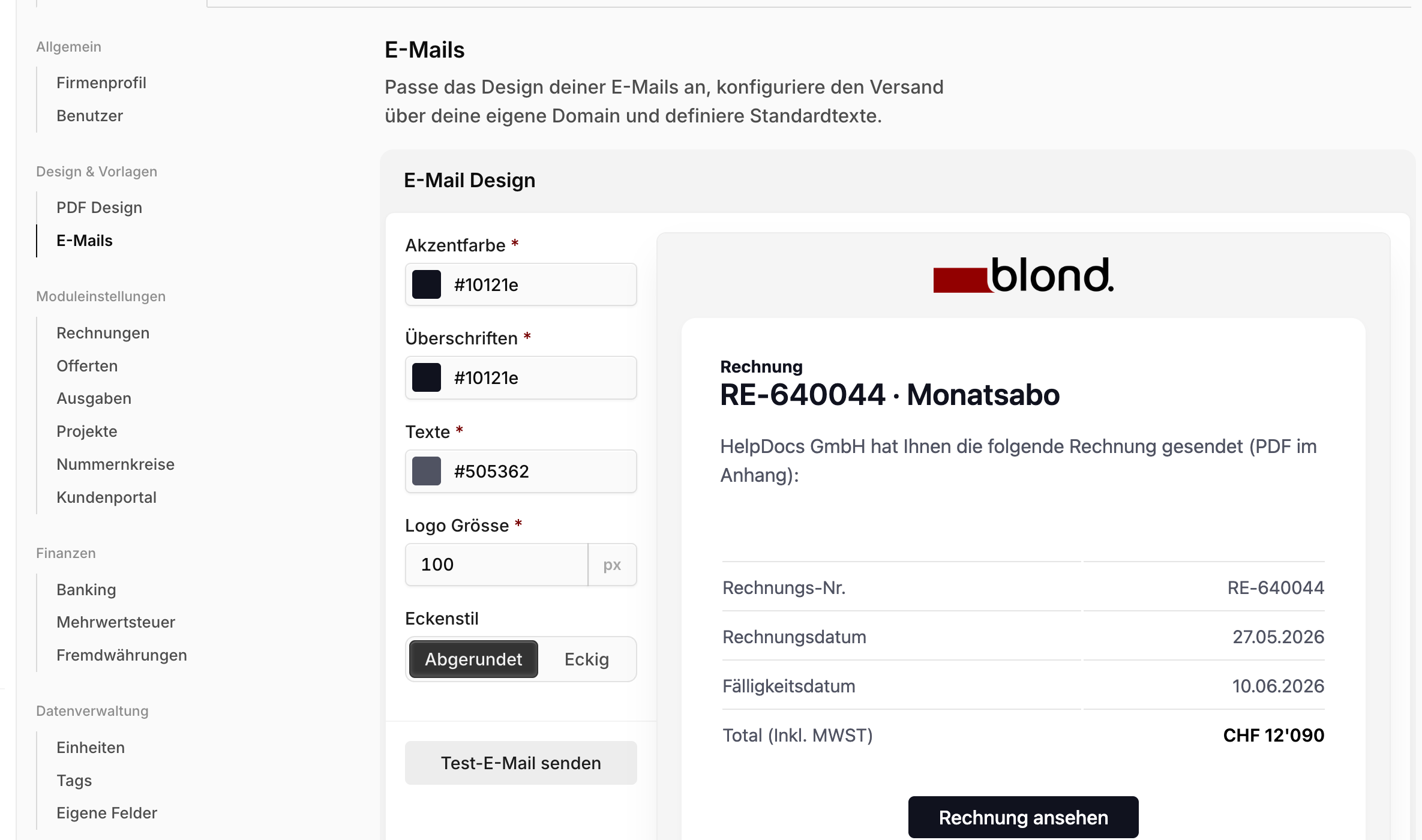
Next to the design settings, a live preview is always visible and updates as soon as you change a color or logo size. Click Send test email to mail the current preview to your own sign-in address — so you can check the result in your actual inbox.
Email design
The Email design section adjusts the look of your outgoing emails (invoices, offers, reminders, order confirmations) to match your corporate design.
Accent color: Sets the color of buttons and highlights.
Headings / Text: Colors for each text level.
Logo width: Width of the logo in the header in pixels. Values between 100 and 200 px usually look balanced across mail clients. The logo itself is pulled from your company profile.
Corner style: Rounded for a modern, soft look, Sharp for a classic, formal appearance.
Click Save to apply design changes. Reset restores the Blond defaults.
Sending from your own domain
Which sender your customers see depends on your subscription and on the sending method:
| Situation | Sender shown to the recipient | Replies go to |
|---|---|---|
| Trial, or subscription paid less than 48 hours ago | "Your Company Ltd via Blond" from noreply@strawblond.com | your sender address, otherwise your company email |
| Paid subscription, for at least 48 hours | your sender address (if none is set: noreply@strawblond.com with your company name) | your company email |
| Custom SMTP server (option 2) | your sender address, right away | your company email |
Why "via Blond"?
To prevent abuse, Blond only sends emails under your own address once your subscription is paid and has been running for at least 48 hours. Until then, your address only appears as the reply-to address. The switch happens automatically. An SPF record doesn't change this.
If you want to send emails from your own address (e.g. invoices@your-company.com), enter a sender name and sender address and then pick one of the two sending methods:
Sender name: Shown next to the sender address (e.g. "Your Company Ltd"). Leave it empty and Blond uses your company name automatically.
Sender address: The email address your customers see in their inbox. As soon as you enter an address, two tabs appear: Domain authentication and SMTP.
Option 1: Domain authentication (recommended)
This is the easier path. Blond keeps sending your emails through its own sending infrastructure, with your address as the sender — once your subscription has been paid for 48 hours (see the table above). To keep these emails out of spam, you need to add an SPF record at your domain registrar — otherwise the recipient can't verify that Blond is allowed to send on behalf of your domain.
What is SPF? Sender Policy Framework — a TXT entry in your domain's DNS that lists which servers are allowed to send email in your name. Without it, mail providers like Gmail, Outlook or iCloud routinely flag mails from your domain as spam.
How to do it:
- Log in to the provider where your domain is registered (in Switzerland for example Hostpoint, Infomaniak, Cyon, Switchplus).
- Find the DNS or Zone file area in the admin interface.
- Create a new entry of type TXT for your root domain (hostname
@or empty, depending on the provider). - Use this value:
v=spf1 include:spf.strawblond.com ~all - Save. It can take up to 24 hours for the record to become active globally — in practice it's usually a few minutes.
Warning
If you already have an SPF record for your domain (e.g. because you also send through Google Workspace or Microsoft 365), do not add a second one — only a single SPF TXT record is allowed per domain. Extend the existing one with include:spf.strawblond.com, like this: v=spf1 include:_spf.google.com include:spf.strawblond.com ~all.
Once the SPF record is active, use Send test email to send yourself a sample and verify it doesn't land in spam.
Option 2: Custom SMTP server
With this option, Blond doesn't send through its own infrastructure but connects to your own SMTP server (e.g. your Google Workspace account, a Microsoft 365 mailbox or a mail server at your hosting provider). Your sender address applies right away, even during the trial. Use this when you have strict requirements about the sending address or want the sent emails to appear in your own Sent folder.
Note
Blond cannot guarantee deliverability with this option — issues with sending limits, anti-spam filters or DKIM/DMARC are the responsibility of your mail provider.
You'll need access credentials for your SMTP server:
SMTP Host: Mail server address, e.g. smtp.gmail.com, smtp.office365.com or mail.your-domain.com.
SMTP Port: Usually 587 for STARTTLS or 465 for SSL. Avoid port 25, as many internet providers block it.
Encryption: TLS (port 465), SSL (rare, legacy) or STARTTLS (port 587, today's standard).
Username and password: The credentials of your email mailbox. With Google Workspace and Microsoft 365, you'll need to generate an app password in the security settings first — your normal login password won't work because of two-factor authentication.
After saving, test the connection with Send test email. If sending fails, Blond shows an error message with details on the cause.
Outbox: reviewing sent emails
The Outbox lists every quote and invoice your company has sent by email. It's the quickest way to check whether and when a document went out to a customer.
You'll find the link to the Outbox at the bottom of the sidebar, right above your user profile, or directly at https://app.blond.swiss/outgoing-mail.
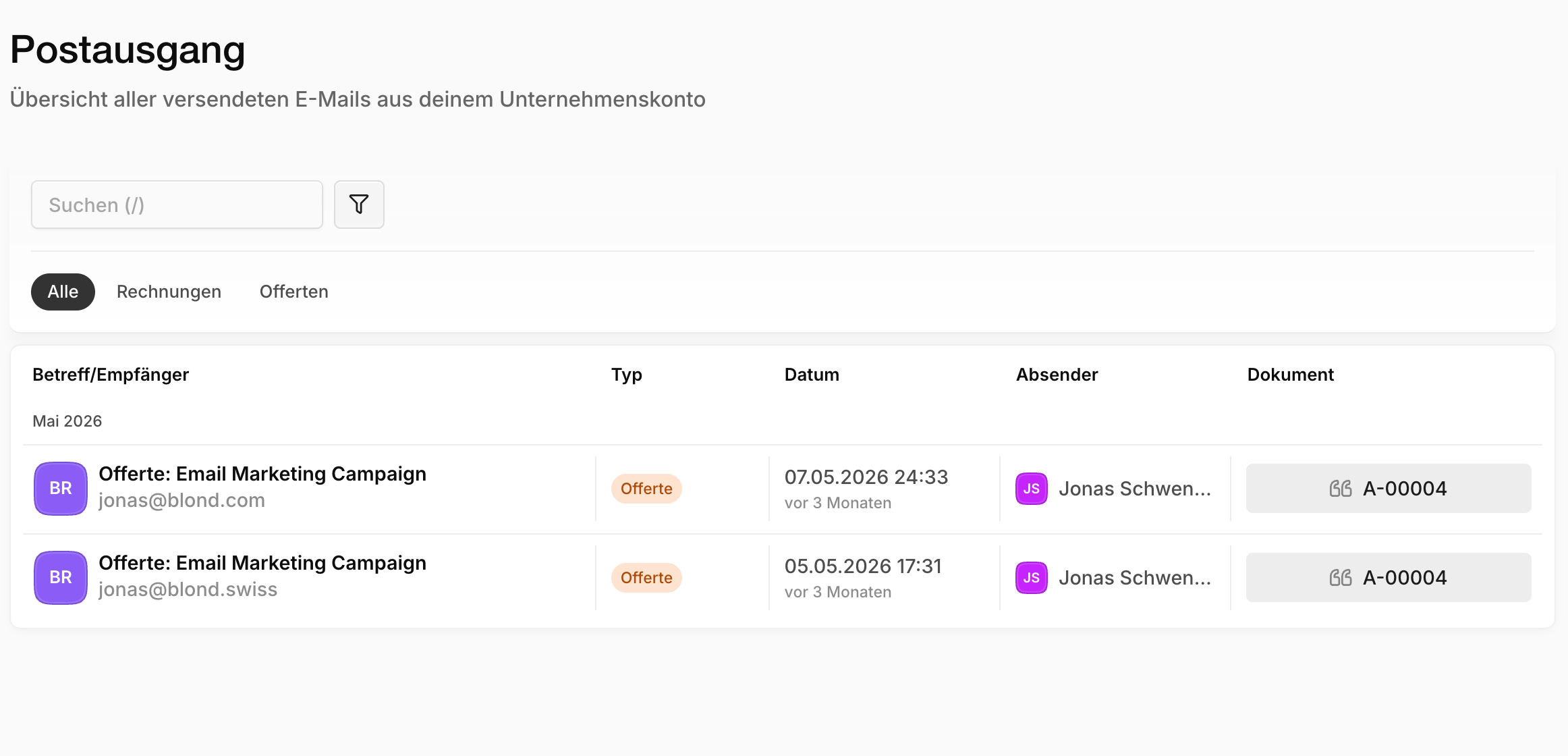
For each email you see the subject and recipients, when it was sent and who triggered it — a team member or the system (e.g. automatic payment reminders). From every entry you can jump straight to the related document or open the sent email in a browser view.
TIP
Use the filters to narrow the list by date range, sender or document type (Invoices / Quotes).
Related settings
This page only governs design and sending route. The actual email texts and reply-to recipient come from elsewhere:
- Default texts for invoice, reminder and confirmation emails under Invoices.
- Default texts for offer and order-confirmation emails under Offers.
- Logo, company name and company email (the reply-to address, see the table above) are taken from your company profile.