
Blond app for iOS and Android
Agent Blond, receipts, time and absences in your pocket — the Blond app puts what you need on the go on your phone.
What the app is for
The app isn't a copy of the web app. It focuses on what makes sense on the go. The bar at the bottom switches between five areas:
| Tab | What for |
|---|---|
| Agent | Chat or talk with Agent Blond |
| Expenses | Scan receipts and check the expense inbox |
| Time | Log project time and working time, run timers |
| Absence | Request time off and approve requests |
| Search | Find and edit invoices, quotes, expenses and customers |
Bookkeeping and settings stay on the computer. If you tap something the app can't handle itself, it opens the matching page in your browser.
Note
Which tabs you see depends on your role. Time, for example, only appears if you're allowed to log time.
Installing
In the stores the app is called Agent Blond – KI-Assistent.
| Platform | Download | Requirement |
|---|---|---|
| iPhone & iPad | App Store | iOS 16.2 or newer |
| Android | Google Play | Android 7.0 or newer |
The app needs an existing Blond account — create one at https://app.blond.swiss/auth/register.
Signing in
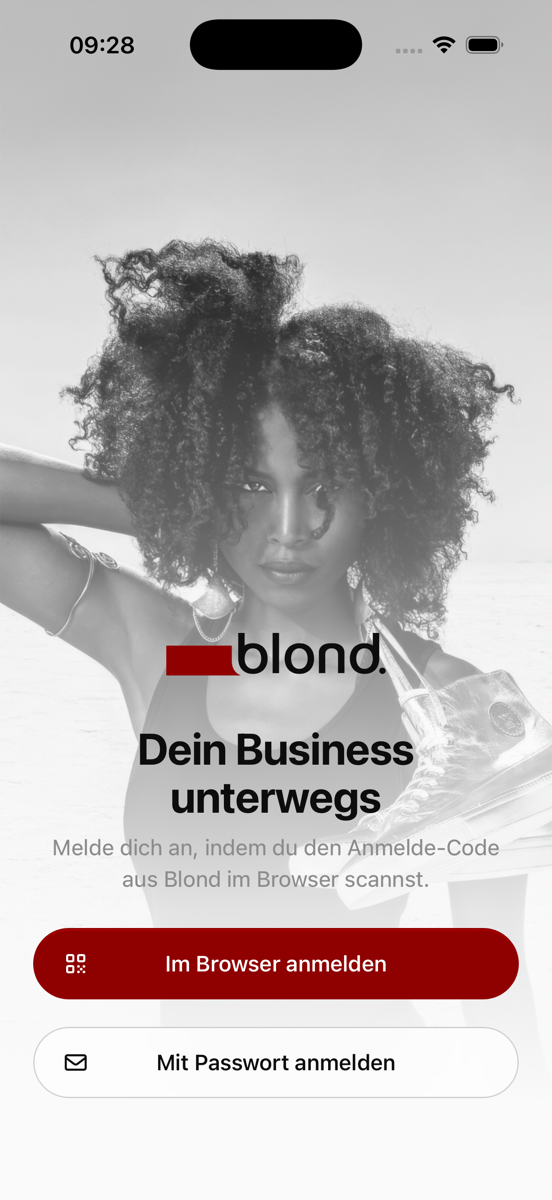
Sign in with your browser (no password): The fastest way, two-factor check included.
- Open Blond on your computer and pick Sign in on your phone from the profile menu at the bottom left.
- In the app, tap Sign in with your browser and scan the sign-in code.
- Confirm in the browser with Sign in on this device, then in the app with Sign in.
Sign in with password: Works like in the browser — email, password and, if enabled, your 2FA code. If you've set up a passkey, you can use that too.
Warning
Never scan a sign-in code someone else shows you — you'd be signing in to their account.
The app stays signed in until you sign out. After 90 days without use, the sign-in expires. You can see and remove signed-in devices in the web app under Security — see Secure your account.
Agent Blond
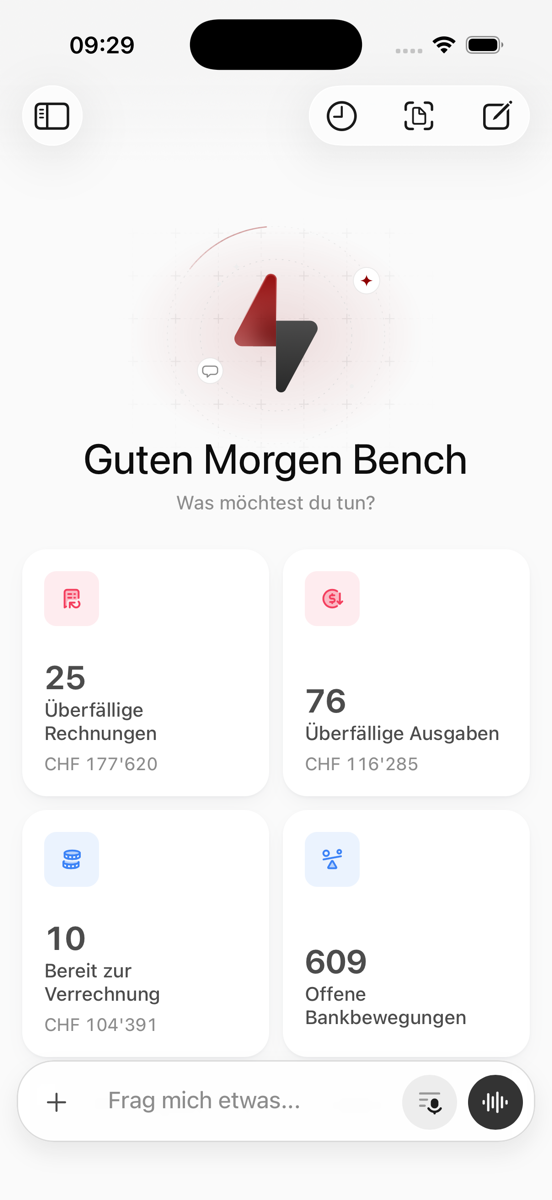
The Agent tab is the chat with Agent Blond — the same one as in the web app, see Agent Blond. A conversation started on the computer continues in the app and vice versa.
Cards on the home screen: They show what needs attention right now, such as overdue invoices. A tap starts the matching chat, press and hold to ask by voice.
Attaching: Use + to scan a document, pick photos or attach a file.
Voice mode: The waveform icon in the input field starts a spoken conversation — see Voice mode.
Conversations: The icon at the top left opens all chats. If Agent Blond is waiting for a confirmation, the chat appears at the top under Unread & pending.
Note
An admin has to enable Agent Blond once. Until then you can scan receipts and log time. Details under Activation and data privacy.
Receipts
The Expenses tab shows your expense inbox. There are three ways to get receipts in:
Scan: The camera detects and straightens the page. Scan multi-page invoices page by page — they become one PDF.
Pick from photos: For receipts already in your photo library.
Share: In another app's share menu (e.g. Mail), pick Agent Blond.
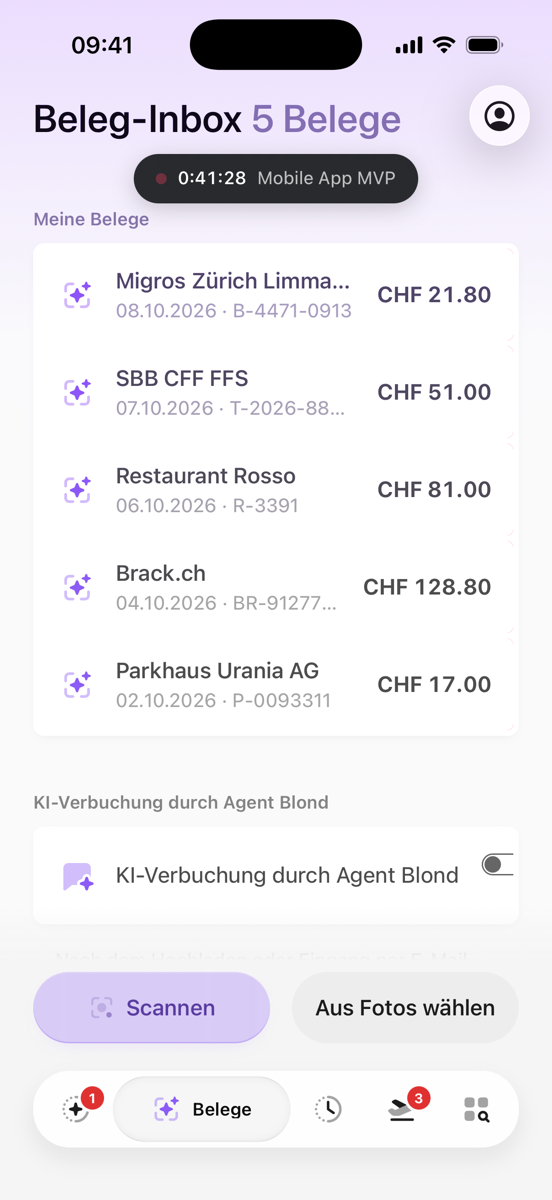
AutoScan then reads the supplier, date, amount and VAT. To delete a receipt, swipe it to the left.
Let receipts be booked automatically
Turn on AI booking by Agent Blond at the bottom of the inbox. Agent Blond then books your receipts as expenses in the background. Otherwise you convert them on the computer — see Turn a document into an expense.
Time
The Time tab combines project time and working time on one screen.
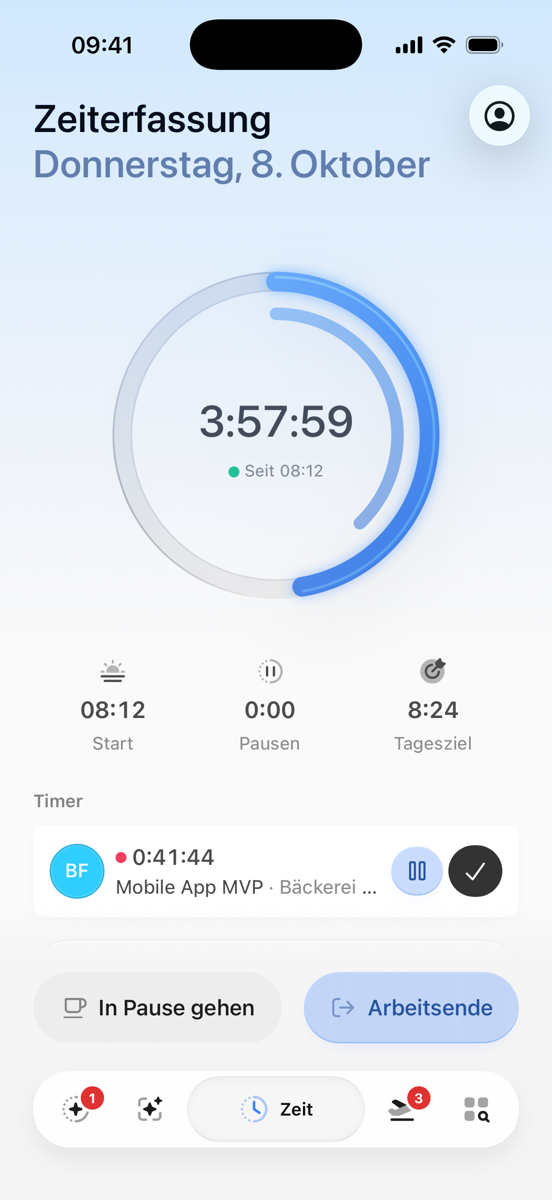
Log time: Creates an entry with project, duration and hourly rate.
Start timer: Keeps time running on a project. Timers are visible on all devices, and only one runs at a time. While a timer is running, a blue dot on the Time tab (in the sidebar on iPad) shows it, wherever you are in the app.
Clock in and out: If your company tracks working time, you clock in, out and into breaks here. Tap a day in the weekly overview to add anything you forgot.
To delete an entry, swipe it to the left.
Timer on the lock screen
A running timer appears on the iPhone lock screen and in the Dynamic Island, and as a notification on Android — even if you haven't allowed push notifications.
Absences
The Absence tab shows your remaining vacation days and an overview of your team.
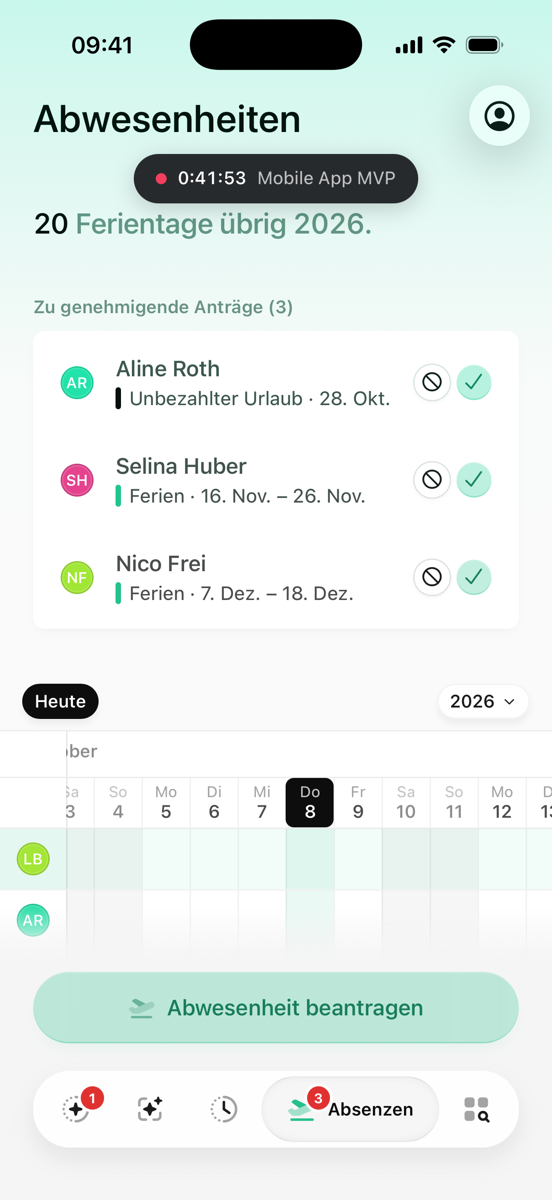
Request absence: Tap a day in your row of the overview, or tap Request absence.
Approve requests: When a request is waiting for you, the tab shows a number. Open requests are listed at the top — approve or reject them right there.
Search and documents
The Search tab finds invoices, quotes and customers. Without a search term it shows what's open: open invoices, unpaid bills and pending quotes.
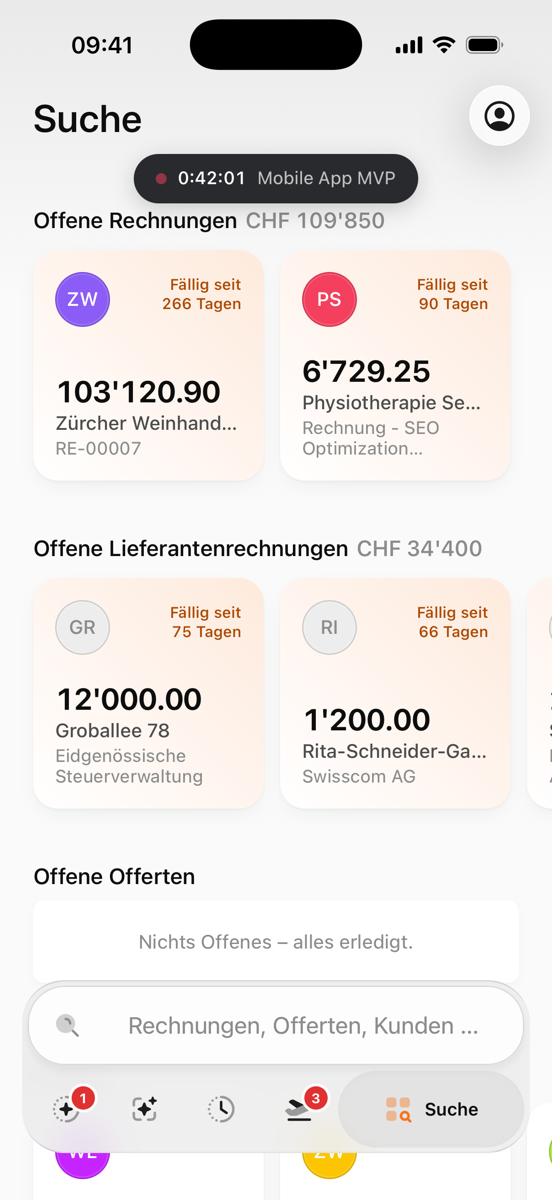
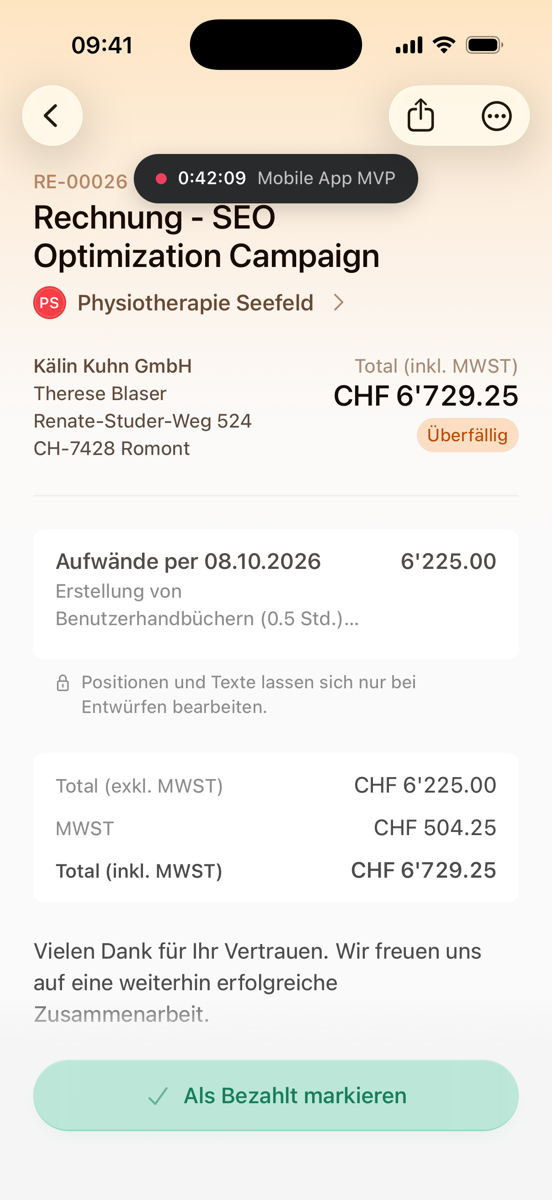
Tap a document to open it in the app. There you can, for example:
- edit line items and texts (drafts only)
- record a payment or mark as paid
- approve or archive a quote
- approve an expense for payment
- share the PDF
New invoices and quotes are created through Agent Blond or on the computer.
Siri and Spotlight
On the iPhone you can also open the app via Siri, Spotlight or Shortcuts — for example with "Scan a receipt in Agent Blond", "Ask Agent Blond" or "Open time tracking in Agent Blond".
Profile and switching companies
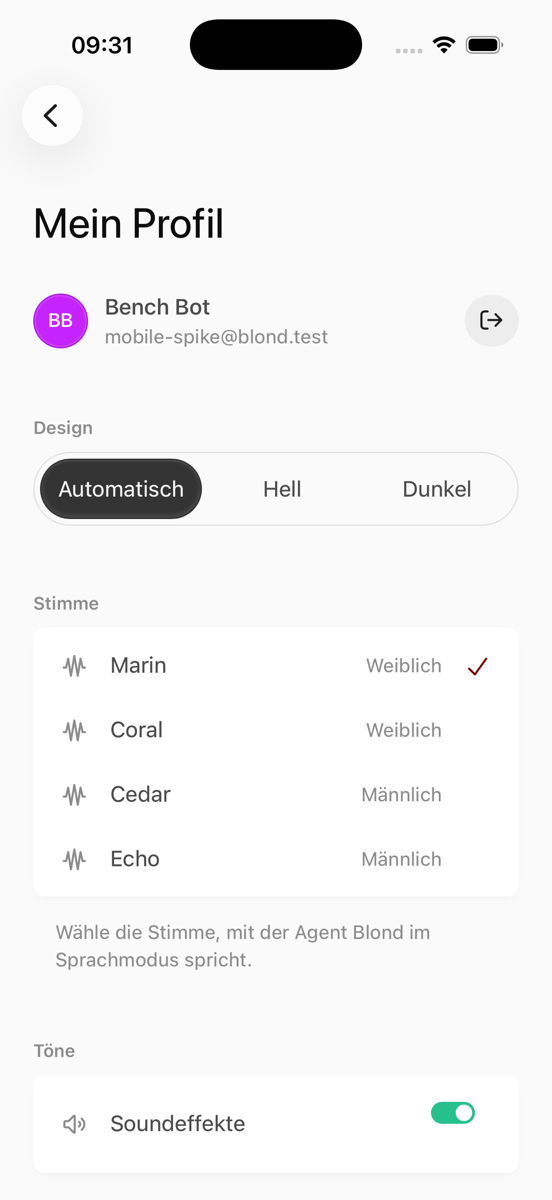
The person icon at the top right opens My profile. There you set appearance, voice, sounds and notifications for this device, and sign out. Name, password and language are changed via Manage account in the browser.
If you belong to several companies, open the sidebar at the top left and tap the company name.