
VAT return
Learn how to prepare, check and finalize your VAT return for the Swiss Federal Tax Administration (ESTV) in Blond.
Where to find VAT
Open Accounting → VAT. You'll find three tabs there:
| Tab | What it's for |
|---|---|
| Form | The figures for your return, laid out like the ESTV form |
| Journal | Every entry behind a digit — for checking |
| Sales reconciliation | Yearly comparison of reported and booked revenue |
At the top, pick the year and period. With the effective method you report quarterly (e.g. 2026-Q1); with the net tax rate method, half-yearly (e.g. 2026-S1). The arrow marks the next open period, the lock a period that's already saved.
Note
VAT only appears once accounting is set up. You need access to accounting — for example with the role Administrator or Accountant.
How to file a period
- Open Accounting → VAT and select the period.
- Check the figures. Click a digit to see the entries behind it in the journal.
- Transfer the amounts to the ESTV ePortal.
- Click Lock VAT period once you've submitted the return.
Always lock the previous period first
Blond calculates each period from the start of the year and only subtracts periods that are already locked. If Q1 isn't locked yet, the Q2 form therefore contains the revenue of Q1 and Q2. Lock a period before you look at the figures of the next one.
VAT form
Blond calculates the form continuously from your bookings — you don't need to add anything up yourself. All amounts are net, i.e. excluding VAT. Depending on your accounting method, you see the form for the effective method or for the net tax rate.
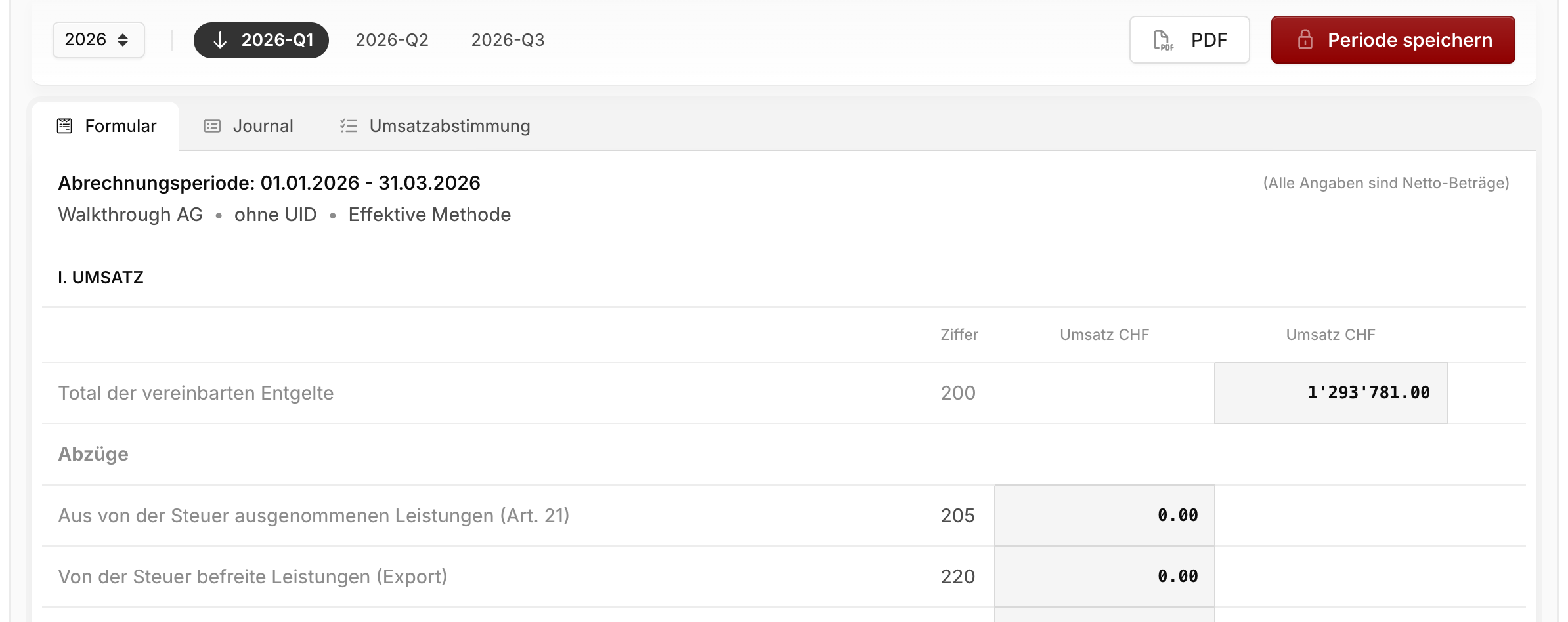
Copy an amount: Click an amount to copy it to your clipboard. That's the quickest way to transfer the figures to the ESTV ePortal.
Check a digit: Click the number of a digit (e.g. 303) to open the matching entries in the journal.
PDF: Download the return as a PDF — handy for your records or your accountant.
VAT journal
The journal shows all entries in the selected period with a specific digit. Switch the digit in the Digit field to the right of the tabs.
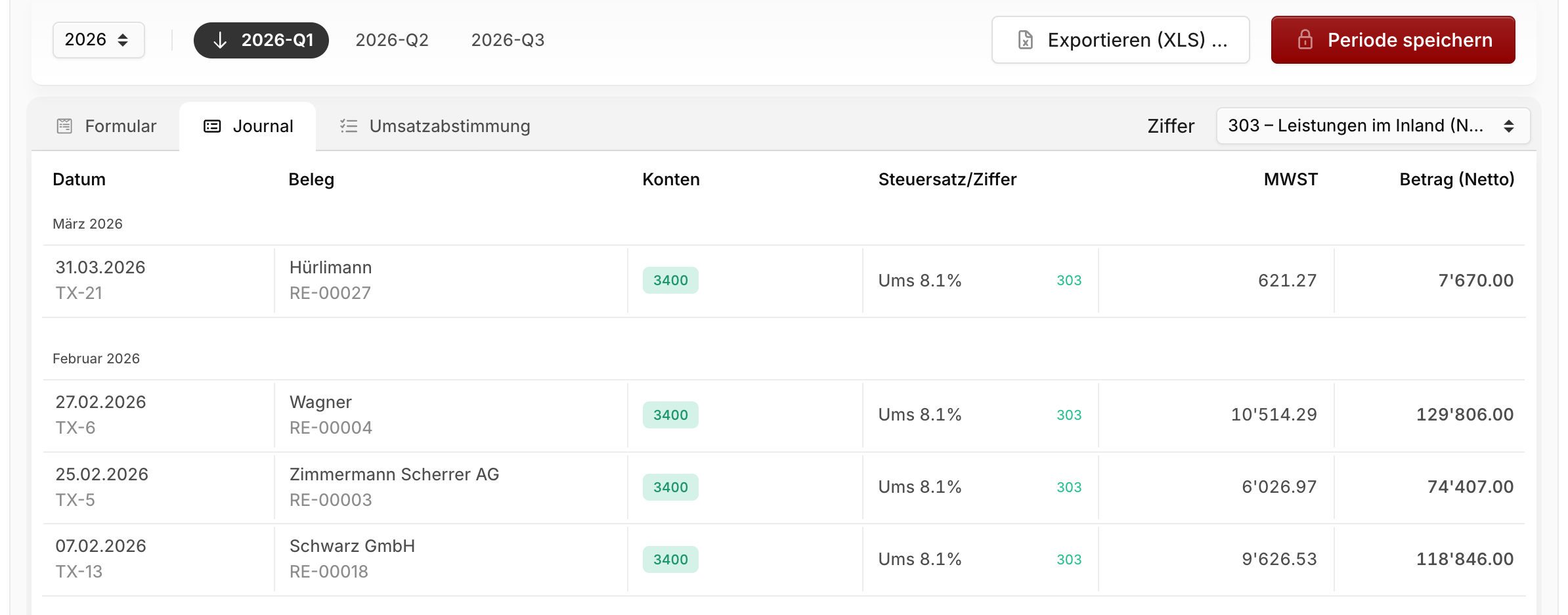
Open an entry: Click the date to see the full entry. Clicking the description opens the document behind it — invoice, expense or bank transaction.
Spot discrepancies: A red exclamation mark next to the VAT amount means it doesn't match the rate (e.g. 8.1% of the net amount). This usually comes from rounding on receipts or mistyped amounts. Hover over the icon to see the difference.
Export: Use Export (XLS) to download the journal as an Excel file. You choose which digits to include — each gets its own worksheet, plus a summary of all totals. Ideal for your accountant.
Lock VAT period
Lock VAT period records what you reported to the ESTV. After that, the figures in the form no longer change.
- You lock periods in order — always the oldest open one first.
- You can still edit entries in a locked period. The return itself stays exactly as you submitted it.
What happens to later changes?
If you change an entry in a locked period afterwards, Blond automatically adds the difference to the next open period in the same year. There, the journal shows it under Additions from Locked Periods. That way the correction goes out with your next return — no extra work needed.
Warning
Once the last period of the year is locked, there's no open period left for a correction to flow into. You'll see such changes in the journal of the affected period under Period Adjustment. Report them to the ESTV with a correction statement (finalization) — see Sales reconciliation.
Unlock a period
If you locked a period too early, open it and click Unlock period in the red notice. This only works for the most recently locked period.
DANGER
Only unlock a period if you haven't submitted the return to the ESTV yet. Otherwise the figures you reported no longer match Blond.
Sales reconciliation
After year-end closing, the ESTV requires you to reconcile your returns with your books and correct any errors (finalization). The sales reconciliation does this comparison for you.
Reported revenue: The sum of digit 200 across all periods of the year.
Booked revenue: The balance of your revenue accounts, split into entries with and without VAT codes.
If reported and booked revenue don't match, start with the Without VAT codes column in the accounts table. Revenue without a VAT code is missing from your return — often these are manual entries where no VAT rate was selected. Tax-exempt revenue such as exports also needs a code to show up in the return.
TIP
Download the sales reconciliation via PDF and file it with your year-end closing. Your accountant will ask for it.