
Checking email delivery
Find out whether your invoices and quotes reached their recipients, and what to do when an email couldn't be delivered.
For every invoice and quote you send from Blond by email, the recipient's mail server reports back whether it accepted the message. Blond shows you this delivery status in several places. This also covers payment reminders and every other email that shows up in Outgoing mail.
The four statuses
| Status | Meaning |
|---|---|
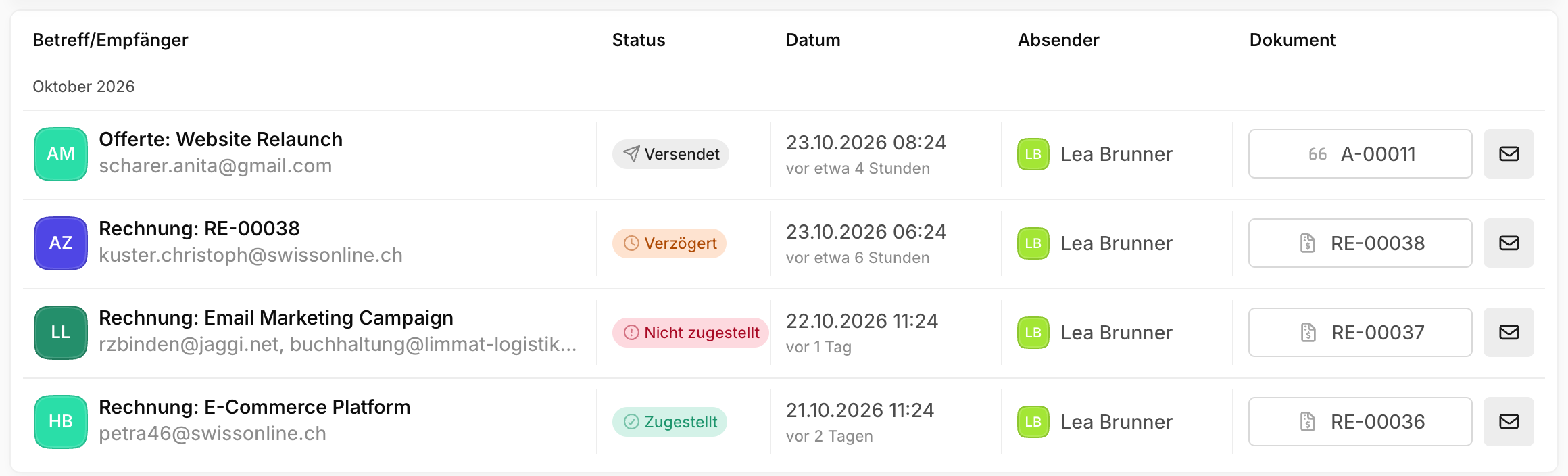
| Sent | Blond has handed the email over for sending. The recipient's server hasn't reported back yet. |
| Delayed | The recipient's mail server postponed accepting it for now. Blond keeps trying automatically. |
| Delivered | Every recipient's mail server accepted the email. |
| Not delivered | The email was rejected for at least one recipient. Blond shows you the mail server's reason. |
Usually the status moves from Sent to Delivered within seconds. Delayed isn't an error: many mail servers deliberately turn away new senders on the first attempt and accept the email on the next one. If delivery still fails after several attempts, the status changes to Not delivered.
Note
If an email has several recipients, it counts as Not delivered as soon as a single recipient rejects it — even if it reached all the others. The BCC copy to yourself counts as a recipient too.
Where you see the status
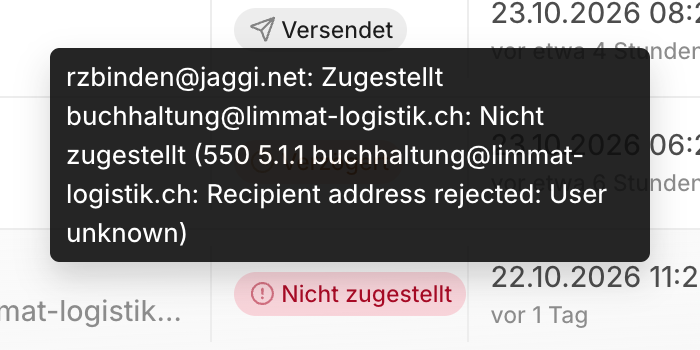
Outgoing mail: Every email has a coloured badge in the Status column. Hover over it to see the status per recipient and — if the email was rejected — the reason. You'll find Outgoing mail at the bottom of the sidebar or at https://app.blond.swiss/outgoing-mail. More on it in Set up emails.
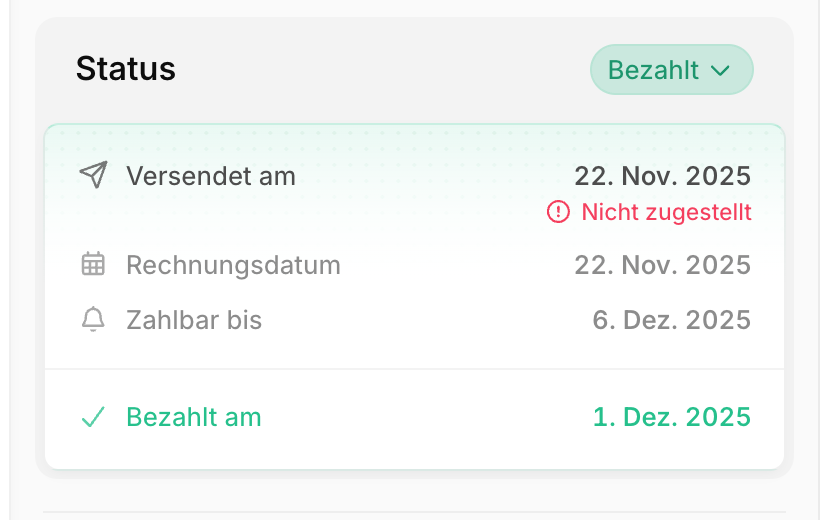
Invoice: In the invoice's Status block, a small line under Sent at shows the delivery status of the most recent email — either the invoice itself or a payment reminder. Hover over it to see the individual recipients here too.
Activity: If an invoice or quote couldn't be delivered, its history gets an Email not delivered entry. Open it via ⋯ → Activity in the detail view.
Notification: You also get a notification in Blond (the bell in the top right), with a link straight to the document. It goes to whoever sent the email. For automatically sent payment reminders, it goes to the owner of the company account.
When an email wasn't delivered
Read the reason in the status tooltip. It comes straight from the recipient's mail server.
Check the email address on the contact. Most of the time it's a typo or an address that no longer exists. Fix it, or ask the customer for the right address.
Send the document again with Send to ....
| Reason (example) | What's usually behind it | What to do |
|---|---|---|
| "User unknown", "Mailbox does not exist", "550 5.1.1" | The address doesn't exist | Fix the address on the contact and send again |
| "Mailbox full", "Quota exceeded" | The recipient's mailbox is full | Send again later or reach the customer another way |
| "Blocked", "Spam", "Policy" | The recipient's server refused the email | Ask the customer to allow your sender address |
TIP
If you send from your own domain, a verified domain keeps recipient servers from rejecting your emails as spam. See Sending from your own domain.
Reason "Bounced Address" or "Invalid"
Once an address has been rejected for good, the sending service stops delivering further emails to it for a while. If the address works again in the meantime (e.g. because the mailbox was set up again), contact support so we can lift the block.
What the status doesn't tell you
Delivered doesn't mean read: The status only shows that the recipient's mail server accepted the email. Whether it lands in the inbox or the spam folder is invisible to Blond.
No read receipts: Blond deliberately doesn't track whether or when an email was opened. That kind of tracking is unreliable (Apple Mail, for example, opens emails automatically in the background) and intrudes on your customers' privacy.
No status with your own SMTP server: If you send through your own SMTP server, Blond gets no feedback. The email stays on Sent in Outgoing mail: it left Blond, but nothing is known about its delivery. In that case, bounces arrive directly in your own mailbox.
Older emails: Emails sent before delivery status was introduced also stay on Sent.