
Setting up your team
Define breaks, monthly confirmation, vacation entitlement and public holidays, and activate working time and the vacation account for your team members.
Beta
The Team area with working time and absences is in beta and not yet available to all organizations. It's part of the Voll Blond plan. If it's missing from your sidebar, contact support.
Basic settings
When you open Team for the first time, Set up your team takes you through the basic settings in three steps: working time, vacation account and public holidays. Later, you change them under Settings → Human Resources.
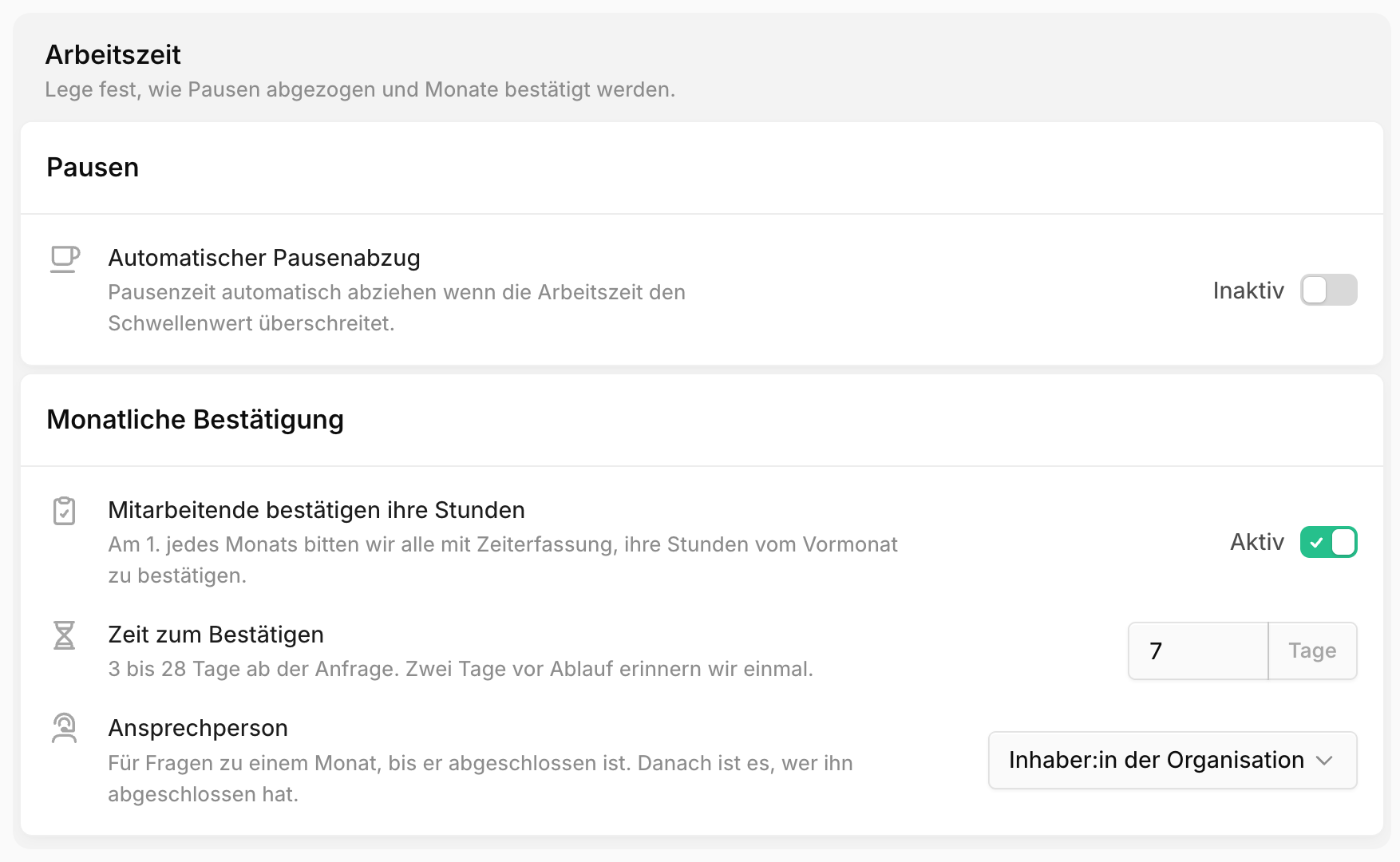
| Setting | Default | Effect |
|---|---|---|
| Automatic break deduction | Inactive | If someone records less break than specified here, Blond deducts the difference as soon as the day exceeds the working time you set. The deduction is saved per day. Changing the setting only affects new days |
| Employees confirm their hours | Active | On the 1st of the month, Blond asks everyone with working time tracking to confirm the previous month's hours |
| Time to confirm | 7 days | Deadline from the request, 3 to 28 days. Blond reminds once, two days before it ends |
| Contact person | Owner | Listed on the timesheets as the contact for questions. After closing, it's whoever closed the month |
| Default annual entitlement | 25 days | Suggestion when activating a vacation account. Can be adjusted per person |
Recording, not judging
Blond records when work was done and gives you a complete record. It doesn't check labour law requirements such as rest periods, breaks or maximum working hours.
Public holidays
Public holidays appear in the team calendar and don't count as vacation days. Choose your Canton, and Blond takes over its public holidays by name for the current and the next year.
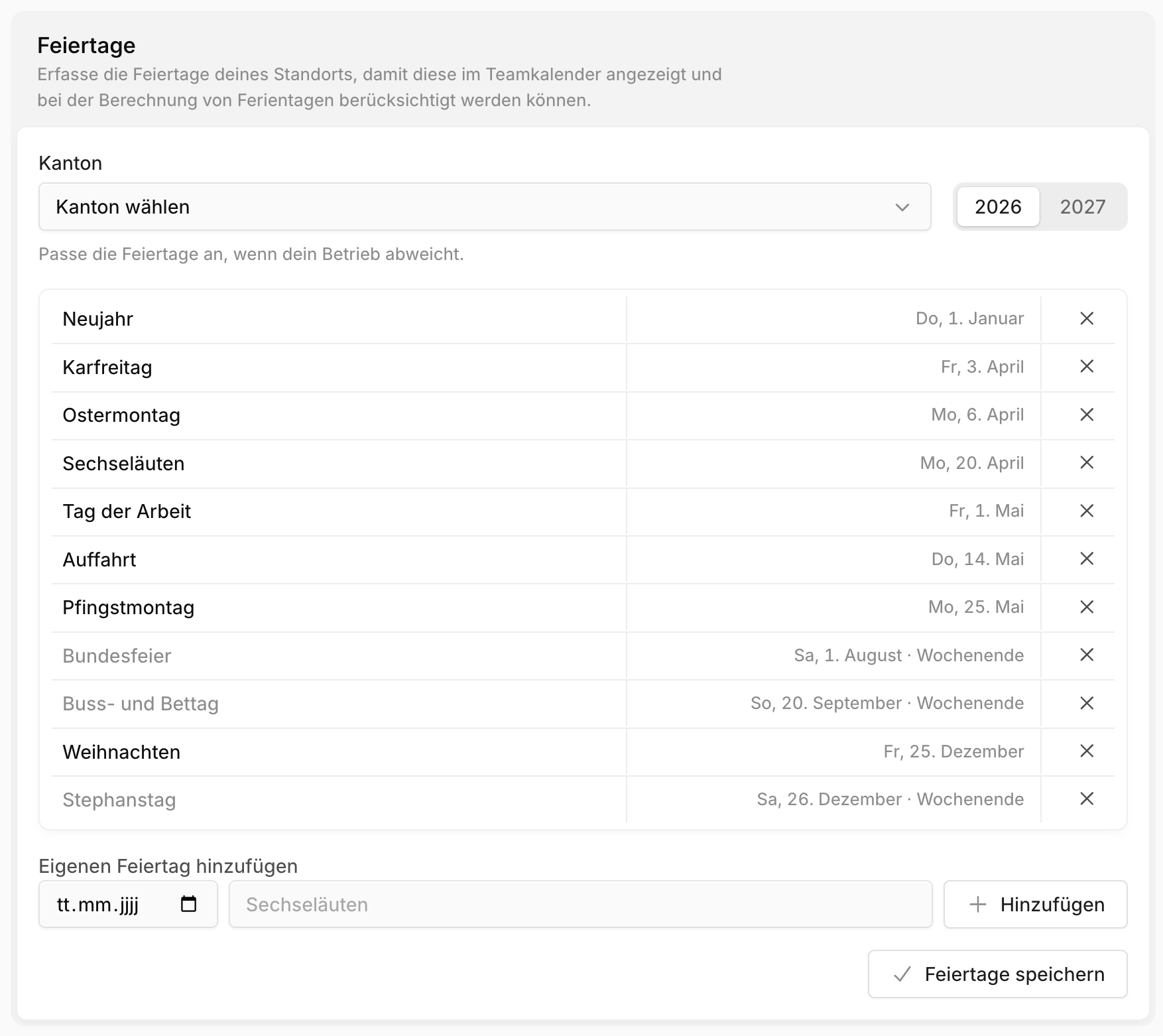
If your business differs, remove individual days or add your own with Add your own holiday. In the settings, you save the list with Save holidays. The Save button further up only applies to the other settings.
Warning
If you choose a different canton later, Blond replaces the public holidays of both years, including the ones you added yourself.
Activating team members
You activate working time and the vacation account per person. Open Team → Members and click the person.
Enable working time tracking (Working time tab): Choose the start date and the work schedule. If the person has already tracked project time, Blond offsets it with an initial balance so the time account starts at zero.
Activate vacation account (Absences tab): Enter the entry date and the annual entitlement. With Prorate first year, Blond calculates the entitlement in the year of entry based on the month of entry. After that, Blond credits the annual entitlement automatically every year.
The person gets an email for both steps.
Work schedule
The work schedule sets the target hours per weekday. Blond uses it to calculate the time balance and vacation days.

The schedule changes: Don't change the existing schedule. Add a new one with a start date using Add work schedule. That way earlier months stay calculated correctly.
With time tracking: Defines whether the person has to clock in and out during this schedule.
Weekly maximum working time: The working time export reports hours above it as overtime (Überzeit), see Overtime and weekly maximum.
| Maximum working time | Applies to |
|---|---|
| 45 hours (default) | Industrial businesses, office and technical staff, other employees, sales staff in large retail businesses |
| 50 hours | Everyone else |
Corrections
On the person's page, use Add correction to record bookings that don't result from tracking:
| Account | Types |
|---|---|
| Time account | Initial balance, Overtime payout, Correction, Carry over |
| Vacation account | Annual entitlement, Carry-over, Correction |
Time account corrections in a closed month are only possible once you reopen the month.
Who can do what
| Task | Who |
|---|---|
| Track your own working time, request absences, see the team calendar | All team members |
| Decide on requests | The supervisor set in the profile, otherwise the owner |
| Review the team's working time, close and reopen months | Administrators |
| Change settings and public holidays | Administrators |
You set the supervisor in the personnel data.