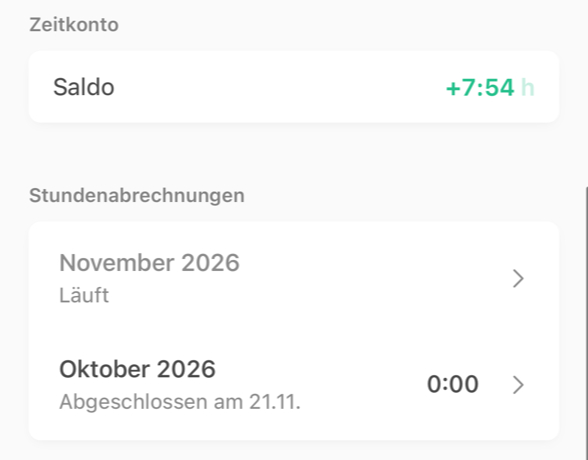
Checking and confirming your timesheet
Look at your working time month by month, confirm your hours and download the timesheet as a PDF.
Beta
Timesheets are part of working time tracking in the Team area. It is in beta and not yet available to all organizations. It's part of the Voll Blond plan.
Where to find them
In the sidebar, open Time tracking → Timesheets. You see every month since your working time has been tracked, with the newest at the top.
| Status | Meaning |
|---|---|
| In progress | The month isn't over yet. The target counts up to yesterday, so the figures still change |
| Not closed yet | The month is over, you can still correct your days |
| Please confirm by … | Your organization asks you to confirm your hours |
| Confirmed on … | You have confirmed, the month hasn't been closed yet |
| Closed on … | The timesheet is final, the days are locked |
What the timesheet shows
At the top are the target and the hours worked. The Month balance is the difference, plus any corrections to your time account. Next to it you see your new time balance, the vacation taken with what's left, and the sick days. Then come the weeks with each day: start, end, break and working time.
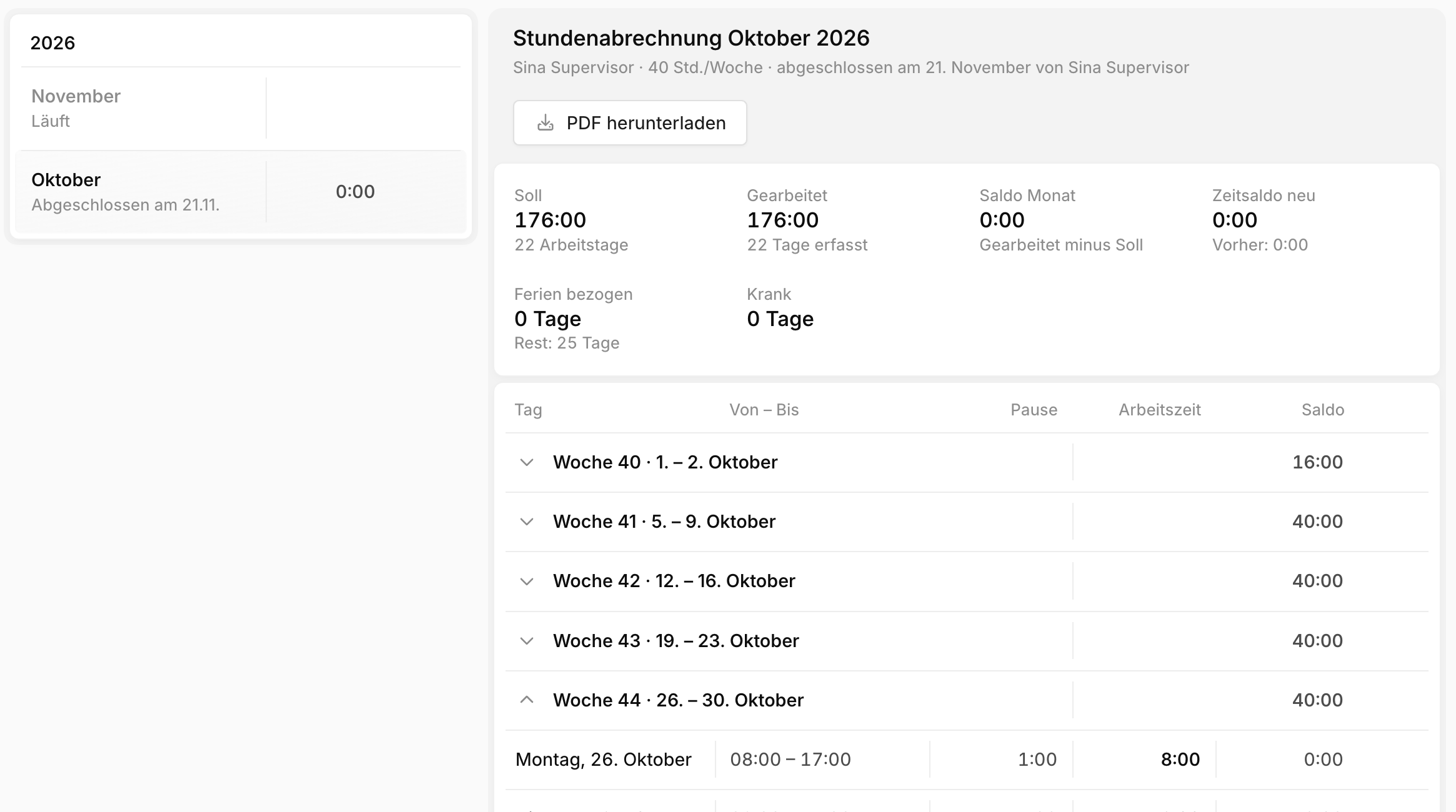
If someone else entered or changed a day, it says so on the day: "Changed by … on …".
Confirming hours
Your organization decides whether you have to confirm. If confirmation is turned on, it works like this:
- On the 1st of the month, Blond asks you to confirm the previous month's hours: by email, in the app and as a push notification.
- Check the timesheet. If something is missing, fill it in first.
- Click Confirm hours.
Two days before the deadline, Blond reminds you once. You can still confirm after the deadline, as long as the month hasn't been closed.
Don't agree?
Don't confirm. Under Something not right? you see who looks after your time tracking. Write to that person. If you don't respond, your organization can still close the month after the deadline. The timesheet then records: "not confirmed".
If you didn't have a single entry in a month, you won't be asked.
After closing
As soon as your organization closes the month, you get a notification. The timesheet no longer changes. Use Download PDF to save it for your records.
If something has to be corrected afterwards, your organization reopens the month. You're told about it, including the reason. After the next closing you get a new timesheet, marked as Corrected version. The earlier version stays available. Your confirmation stays in place, but the new timesheet records that you gave it before the correction.
In the app
From version 1.8 of the Blond app, you'll find your timesheets in the Time tab. With an older version, the push notification opens the timesheet in the browser.