
Tracking working time
Clock in and out, record breaks and fill in days you forgot.
Beta
The Team area with working time and absences is in beta and not yet available to all organizations. It's part of the Voll Blond plan. You only track working time if your organization has enabled it for you.
Working time records when you worked: start, end and breaks per day. What you worked on is tracked separately as project time.
Clocking in and out
The Clock in button sits at the top right of the header. While you're clocked in, it shows your running working time. Click it to open an overview of the day: time worked, breaks and your daily target.
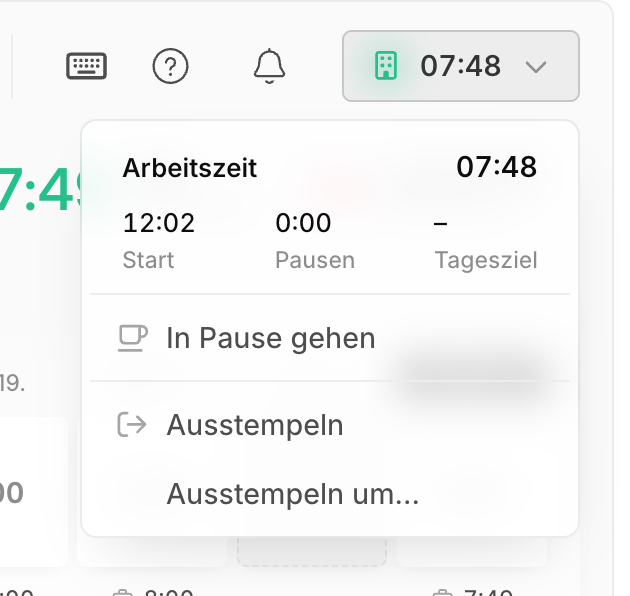
| Action | What happens |
|---|---|
| Take a break / Resume work | The break is saved with its start and end |
| Clock out | Ends the day at the current time |
| Clock out at... | You enter the end of work yourself, e.g. if you forgot to clock out |
| Resume work (after clocking out) | Continues today's entry. The time since you clocked out counts as a break |
There is one entry per day. If you start a project timer without being clocked in, Blond clocks you in automatically.
On the go
On your phone, the button in the header isn't there. Clock in with the Blond app instead.
What Blond handles for you
| Situation | What Blond does |
|---|---|
| Break shorter than a minute | Isn't saved, e.g. after an accidental click |
| Forgot to clock out | If an entry runs longer than 14 hours, Blond ends it during the night. As the end of work, Blond assumes your start plus your target for that day. The day is marked as Ended automatically, and you're notified by email, in the app and on your phone |
| Too little break recorded | If your organization has turned on the automatic break deduction, Blond deducts the missing minutes. The entry then shows e.g. "Incl. 30 min automatic break deduction" |
Warning
A day that was closed automatically is an assumption. Check the end of work and correct it, otherwise your time balance will be wrong.
An automatic break deduction has no time of day. If it should be visible when you took your break, record it yourself.
Checking and adding days
Under Projects → Time tracking you see your working days as rows, together with your time balance. A day without working time is labelled No entry.
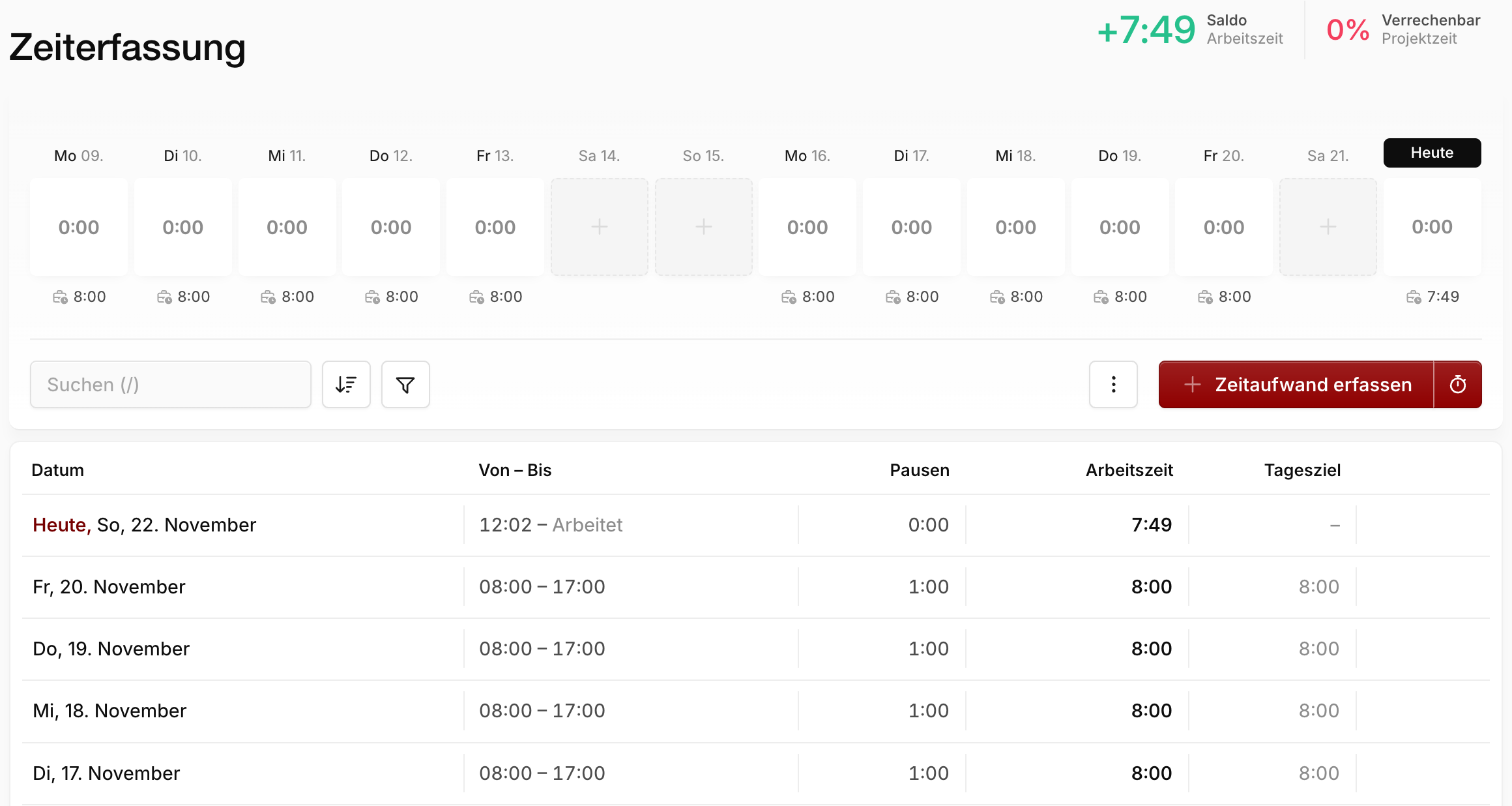
Click a day to add or change the working time: start of work, end of work and breaks. You don't need to fill in days with an approved absence.
Closed months
Once your organization has closed a month, its days can no longer be changed or filled in. If something isn't right, contact the person listed as the contact on your timesheet. They can reopen the month.
Exporting your own working time
In the three-dot menu of time tracking you'll find the Export working time section (Excel or CSV). What the export contains is described under Exporting working hours.