
Absences and vacation
Request vacation and other absences, decide on your team's requests and keep an eye on the team calendar.
Beta
The Team area with working time and absences is in beta and not yet available to all organizations. It's part of the Voll Blond plan.
The team calendar
Under Team → Absences (for members: Absences in the sidebar), the team calendar shows who is away when. Public holidays are included.
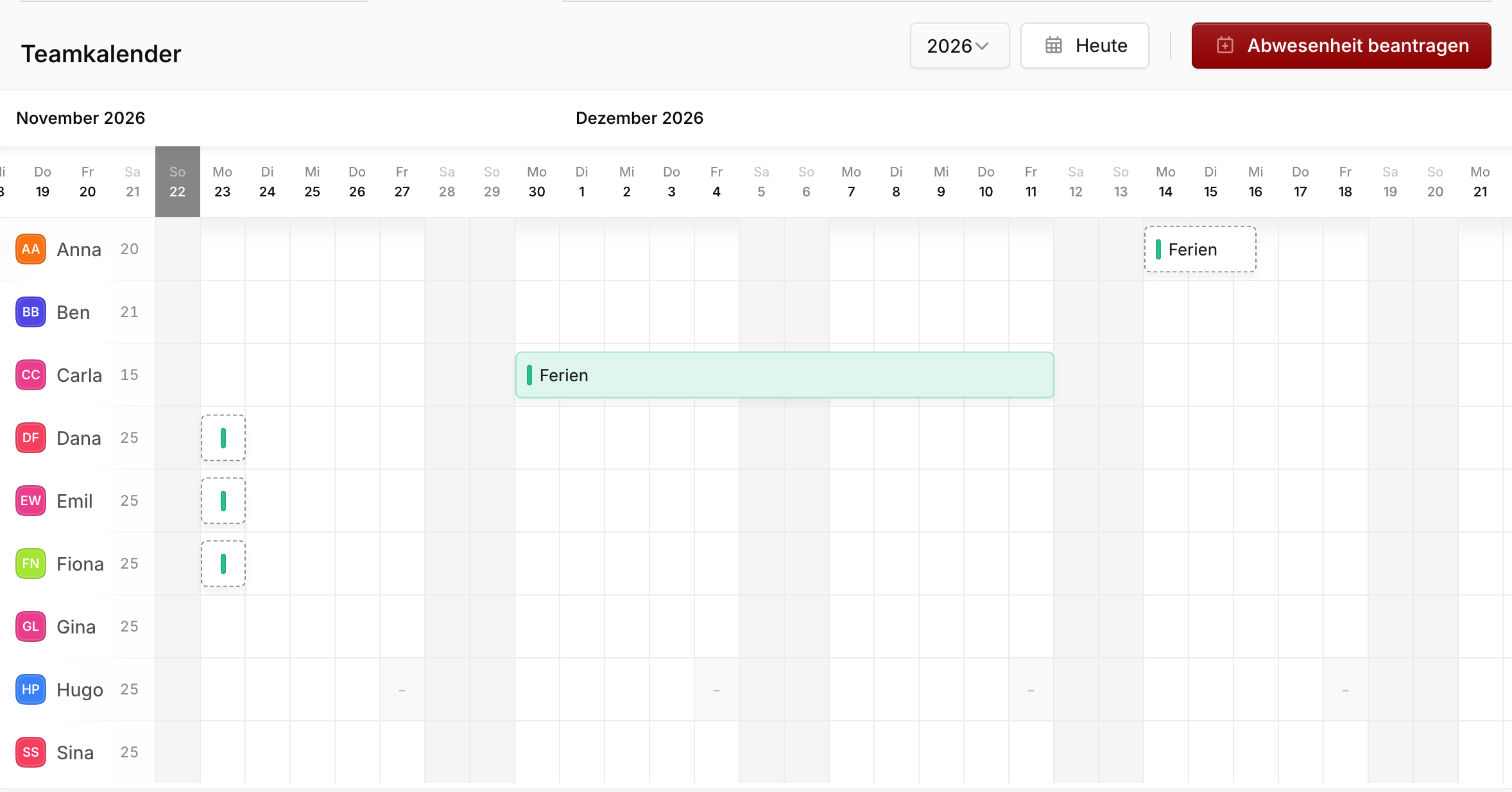
What exactly is behind an absence is only visible to the person concerned, the approver and supervisors.
Requesting an absence
Click Request absence, then choose the type and the first and last day.
Half days: For the first day you choose Full day or From noon, for the last day Full day or Until noon. A half day counts as half a vacation day.
Preview: Before you send, Blond shows how many vacation days the request costs, how many you have left afterwards and who it goes to. Public holidays and days on which you don't work according to your work schedule don't count as vacation days.
Send request sends the request to the approver. They're notified by email, in the app and by push notification.
| Situation | What applies |
|---|---|
| Who decides? | Your supervisor. If none is set, the owner of the organization |
| Vacation across the turn of the year | The days are counted per year and charged to the vacation account of the respective year |
| You already have an absence during that time | Blond rejects the second one. Change or delete the existing one first |
| The period touches a closed month | Not possible until the month has been reopened |
| No approval is needed | The button is called Add absence, and the absence applies immediately |
Withdrawing a request
As long as a request is open, it's listed under My requests with the note "Waiting for …". Open it and choose Withdraw request. It then also disappears for the approver.
A request that has already been approved can only be changed by the approver.
TIP
If your request is still open three days before it starts, Blond reminds you. It's best to ask directly then.
Deciding on requests
When a request is waiting for you, Team in the sidebar shows a number. The requests are listed above the team calendar under Requests to approve.
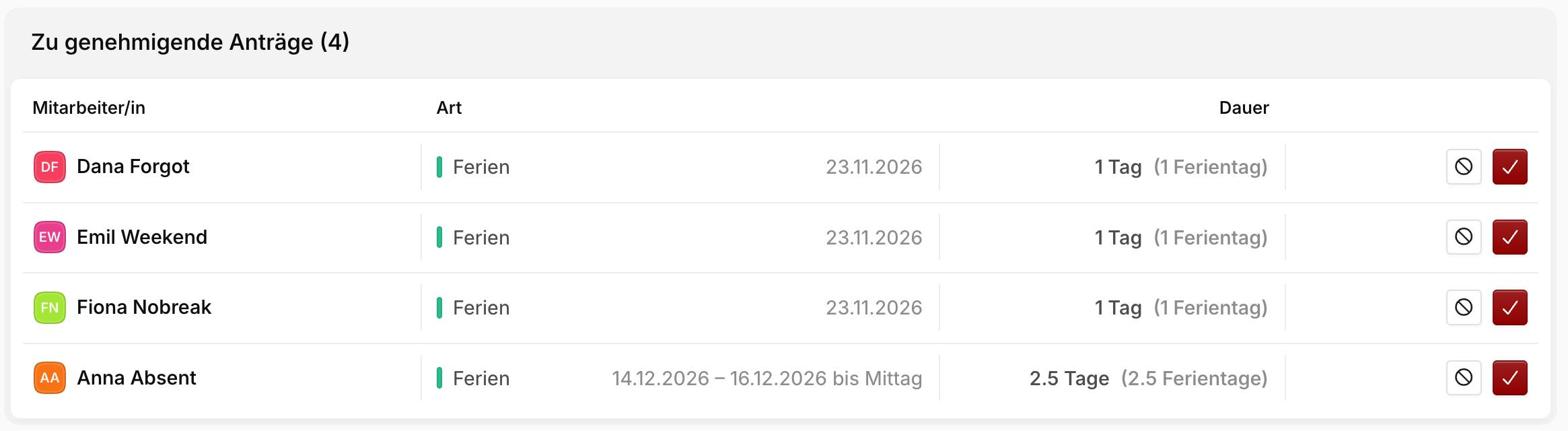
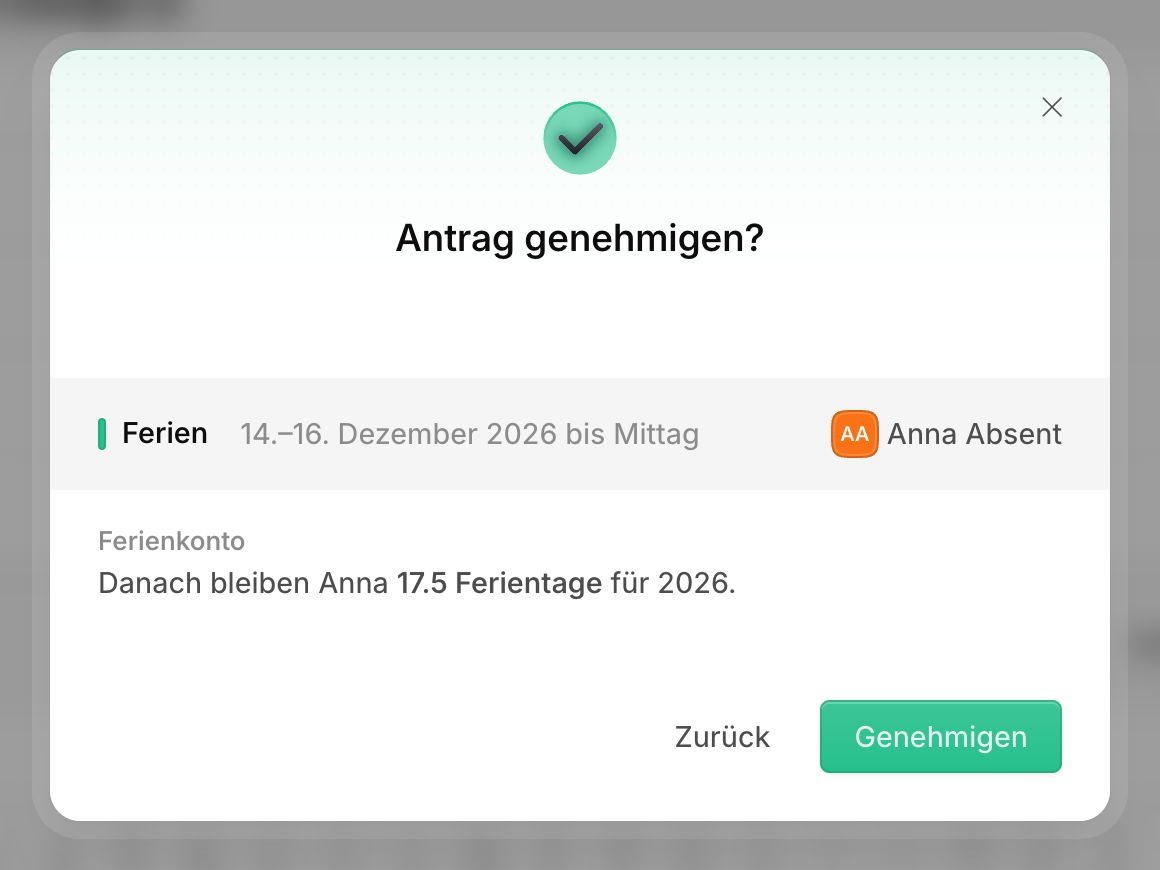
Approve and Reject open a dialog with what you need for the decision: how many vacation days the person has left afterwards and who is absent or has requested time off at the same time. If you reject, you can give a reason. It's shared with the person.
Adding for someone else: If you add an absence for another person as a supervisor or administrator, it's approved right away. The person is notified.
Vacation account
How many vacation days a person is entitled to, has taken or planned, and has left is shown on their page under Team → Members, in the Absences tab. How to activate and correct the vacation account is described under Setting up your team.
Subscribing to the calendar
Below the team calendar you'll find the Calendar integration field with a link and a copy button. Subscribe to this link in your calendar (iCal, Google Calendar, Outlook) to see your team's absences there.
Warning
Anyone who knows the link can see the absences. Only share it internally.
In the app
In the Blond app, you request, decide on and withdraw requests in the Absence tab.