
Reviewing working time and closing the month
Go through your team's working time month by month, clear up gaps and close the month per person.
Beta
The Team area is in beta and not yet available to all organizations. It's part of the Voll Blond plan. The monthly overview is visible to administrators.
Reading the monthly overview
Open Team → Working time. Blond shows the oldest month that isn't closed for everyone yet. Use the year bar to switch months.
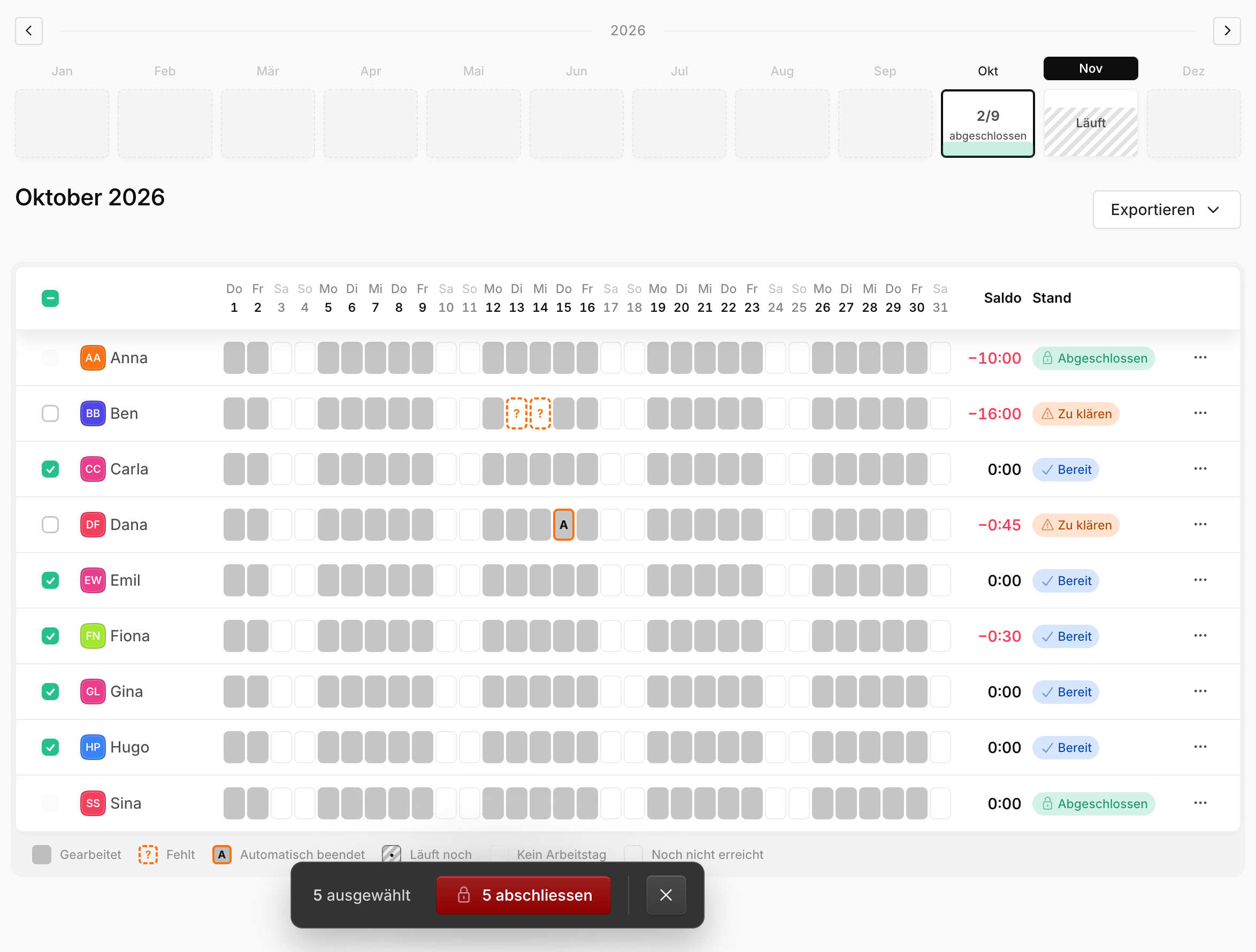
Each row is a person, each column a day. Hover over a day to see times, break and target. A click opens the day for editing.
| Symbol in the day | Meaning |
|---|---|
| Filled cell | Worked |
| ? | Missing: no entry and no absence |
| A | Ended automatically because clocking out was forgotten |
| • | The entry is still running |
| V, S, I, M | Vacation, sickness, accident, military or civilian service |
| Empty cell | Not a working day for this person |
The Balance is the time worked minus target, plus corrections to the time account in this month. In the current month, the target counts up to yesterday.
The Status column tells you what the month needs from you:
| Status | Meaning |
|---|---|
| Open | Nothing has happened yet |
| Requested | The person was asked to confirm and hasn't done so yet |
| To clarify | A day is missing or was ended automatically |
| Ready | Nothing to clarify and, if requested, confirmed |
| Closed | The days are locked, the timesheet has been created |
Clearing up gaps
Below the overview, the Hints card lists what stands out: missing days and entries that were ended automatically. The hints don't hold up closing. You decide what to do with them.
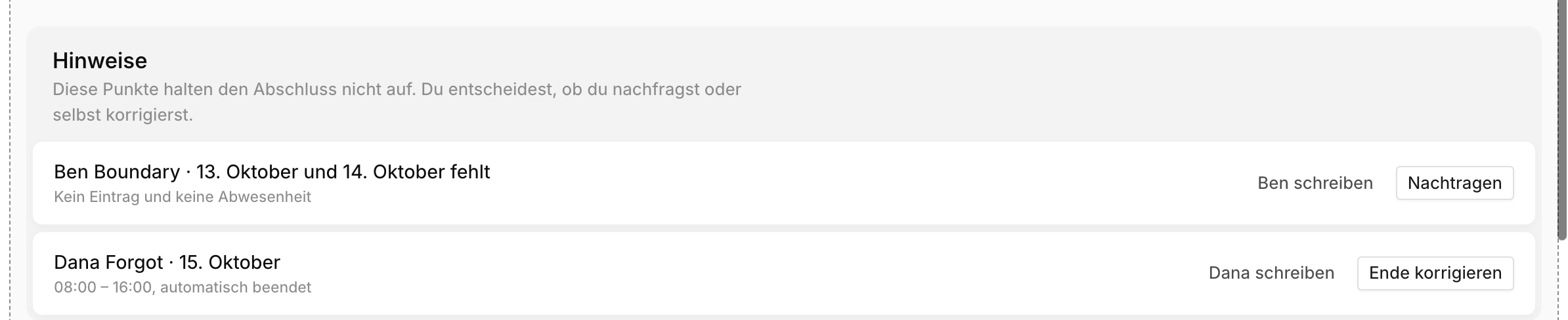
Fill in or Correct end: You record the day yourself. The person's timesheet then says that you changed the day.
Write to …: Opens a prepared email in your mail program, with the days concerned. Blond itself doesn't send anything here.
TIP
Blond doesn't check labour law requirements such as rest periods or maximum working hours. The overview shows what has been recorded and what is missing. The assessment stays with you.
Confirmation by team members
If the monthly confirmation is turned on, on the 1st of the month Blond asks everyone who has at least one entry in the previous month to confirm their timesheet. Above the table you see when the request went out, how many have confirmed and when the deadline ends.
Anyone who hasn't confirmed yet can be reminded: select the people and click Remind … people at the bottom. Blond also sends a reminder on its own two days before the deadline.
Anyone who doesn't agree gets in touch with the contact person. Months before confirmation was turned on are never requested.
Closing the month
Closing is done per person. People with the status Ready are already selected. Adjust the selection and click Close … at the bottom. To close a single person, use the three-dot menu in their row.
Closing does the following:
- The person's working time entries in this month are locked
- The person gets their timesheet and a notification
- Absences and time account corrections in this month can no longer be added or changed
| Situation | Can you close? |
|---|---|
| An entry is still running | No. End it first |
| The month isn't over yet | No |
| Days are missing or were ended automatically | Yes |
| The person hasn't confirmed | Yes. The timesheet shows "not confirmed" |
You can also close older months after the fact. Anyone who has left stays listed in their months, marked as Left.
Locking per day
The former Locking of individual days or periods no longer exists. Closing the month is the only lock.
Reopening a month
If something isn't right after closing, choose Reopen in the person's three-dot menu and give a reason. The reason is shared with the person.
After that, the days can be edited again. If you close again, a new timesheet replaces the old one. The earlier version stays in the history. If the person had confirmed, the confirmation stays in place. The new timesheet records that it was given before the correction.
Exporting
Use Export to download the displayed month as a PDF, Excel or CSV file. The export is the complete record: start and end, breaks, automatic break deduction, weekly total and overtime (Überzeit). Details under Exporting working hours.
You'll also find a single person's months on their page under Team → Members, in the Working time tab.