
Reconciling transactions (bank reconciliation)
Match the movements on your bank, cash and credit card accounts with invoices, expenses and your accounting.
Prerequisites
Set up your accounts: The accounts you want to reconcile must exist under Company → Settings → Banking. See Adding a bank account, cash box or credit card.
Link accounting accounts: If you do your bookkeeping in Blond, link every payment account to an accounting account — otherwise Blond can't create the counter-entries automatically.
Electronic bank statement: You need a statement from your bank in camt.053 format (XML) or a CSV file, e.g. from your credit card statement. With most banks you order CAMT files once in your e-banking and can download them there afterwards.
Importing transactions
Open the Payments area in the sidebar and click Import transactions.
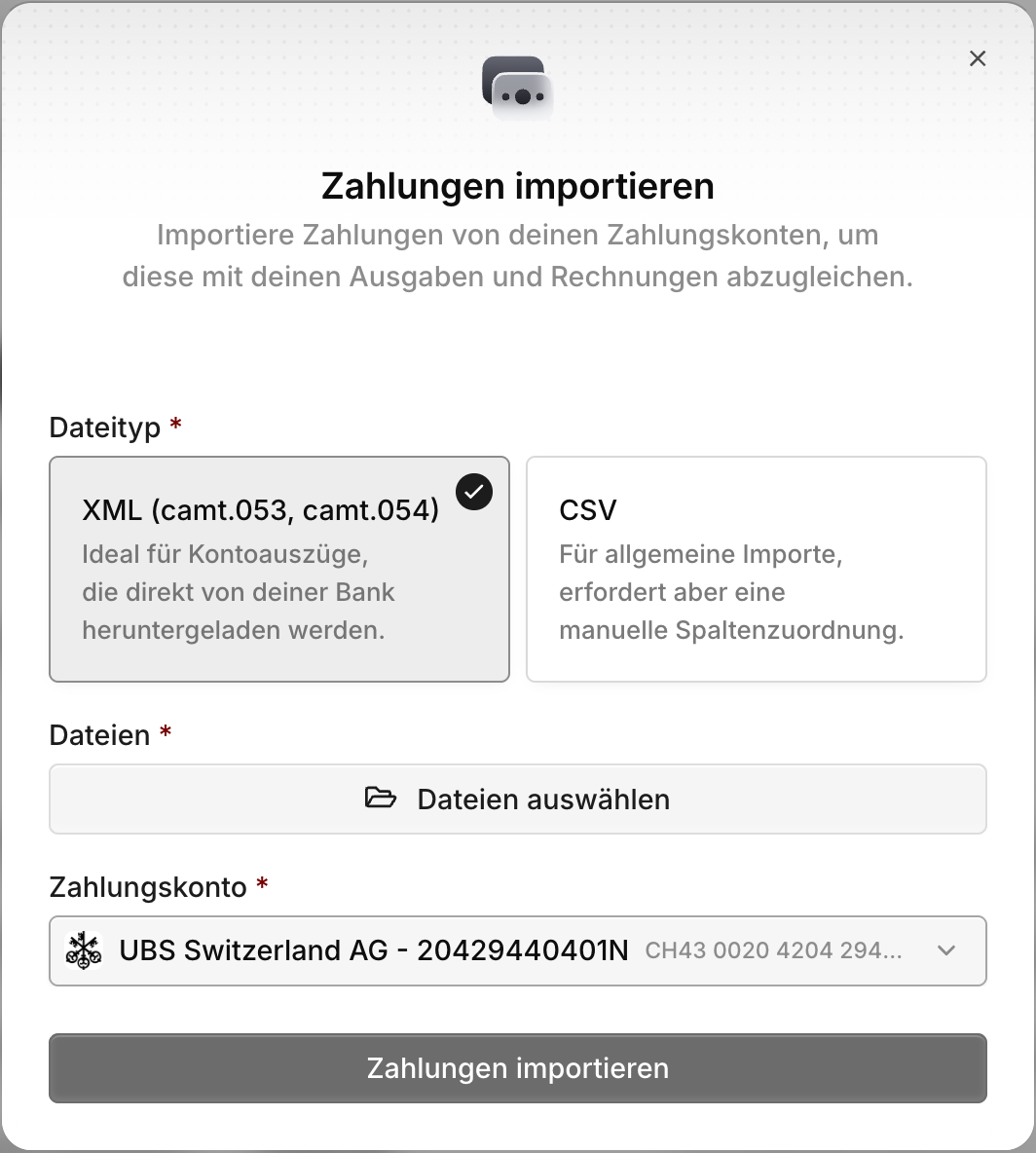
XML (CAMT): Ideal for statements downloaded directly from your bank. You can upload several .xml or .zip files at once.
CSV: For all other sources, such as credit card statements. After uploading you map the columns of your file to the fields in Blond (date, amount, description and so on).
Account: The payment account the transactions are imported to.
Duplicates
Uploading the same file twice is harmless — Blond recognizes transactions it has already imported and skips them. To undo an accidental import, use Delete unmatched transactions.
Reconciling transactions
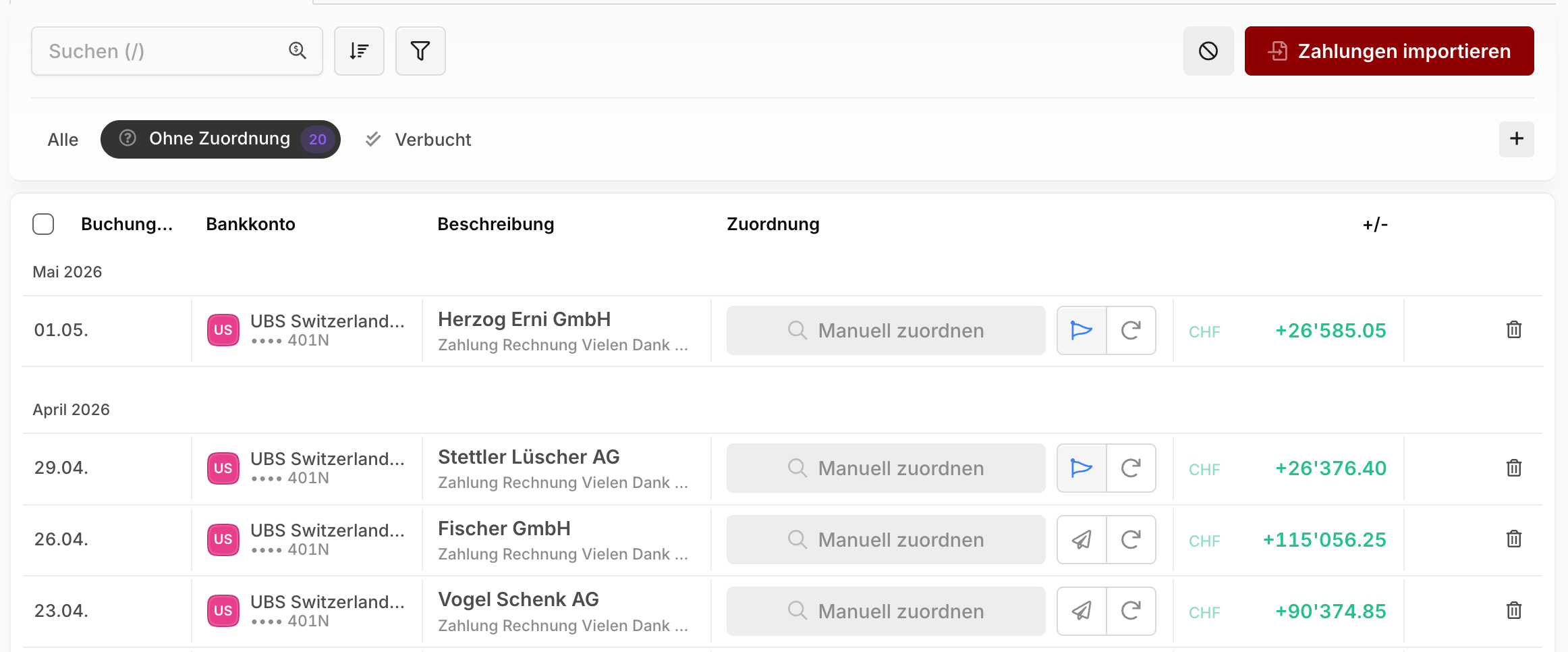
After the import, all new transactions appear in the Unreconciled tab. The goal is to assign each transaction to an entry in the system — only then does it count as reconciled.
Automatic matching
Blond tries to match as many transactions as possible automatically. Next to each transaction you see the result:
| Suggestion | Meaning |
|---|---|
| Exact match | Unambiguous match via a reference number, usually from QR payments |
| Suggestion | Possible match based on date, amount and description — needs your confirmation |
Confirm suggestions one by one with the check mark, or confirm all exact matches in one go.
Matching manually
If Blond made no match or a wrong one, remove the suggestion and click Match manually. You can also split the transaction amount across several entries:
Manual entry: Creates an entry directly in your accounting, e.g. for bank fees. Only visible if accounting is enabled and the payment account is linked to an accounting account.
Invoice: Records an incoming payment on one of your invoices (credits only).
Expense: Assigns the transaction to a receipt, marks a supplier invoice's payment order as executed, or creates a new payment on a supplier invoice directly.
Customer booking: Books the transaction as a credit or debit on a customer's customer account.
Undoing a match
You'll find a wrongly reconciled transaction in the Reconciled tab — use Undo reconciliation to release the match at any time.
Matching open invoices (QR reconciliation)
If you don't do your bookkeeping in Blond and just want to know which customers have paid, there's a simpler way: QR reconciliation under Invoices → QR reconciliation.
Upload a bank statement there — we recommend a camt.054 file, which contains only credits. On the left you see your bank's movements, on the right the matching open item:
- Confirm correct matches with the check mark — the invoice is marked as paid.
- If Blond doesn't find a matching invoice, pick it from the list yourself.
- Open payment orders are recognized too: you can confirm debits directly as executed payments of a supplier invoice.
QR reconciliation doesn't import transactions and doesn't create accounting entries — it only records payments on invoices.
TIP
If you run your accounting through Blond, use the full bank reconciliation in the Payments area instead (top of this page) — it covers QR reconciliation as well.