
Writing invoices
Learn how to create a new invoice in Blond, add line items, and prepare it for sending.
You create a new invoice from Invoices → + New invoice or directly at https://app.blond.swiss/invoice/create.
TIP
A new invoice is always a draft — it has no invoice number yet and isn't posted anywhere. The number and booking date are assigned only when you lock or send the invoice. As long as it's a draft, you can change anything without consequences.
Fill in the basics
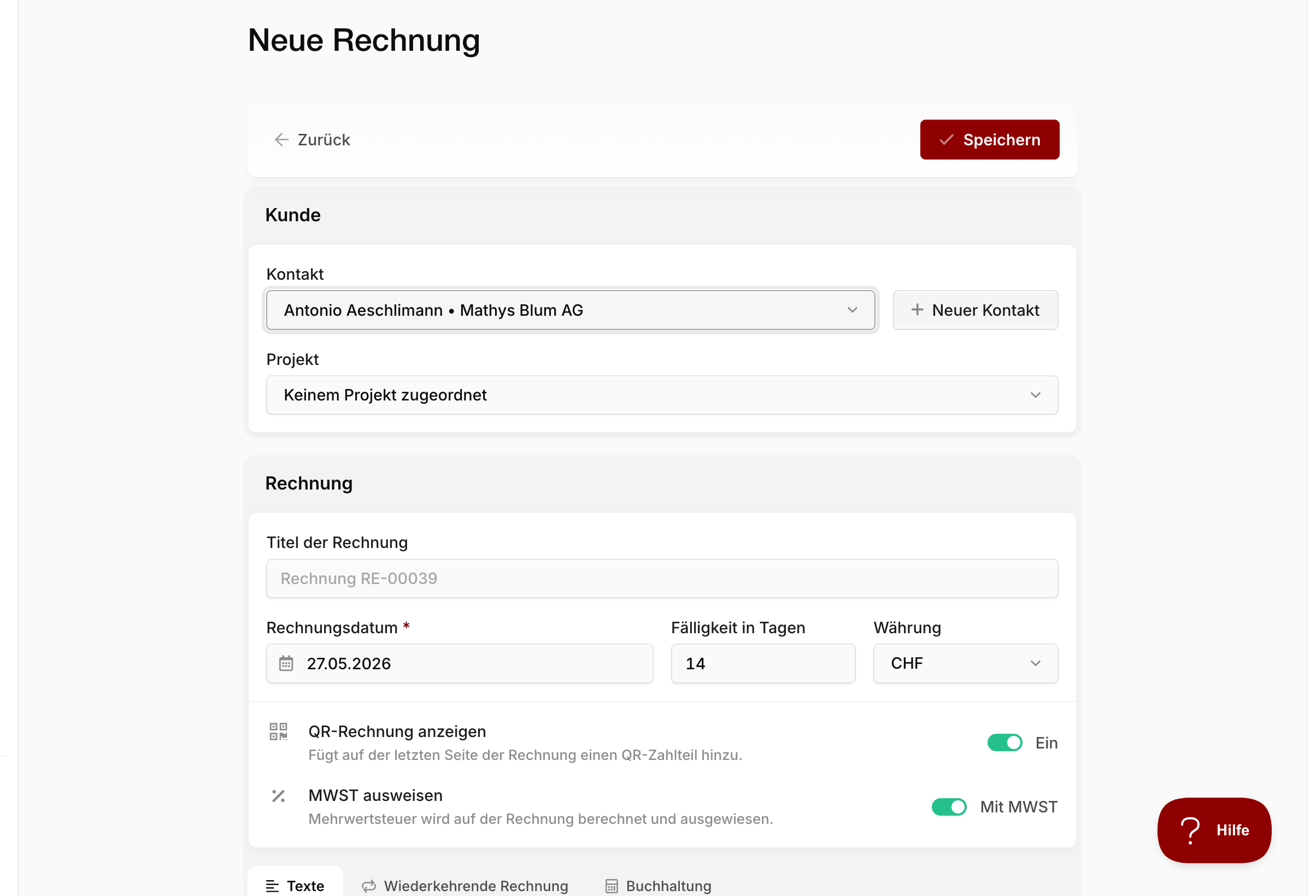
In the first step, you link the invoice to a contact and set the date, payment term, and texts.
Contact: Pick an existing contact or create a new one directly from the search field. The billing address is pulled from the contact and their company — you don't need to type it in.
Project: Optional. If you want to bill hours or expenses from a project, it's easier to create the invoice from the project directly — line items will be filled in for you.
Title: Optional. Leave it blank if a generic title like "Invoice 2026-042" is fine. For a project invoice, Blond suggests the project name.
Due in days: Number of days after the invoice date until the invoice is due. The default comes from your invoice settings.
Show QR-bill: Adds a Swiss QR payment slip at the bottom of the PDF. Available once you've set up a bank account with a QR-IBAN under Banking.
Include VAT: Turn this off if you're not VAT-liable, or for a pure foreign invoice without VAT. The default comes from your company profile.
Note
You can adjust the header and footer of the invoice on the Header & footer tab. They're prefilled from your invoice settings — change them only when you need to say something specific on this one invoice.
Add line items
Once you save the invoice, you land on the detail view. This is where you add line items — the actual content of the invoice.
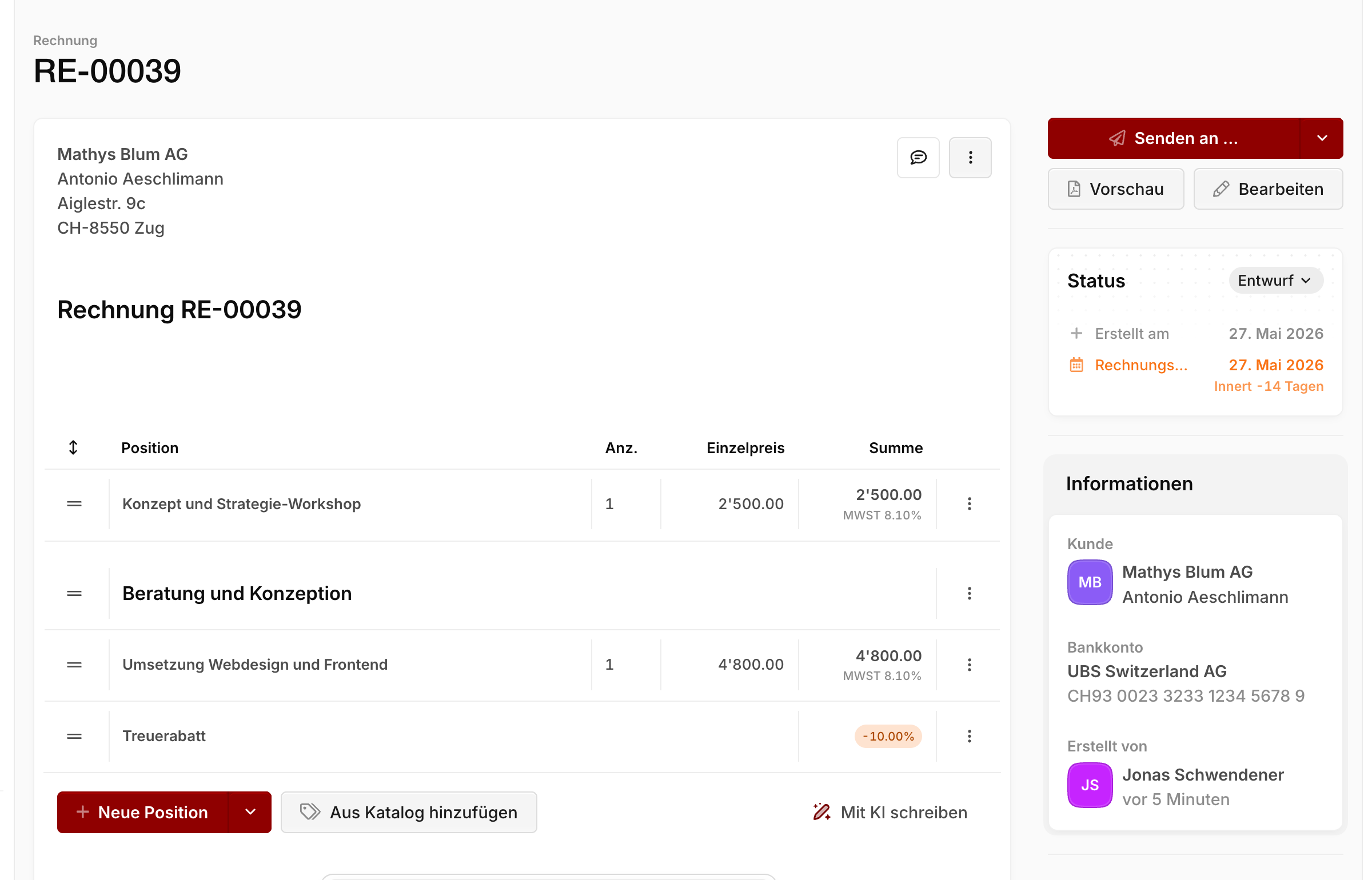
Click + New line item and pick the type:
Standard item: A regular line with name, quantity, unit, and unit price. This is the default.
Heading: A plain text row without an amount — used to group longer invoices into visual sections.
Percentage item: A discount or surcharge in percent — applied to all standard items above it (up to the next subtotal). See Discounts and surcharges.
Subtotal: Shows a running subtotal and resets the reference point for percentage items that come after it.
Important
All prices are net (excl. VAT). VAT is shown separately at the bottom of the invoice.
You can reorder items by dragging the grip handle on the left. As long as the invoice is still a draft, click any item to open it and adjust details — VAT rate, line-level discount, revenue account, or team tag for reporting.
TIP
The PDF viewer in the sidebar gives you a live preview of the invoice at any time, without sending it.
Insert from your product catalog
If you've added recurring products or services to your product catalog, you can drop them into an invoice with a single click.
Below the line items table, click Add from catalog and pick an item. The name, description, unit price, and VAT are copied from the catalog — you can still tweak them on this one invoice without touching the catalog entry itself.
The same works for hourly rates — handy for consulting, service, or time-based work.
Discounts and surcharges
Discounts and surcharges work on two levels in Blond:
Per line item: Open the item and fill in the Discount field with either a percentage or a fixed amount. Negative values act as a surcharge.
On the whole invoice (or a section): Add a percentage item. Positive values are surcharges, negative values are discounts. A percentage item applies to the sum of all standard items above it — up to the next subtotal. So with Subtotal → Percentage item you can discount only part of the invoice.
| Use case | Recommended approach |
|---|---|
| Special price on a single line | Discount field on the line item |
| 10% loyalty discount on the whole invoice | Percentage item at the end of the invoice |
| Volume discount on one section | Subtotal + percentage item right after it |
| 5% rush surcharge | Percentage item with a positive value |
Manual page breaks
Blond places sensible page breaks in the PDF automatically. If a line item lands on the wrong page, you can force a break by hand.
Hover between two line items — a + symbol appears. Click it and choose Insert page break. Clicking the inserted break again removes it.
You can also set global page breaks in the Header & footer tab when creating or editing the invoice — to force a break right after the header or right before the footer.
Creating from a project or quote
You don't need to type every invoice from scratch — two common starting points are projects and existing quotes:
From a project: Go to Sales → Bill projects in the sidebar. Blond pulls in open hours, expenses, and flat-rate items as line items automatically. See Billing projects.
From a quote: Open an approved quote and click Create invoice in the action column on the right. All line items are copied into a new invoice — the quote stays untouched. See Billing a flat rate.
TIP
As long as hours or expenses are linked to a project and haven't been billed, Blond suggests the project for billing on your dashboard.
What's next
Once the invoice is in shape, everything that comes after — sending, payments, reminders, recurring invoices — lives in Sending invoices.