
Creating a project
Learn how to set up a project by hand or generate it straight from a quote.
You create a new project from Projects → Create or directly at https://app.blond.swiss/project/create.
Creating by hand
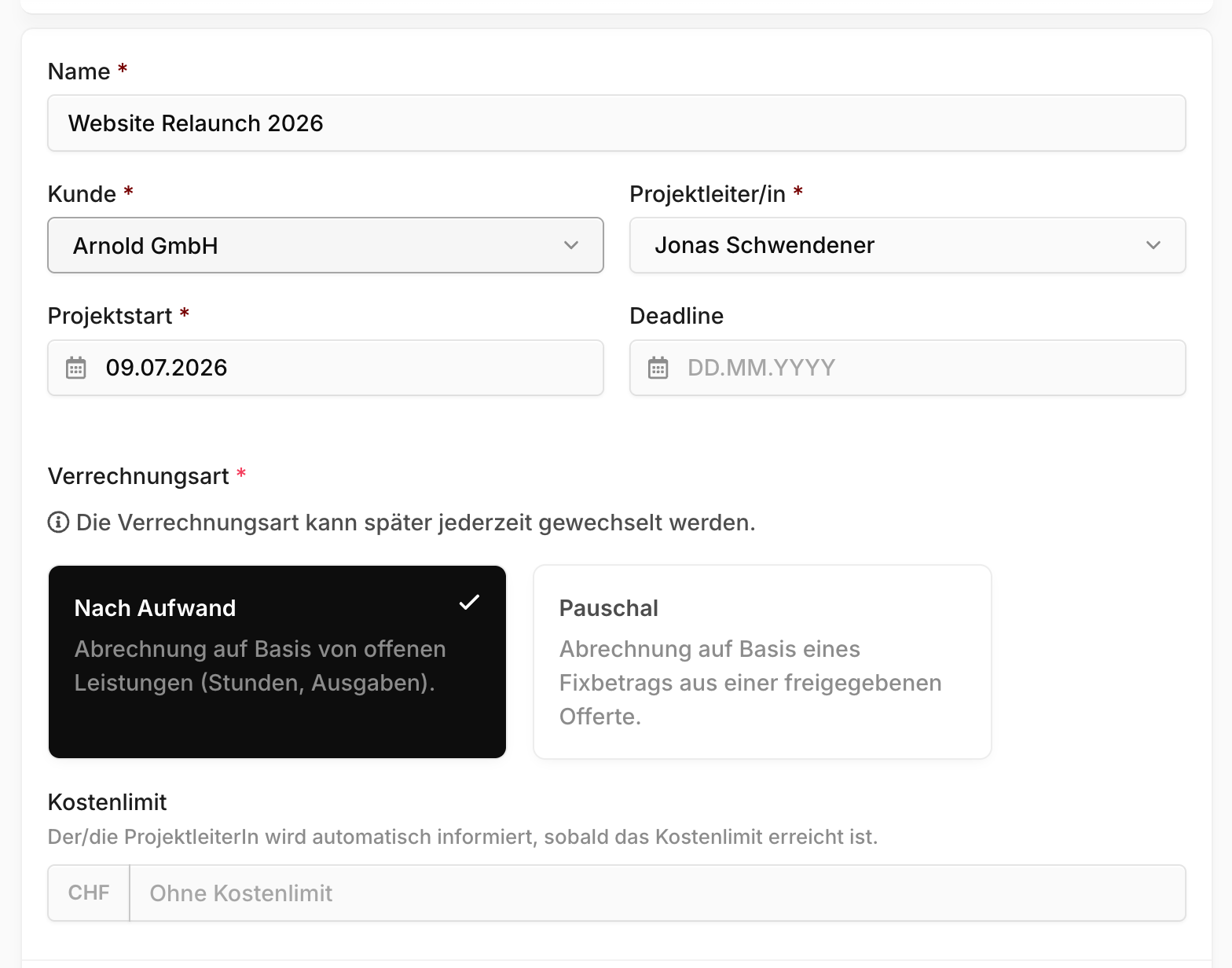
Most fields speak for themselves. These three are worth a second look:
Customer: Links the project to a company from your customers. Every invoice out of this project goes to that customer.
Project manager: This person receives the project's automatic notifications — when the cost limit is hit, or a budget threshold is crossed. So pick whoever should keep an eye on the budget, not necessarily whoever tracks the most hours.
Billing type: Decides whether the project is billed by hours or as a flat rate. If you're unsure, read Project types first. You can change your choice at any time later.
TIP
If you pick Flat-rate, Blond takes you straight to the new-quote form after saving. That's deliberate: a flat-rate project only gets its budget from an approved quote.
Creating from a quote
If you've already written the customer a quote, you don't need to enter the project twice. Open the quote — you'll find Convert to project in the action column on the right.
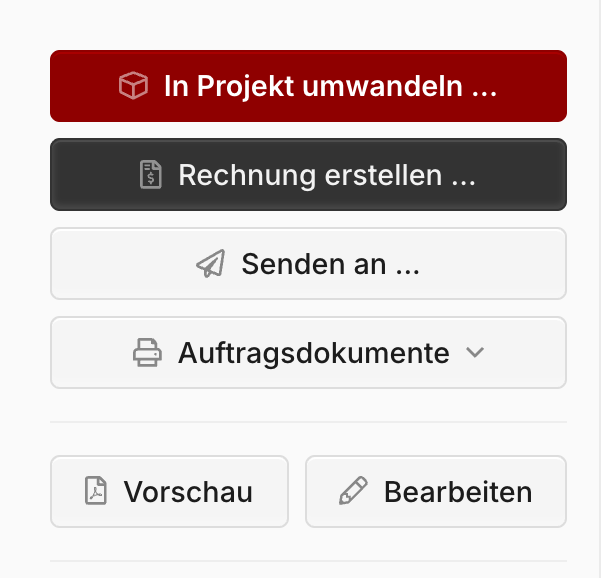
The project is created as a flat-rate project and the quote is assigned to it — its line items form the project budget from then on.
Warning
Convert to project only appears once the quote is approved and doesn't yet belong to a project. On a draft the action doesn't exist: you first have to send the quote, then unlock it with Approve.
Approving on its own still does not create a project — you have to click the button afterwards.
Assigned team members
By default, every team member can track time and expenses on a project. To restrict that, open the project and click Edit — under Assigned team members you pick who's allowed.
The field only exists when editing, not when creating.
Project phases
Large projects can be broken into project phases — sub-projects that roll up into the parent. Each phase carries its own cost limit; its hours and expenses additionally count against the parent project's budget.
In the project overview, the Project phases card lists every phase along with the budget not yet assigned to any of them. You add a new one with the Create project phase button in that card's header.
A phase is itself a project: it has its own detail page and its own time tracking.
Note
A project phase's billing type can't be changed — it follows the parent project.
What's next
- Project types — hourly or flat-rate, and what internal projects are
- Project budget — how quote line items become a budget
- Billing projects — invoicing hours, expenses and flat rates