
Customize the PDF design
Tailor the look of your invoices, offers, order confirmations and delivery notes to match your corporate design — font, colors, logo, letter background and margins.
Find the PDF design under Settings → PDF Design or directly at https://app.blond.swiss/organization/settings/pdf.
TIP
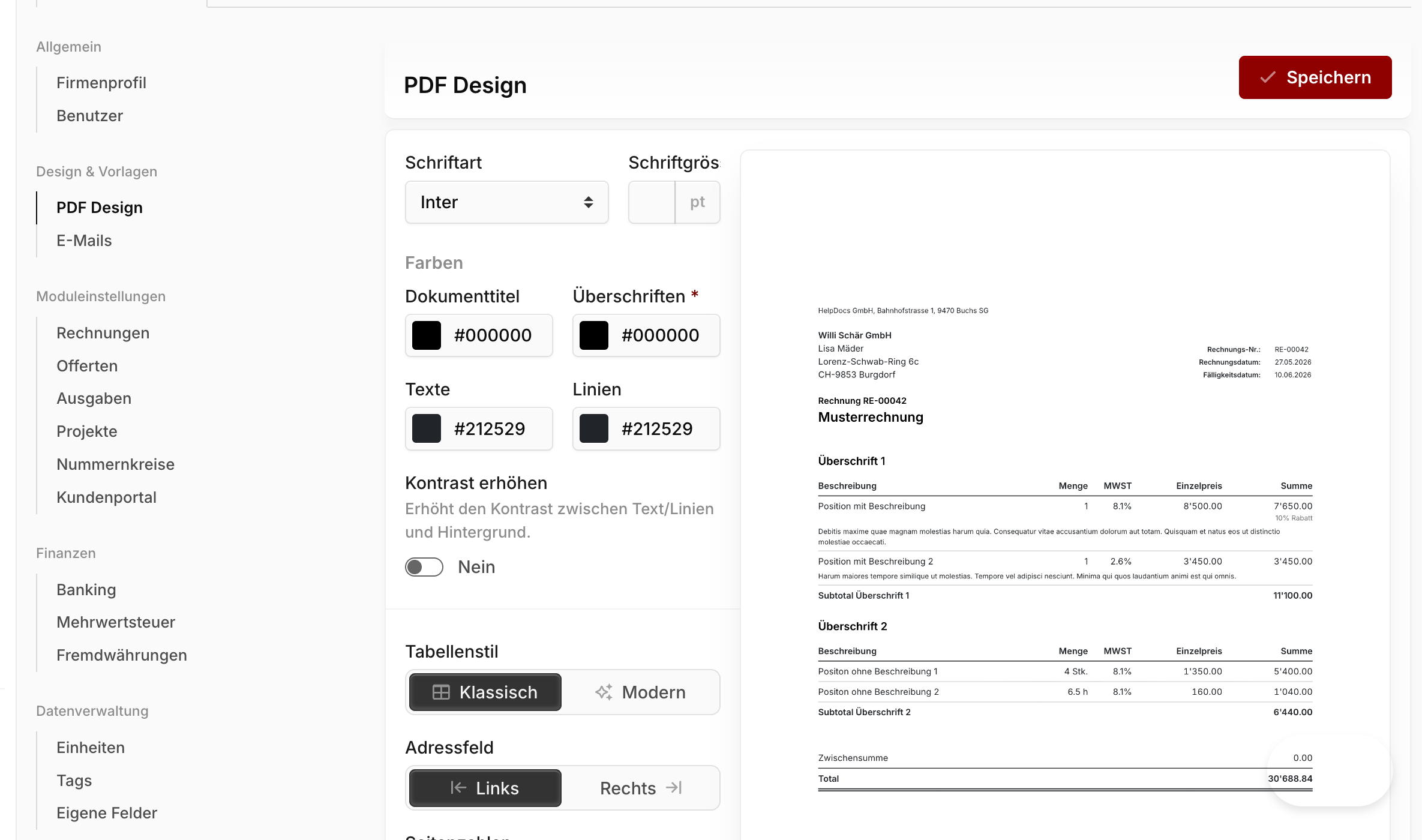
Next to the settings, a live preview of a sample invoice is always visible. It updates automatically as soon as you change a value — you don't need to save in between to judge the changes.
The settings apply to all PDF documents at once — invoices, offers, order confirmations and delivery notes share the same layout. Don't forget to click Save at the bottom, or your changes will be lost.
Font and colors
Font: Pick from the available Google Fonts. The choice applies to every text level — from the title to the footer.
Font size: Value in points. Anything between 9 and 11 pt is a good starting point for most documents.
Document title, headings, text, lines: Four color swatches that together form your document's accent palette. Document title is the large color at the top (e.g. the word "Invoice"), Headings styles intermediate headings in the content, Text is the default body color and Lines is used for separators and table borders.
Increase contrast: Enable this when your chosen colors are very light and look washed out on print. Blond then strengthens the contrast between text and background.
Tables, address, page numbers
Table style: Classic shows columns and rows with visible lines — easy to read for many positions. Modern uses fewer lines and more whitespace.
Address block: Controls where the recipient address sits on the letter. Left places it at the top left — for envelopes with a window on the left side. Right places it at the top right — for the standard Swiss windowed envelope.
Page numbers: Shows a page counter in the footer, aligned left, center or right. Hidden leaves the footer alone — useful when your letter background already includes its own page indicators.
Logo
Show logo: When enabled, the logo is printed on every document. You can upload a document-specific logo here — if you don't, Blond falls back to the logo configured in your company profile.
Logo size and alignment: Five size steps from Extra small to Extra large, plus left-aligned or right-aligned placement. The logo only appears on the first page of a multi-page document.
Letter background
Letter background: Upload your official letterhead as a PNG, JPG or PDF in A4 format. The template is used as the background on every page — perfect for pre-printed company stationery with a header, footer or watermark.
When designing it, reserve enough room in the page margins (see below) so that the address, logo and content don't run across your pre-printed elements.
Note
The older Letter header (deprecated) field still exists for compatibility but should no longer be used for new designs. If you still have an image stored there, replace it with a full-page letter background when you get the chance.
Product images
Product images in offers: Controls whether images from your product catalog appear next to the positions in offer PDFs. You can wrap them left or right of the description text, or hide them entirely. The matching Image size and Image margin to the description can be set separately.
Note
This setting only applies to offers — invoices never show product images. You'll find the same option on the Offers settings page; both edit the same value.
Page margins
Top, Right, Bottom, Left: Standard page margins in millimeters. They apply to all pages except the first — and matter especially when you use a letter background with pre-printed content.
First-page margins: The first page carries extra elements whose position you adjust separately:
To address block: Distance from the top of the page to the recipient address. Set this so the address sits exactly inside the envelope's window (e.g. roughly 50–55 mm for standard Swiss windowed envelopes).
To logo: Distance from the top of the page to the logo. Only relevant when Show logo is enabled.
Related settings
The PDF design defines the layout. The content that appears inside this layout — fixed texts, the QR-bill, numbering — is configured in dedicated pages:
- Header and footer texts for invoices as well as QR-bill settings under Invoices.
- Header and footer texts for offers, order confirmations and delivery notes as well as your terms and conditions under Offers.
- Document numbers and prefixes (e.g.
INV-2026-000123) under Number ranges. - Logo and company address that appear in the header and as the sender on the letter in your company profile.