
Command palette and search
Navigate and operate Blond entirely from the keyboard — using the command palette for actions and the global search for content.
Blond ships two separate, complementary tools for this:
| Tool | Shortcut | What it's for |
|---|---|---|
| Command palette | ⌘K / Ctrl+K | Run actions and jump to pages |
| Global search | ⌘G / Ctrl+G | Find specific records — invoices, customers, projects, bookings |
TIP
Rule of thumb: if you know what you want to do, press ⌘K. If you know which record you're looking for, press ⌘G.
Command palette
With the command palette (⌘K / Ctrl+K) you can jump to every corner of the app and run actions without taking your hand off the keyboard.
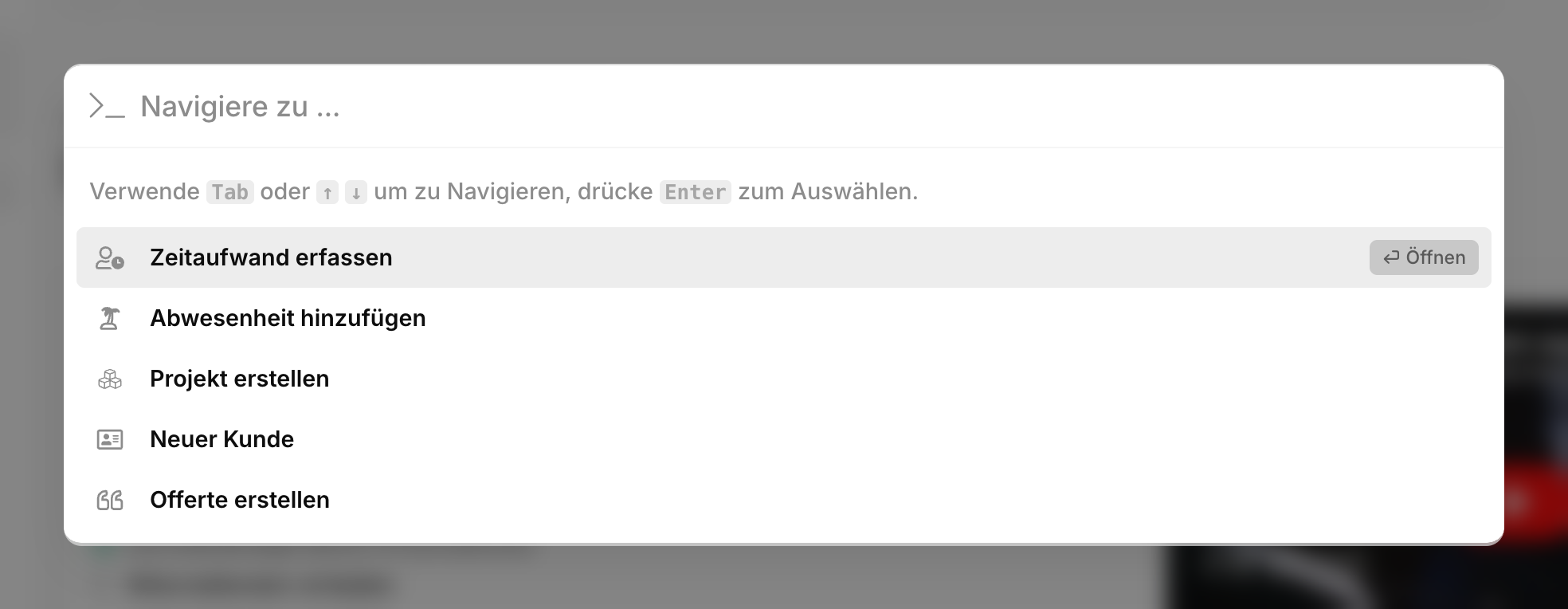
It knows, among other things:
- Create records — new invoice, new offer, new customer, new time entry, new expense via upload.
- Jump to list pages — invoices, customers, projects, dunning, accounting journal, VAT report.
- Open settings — company profile, PDF design, bank accounts, team members, VAT rates.
- Run quick actions — change language, toggle theme, hide money values, enable automatic reminder sending, sign out.
- Apply journal templates — if you've created journal entry templates in accounting, they appear as commands.
- Switch organizations — if you're a member of more than one.
Navigating the palette
Type: Start typing — the list filters with fuzzy matching (Fuse.js), so typos are forgiven. You can also search for keywords hidden in the description, e.g. vat, theme, logout.
Move: ↑ / ↓ or Tab / Shift+Tab move the selection.
Select: ⏎ (Enter) runs the selected command. Commands that lead to a page show Open on the right; commands that perform an action show Run.
Close: Esc or click outside the window.
Contextual commands
If you're currently viewing an offer or invoice, the palette shows a contextual action at the top with a blue group label — for example Offer 2025-001 → Send. That lets you send the current document with ⌘K → ⏎ in two keystrokes.
What you don't see
The palette only shows commands you have permission for. Accounting commands don't appear if you don't have accounting rights. Features that require a higher plan (e.g. absence management on the Business plan) or add-ons (e.g. custom fields) only become visible once they're available for your company.
Global search
The global search (⌘G / Ctrl+G, or the search field at the top of the header) searches your actual data — across every module.
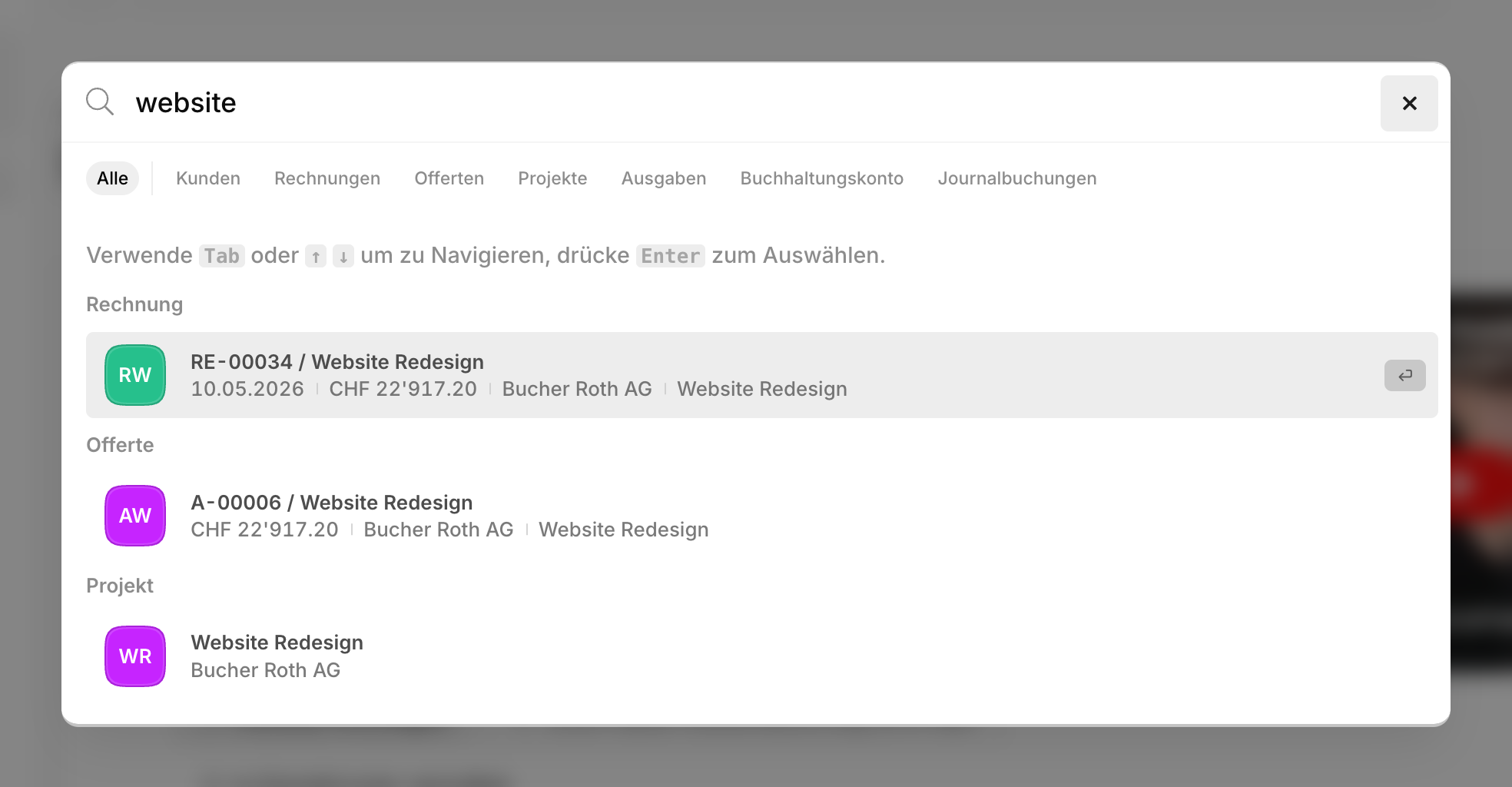
The following are indexed and searchable:
- Customers — name, address, notes
- Invoices — number, label, customer name, amounts
- Offers — number, label, customer name
- Projects — name, customer
- Expenses — number, label, supplier address, document number
- Accounts (accounting) — account number and name
- Bookings (accounting) — number, description
TIP
Search needs at least three characters before it runs. It's fuzzy — typos and partial words work.
Filter by type
The pills above the results restrict the search to specific types. Click All to reset all filters, or combine several types.
Handy when a customer and an invoice share the same name — filter on Invoices to see only those.
Navigating the results
↑ / ↓ or Tab / Shift+Tab move the selection, ⏎ (Enter) opens the selected record, Esc closes the search.
What you don't see
Like the command palette, search only shows data you have permission to see. On the Basic plan, expenses, accounts and bookings are also excluded from the search index — those modules belong to higher plans.
Note
Freshly created records appear in search with a few seconds' delay — the search index is updated in the background.
Share a search via URL
If you append ?search=<term> to any Blond URL, the global search opens automatically with that term when the page loads. Useful for bookmarks or to share a search with a colleague over chat.