
Creating a time report
Time reports can be created for projects, customers or team members.
A time report isn't a separate document you create somewhere. It's always an export of the list currently shown in time tracking. Whatever you filter out beforehand won't be in the report. So the path is always the same: filter first, then export.
Filtering hours
Open Projects → Time tracking and click the funnel icon. A counter on the icon shows how many filters are currently active — handy when a report unexpectedly comes back empty.
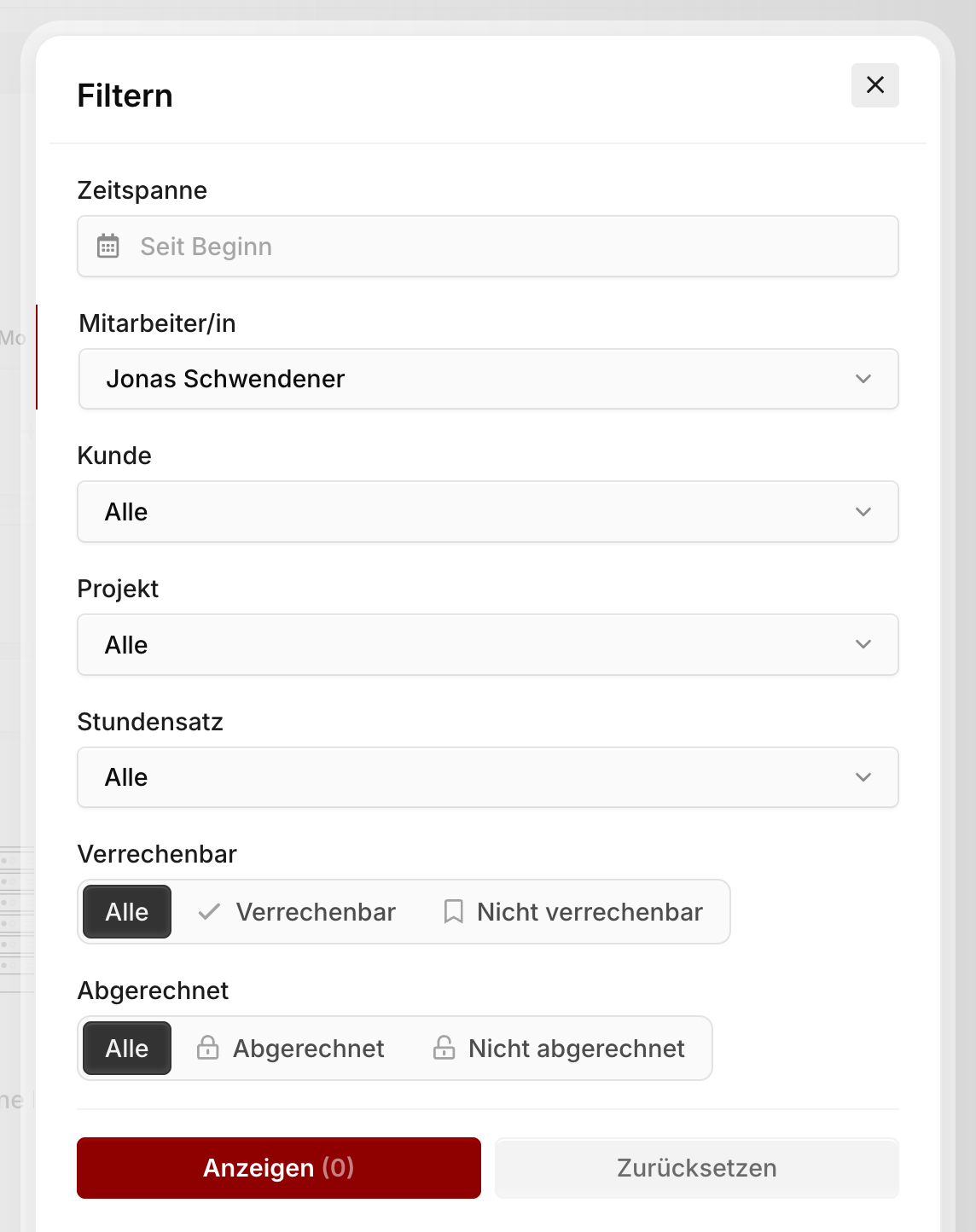
You can filter by:
- Time range
- Team member
- Customer
- Project
- Hourly rate
- Billable / Non-billable
- Billed / Not billed
The Show button tells you how many entries are left before you even close the dialog. The filters decide what kind of report you get. For an attachment to a customer invoice, filter by Customer and Billable; to check a project budget, filter by Project; for a record of one person's work, filter by Team member.
TIP
The Time range filter defaults to Since the beginning. For a monthly report you have to set it explicitly — otherwise you export the project's entire history.
Exporting the report
Once the list looks right, click the three-dot menu to the left of Record time and pick your format under Export view.
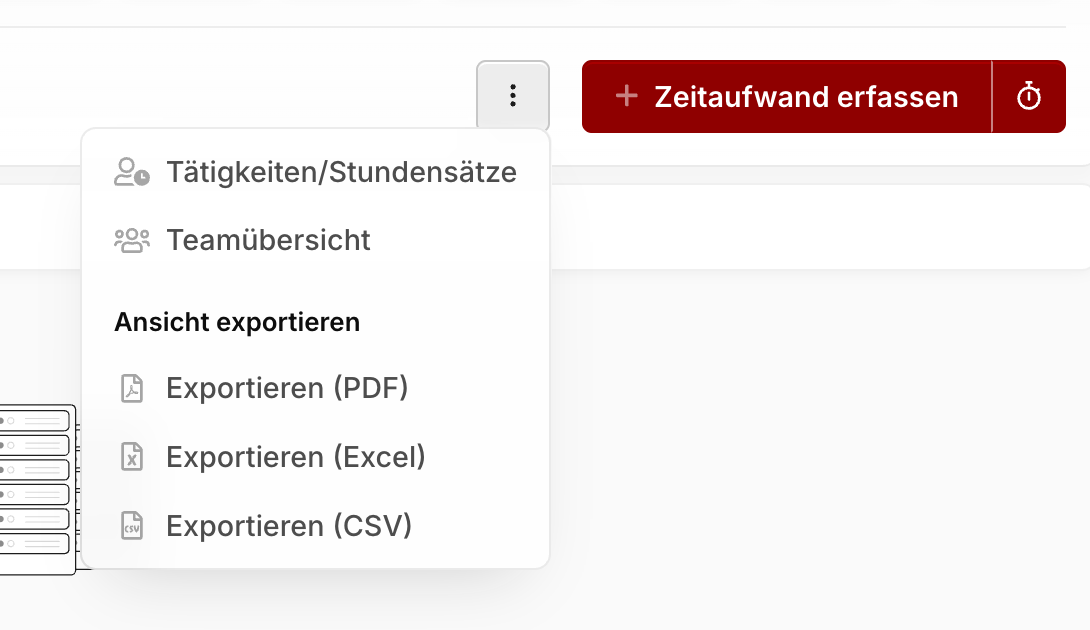
| Format | Use it for |
|---|---|
| An attachment for customers — styled and ready to send | |
| Excel | Your own analysis, reallocation, pivot tables |
| CSV | Further processing in other systems |
The export carries over not just the filters but also the list's sort order. Sort by date before exporting and the report comes out chronologically.
Warning
The PDF export is limited to 500 rows and is disabled beyond that. For very large reports, either narrow the time range or switch to Excel or CSV.
Each entry's description shows up in the report. So it pays to phrase it when recording time in a way the customer will understand.
Exporting working hours
If you also use working time tracking, the same dropdown has a separate Export working hours section (Excel and CSV). That export contains clock-in and clock-out times including breaks — the legal record, not project time.
Note
Don't mix up the two exports. The time report shows what was worked on. The working hours export shows when someone worked.