
Recording expenses
Record receipts and bills as expenses — by uploading a file, with AutoScan, or without any document at all.
Receipt or bill?
Blond distinguishes two kinds of expense. Your choice determines how the expense is posted and whether it gets a payment order for your e-banking.
| Type | When | How it gets paid |
|---|---|---|
| Receipt | The expense is already paid | Through a payment method, e.g. cash or credit card |
| Bill | The invoice still has to be paid | Through a payment order you upload to your e-banking |
TIP
If you picked the wrong type, you don't have to upload the file again. Open the expense and choose Convert to bill or Convert to receipt from the dropdown menu.
Record an expense with a document
Under Expenses, click + Record expense. A dialog opens where you pick the type, upload the file, and watch the processing happen live.
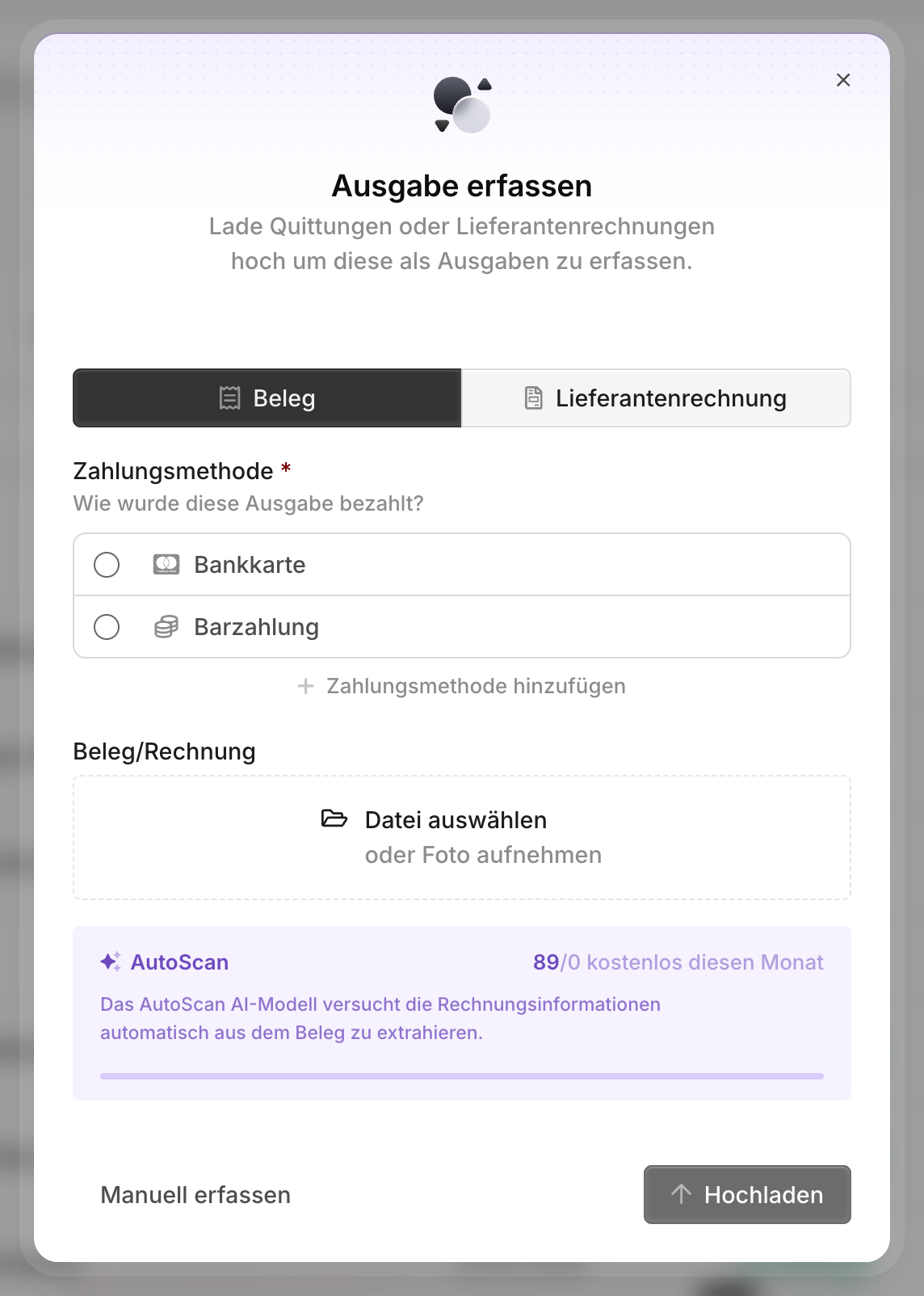
Receipt: Pick the payment method you paid with. It's mandatory as soon as at least one payment method exists.
Bill: Pick the bank account the invoice should later be paid from.
Upload the file: PDF, JPG, PNG, WebP and HEIC up to 20 MB are accepted. On your phone you can photograph the receipt directly. The upload starts automatically once you've picked a file.
What happens during the upload
Blond processes every document in four steps and shows you the progress:
QR-bill detection: If the document contains a Swiss QR code, the IBAN, reference, amount and address are taken from it.
AutoScan text recognition: An AI model reads the supplier, date, amount and VAT out of the document.
AutoScan booking suggestion: Blond proposes a matching expense account.
Document is being optimized: Photos are cropped and straightened automatically.
Note
Data from a QR bill is always read — even when your AutoScan quota is used up. AutoScan has a free monthly quota; once it's exhausted you can still record the expense and fill in the fields yourself. You can book unlimited text recognition under Organization → Billing.
Check every field before you save the expense. AutoScan is a suggestion, not a guarantee.
Record an expense without a document
Not every expense has a receipt. Click the dropdown arrow next to + Record expense and choose Record manually. You land in the full form and can still attach a file if you want.
Line items and VAT
An expense consists of one or more line items. Each item has an amount, a VAT rate and a category (the expense account).
Use the plus symbol (+) to add more items — necessary when one document contains several VAT rates, or when parts of it belong on different accounts.
With Incl. and Excl. you decide per item whether the amount you entered already contains VAT.
Payment orders for bills
Unlike receipts, bills get payment orders that you enter and adjust in the lower part of the expense. A bill moves through three stages:
- Draft — you're still editing the expense.
- Approved — you've checked it and released it with Approve for payment.
- Paid — all payment orders have been executed.
Approved bills are collected under Expenses → Bank payment orders, where you download them as a pain.001 file for your online banking.
Warning
An expense only counts as paid once all of its payment orders have been executed and reconciled with a bank transaction. Downloading the payment file alone does not mark it as paid.
Record a supplier credit note
When a supplier refunds you, record the expense as a receipt with a negative amount (total below CHF 0). Blond then posts it as a supplier credit note automatically.
Warning
The credit note must be recorded as type Receipt. A bill with a negative amount is not recognized as a credit note.
Expenses with acquisition tax
When you buy a service from a foreign company — software subscriptions, hosting or consulting, for instance — the invoice usually shows no Swiss VAT. As a VAT-registered Swiss company you then have to account for the VAT yourself. That's acquisition tax (Bezugsteuer).
Enter the invoice amount as a line item and choose the VAT rate 0% (Tax exempt/import). The toggle Services from abroad then appears below the line items — set it to Yes. The acquisition tax is calculated and posted automatically.
Note
The toggle only appears if an acquisition tax rate is configured in your accounting and all line items of the expense are set to 0%.