
Setting up the QR-bill
Learn how to activate the Swiss QR-bill for your invoices.
What is the QR-bill?
The QR-bill is the Swiss standard for payment slips. The QR payment part at the bottom of the invoice contains all payment information — IBAN, amount, recipient and reference number. Your customers scan it in their e-banking or mobile banking app and never have to type anything. And thanks to the reference number, Blond can automatically match incoming payments to the right invoice.
Activating the QR-bill
The QR-bill is configured per bank account:
- Open your bank account under Settings → Banking (or add one first).
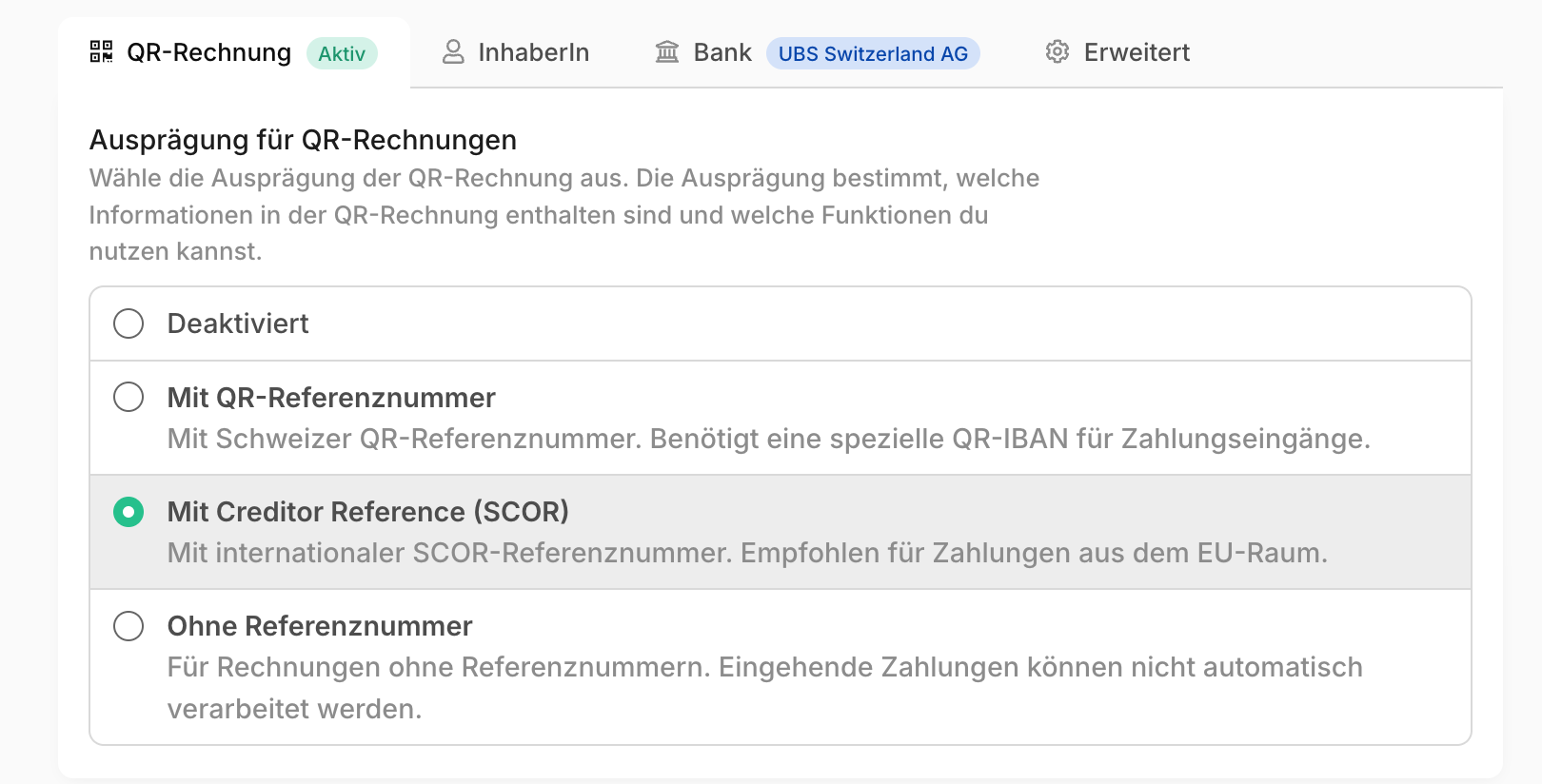
- Switch to the QR-bill tab and pick a variant under QR-bill type.
- Save the bank account.
Note
The QR-bill requires the IBAN of a Swiss or Liechtenstein bank account.
Which variant to choose?
The variant determines which reference number appears on the payment part — and whether payments can be matched automatically.
| Variant | Reference number | Good to know |
|---|---|---|
| With QR reference (QRR) | Swiss QR reference | Requires a special QR-IBAN from your bank. Payments are matched automatically and reliably. |
| With Creditor Reference (SCOR) | International SCOR reference | Works with your regular IBAN. Also suitable for payments from the EU/SEPA area. |
| Without reference (NON) | None | Incoming payments cannot be matched automatically. |
TIP
If you're unsure, choose Creditor Reference (SCOR) — it works without an additional QR-IBAN and still enables automatic payment matching. If you choose QRR, an extra field for the QR-IBAN appears — you get it from your bank.
On the invoice
Once the QR-bill is set up, new invoices automatically get a QR payment part on the last page. For existing invoices, enable the Show QR-bill option in the edit form if needed.
Warning
For the QR payment part to be printed, the invoice contact needs a valid address — at least a postal code and city. The payment part also only appears on invoices in CHF or EUR.
Read how incoming payments are recorded automatically via the QR reference under Record a payment.