
Sending quotes
Learn how to send a quote, track its status, and pick up the work afterwards — from project to invoice.
You start from a saved quote in the detail view. For how to compose one, see Writing quotes.
Send the quote
Click Send to … in the sidebar. A dialog opens with the finished email text, a live preview, and all the options you can still set.
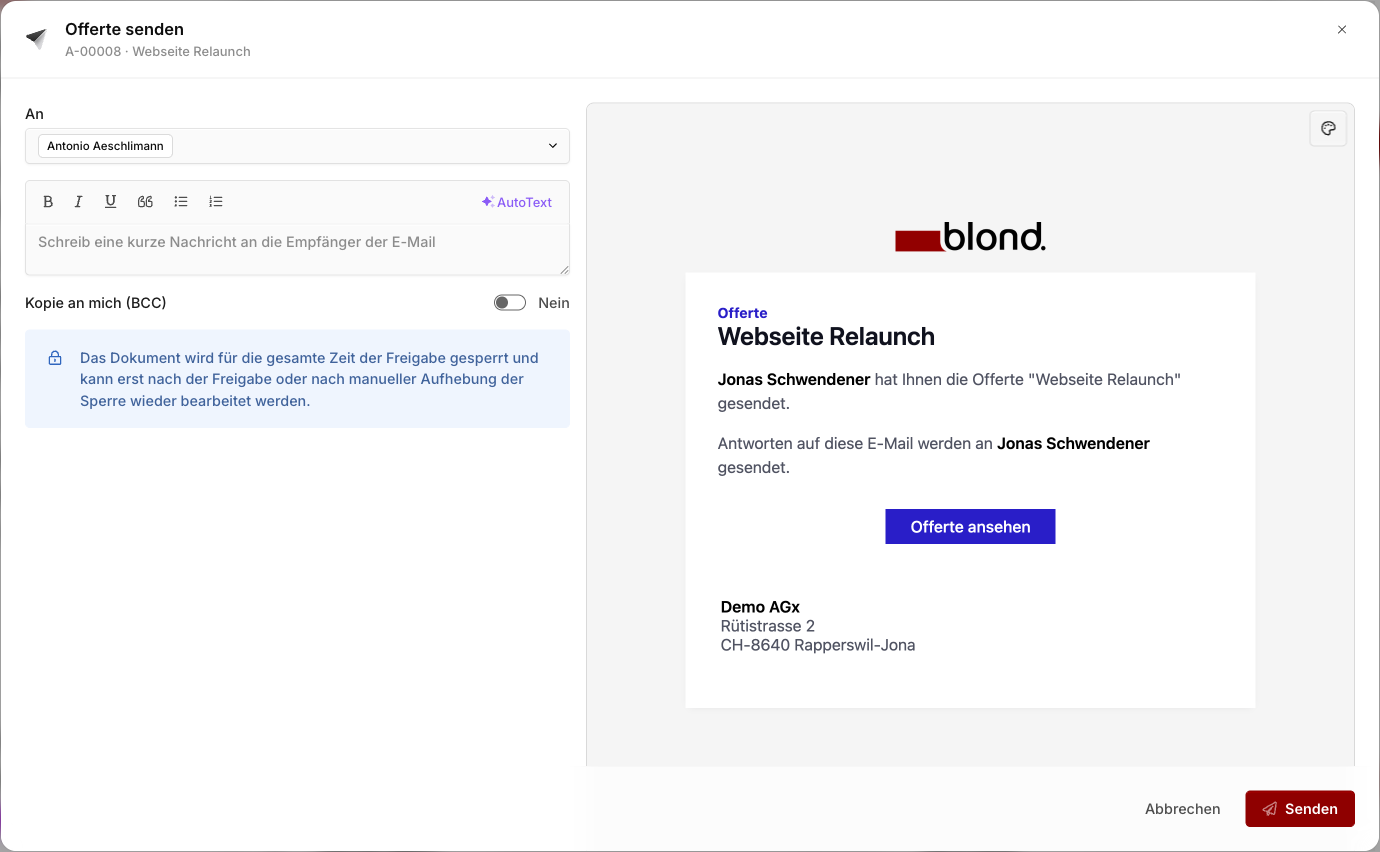
Recipients: The main contact's email is prefilled. You can add more recipients or pick from other contacts of the same company — Blond suggests them automatically.
Message: Prefilled from the default text in your quote settings. Use the writing assistant in the top right to have the AI draft a message from the quote itself.
BCC to me: Sends a BCC copy to your login email — handy as a personal record that the email went out.
Attachments: Tick any extra documents to send along with the quote PDF. The list includes attachments from the quote itself and — if linked — from the assigned project.
Important
Many email providers reject emails over 10 MB. If attachments plus the quote PDF get heavy, Blond warns you directly in the dialog.
Note
Sending locks the quote — line items can no longer be changed, and the number and Valid until date are assigned. If you need to adjust something afterwards, you can still use Edit in the detail view.
Status of a quote
A quote moves through several statuses in Blond. The current status is shown in the right sidebar, where you can also set it manually.
| Status | Meaning |
|---|---|
| Draft | Editable, no quote number yet, not sent |
| Sent | Sent to the customer; number and Valid until date are assigned |
| Approved | Accepted (by the customer or by you manually) — locked for editing |
| Partially billed | One or more invoices have been created from the quote |
| Fully billed | Billing manually closed, even if not everything was invoiced |
| Archived | No longer active (e.g. after rejection), but still searchable |
TIP
The Valid until date is set automatically when you send — based on the number of days configured in your quote settings (default: 14 days). You can't currently override this per quote; adjust the global value if needed.
What the customer sees
The customer receives an email with a link to the web view of the quote. From there they can, right in the browser:
Approve: Automatically moves the quote to Approved. You get a notification.
Reject: Optionally with a comment. The quote is archived and you also get a notification.
Download the PDF: The customer can grab the PDF from the web view at any time.
The original email also includes the quote PDF as an attachment — the customer doesn't strictly need to click the link to read it.
Set the status manually
If the customer replies by phone or email, set the status directly via the status dropdown in the sidebar:
Approve: Marks the quote as accepted. Available once it's been sent (or at least locked). Use Approve and create project or Approve and create invoice to combine the step with the natural next action.
Disapprove: Reverts an approved quote back to its previous state — for instance when the customer wants to take another look.
Archive: Moves the quote to the archive without deleting it. Use this for stale or rejected quotes.
Mark as draft: Lifts the lock again. Only available as long as the quote isn't approved.
Following up
If a quote stays open for a while, click Send to … again to resend it — the same dialog opens. Existing recipients are still pre-selected, and you can drop in a short reminder message.
TIP
On the Quotes overview, filter by Status: Sent to see all the quotes that still need an answer.
Working from an approved quote
Once a quote is approved, new actions appear in the sidebar:
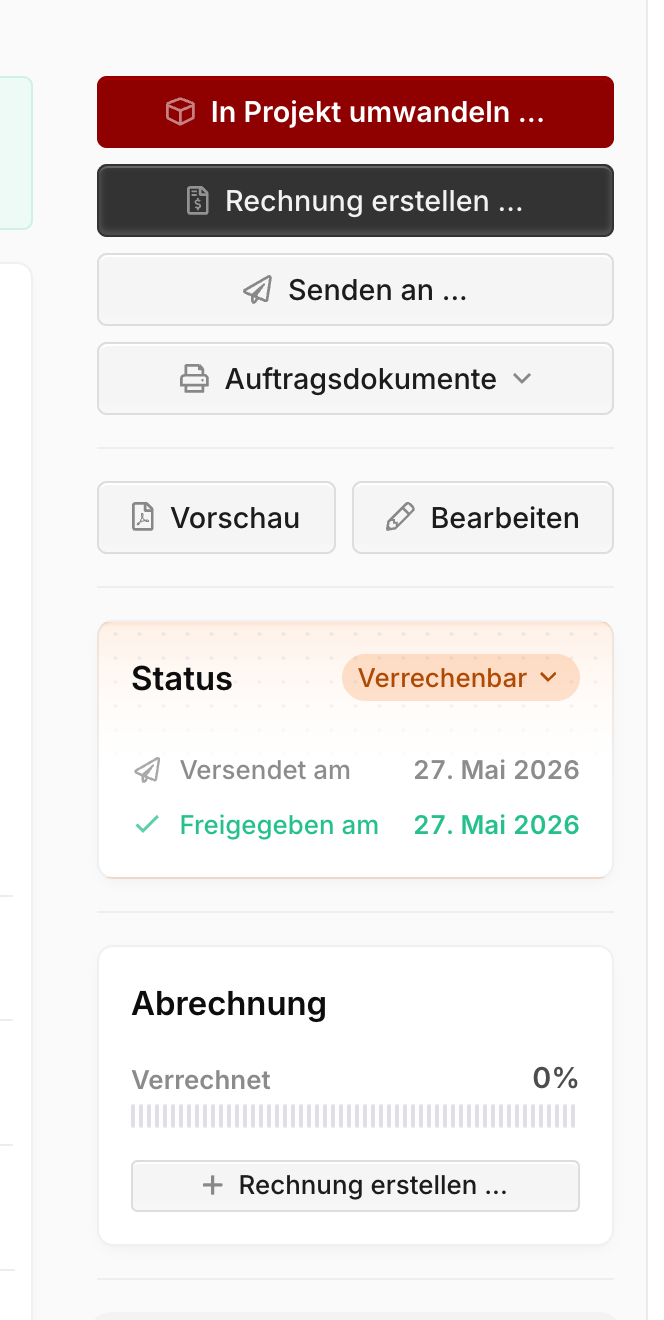
Convert to project: Creates a new project from the quote — including a budget derived from the line items. Useful when the work still needs to be carried out and billed by effort. Available only when no project is assigned yet.
Create invoice: Copies all (non-optional) items into a new invoice. The quote itself stays untouched. You can also issue several partial invoices from the same quote — the Billing block shows you at a glance how much has been billed.
Mark as fully billed: Via the status dropdown (top right of the Status block). Marks the quote as fully billed even if the invoiced amount is below the quote total — for instance after a goodwill discount or external billing. Use Reopen billing to undo this later.
Order documents
From an approved quote you can generate additional PDFs in one click — without prices, or with different layouts:
Order confirmation: Confirms to the customer that the order has been accepted.
Delivery note: Lists the line items without prices — meant to be enclosed with a shipment.
Picking slip: Internal checklist for assembling the delivery.
You adjust the default texts for these documents in your quote settings.
What's next
- Create the invoice — once the quote is approved. See Writing invoices for how to compose one.
- Track project work — if you converted the quote into a project, you can log hours, expenses, and flat fees there and bill them at the end.