
Importing customers
Bring existing customers and contacts in from Excel, a CSV file or another system in a single step.
What you need
A file in one of these formats:
- CSV (
.csv) - Excel (
.xls,.xlsx) - OpenDocument (
.ods)
The first row must contain column headings — Blond uses those headings to map your columns to its own fields.
TIP
When exporting from another system (e.g. Bexio, Outlook, Apple Contacts, Google Contacts), pick the CSV or Excel format. Blond recognizes the most common column names automatically.
Starting the import
Open the customer list under Customers and click the arrow next to Create in the top right → Import — or go directly to https://app.blond.swiss/company/import.

Click Browse and pick your file. Once uploaded, Blond reads the column headings and tries to map them to matching Blond fields automatically.
Mapping the columns
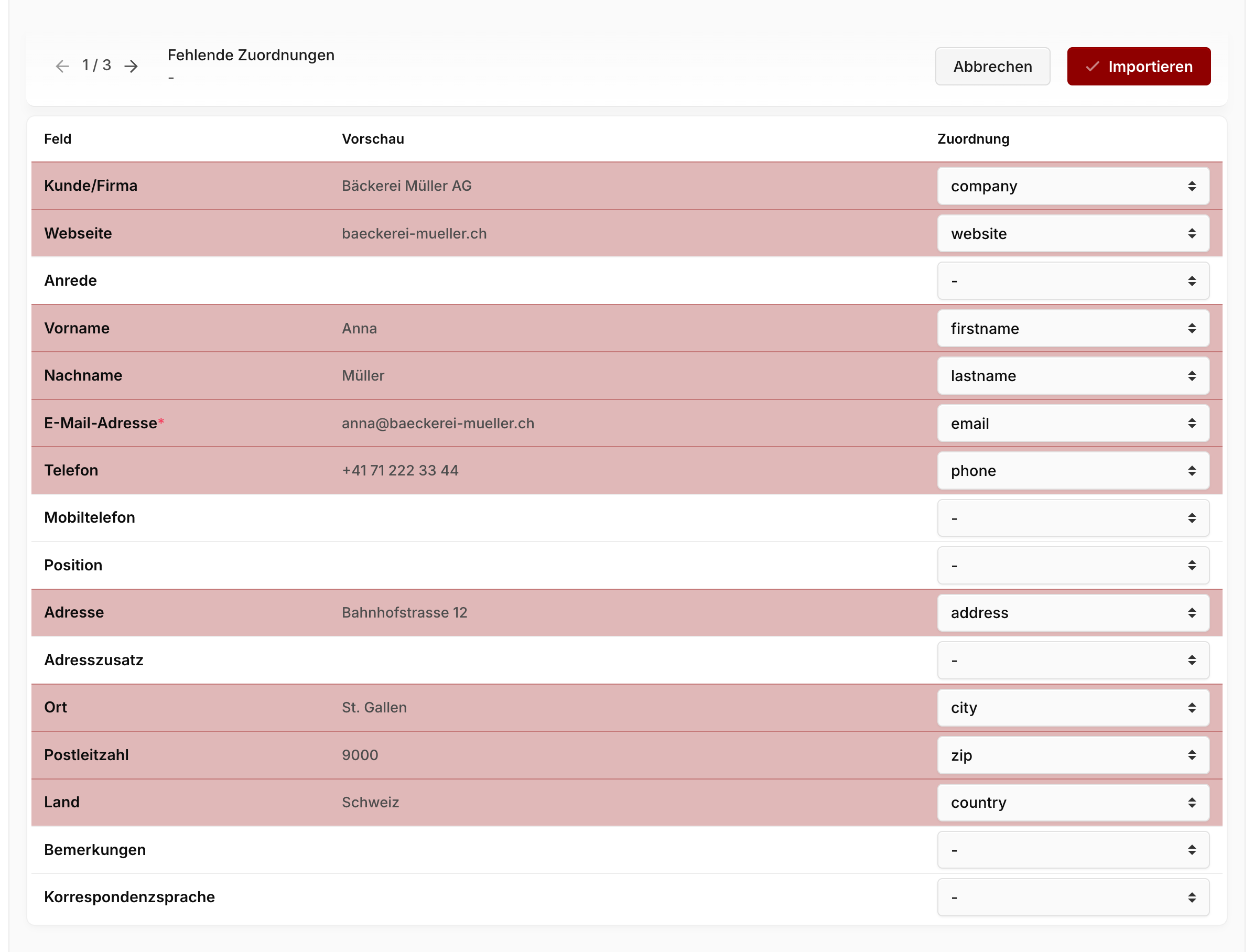
The left column Field lists every Blond field you can fill. The middle column Preview shows the value from the currently selected row of your file. The right column Mapping connects a Blond field to a column in your file.
Preview navigation: The arrows in the top-left page through the rows of your file so you can check that the mapping holds for different records.
Auto-mapping: On upload, Blond recognizes common column names in German and English (firstname, vorname, name_1, email, e_mail, strasse, plz and many more). Successfully mapped rows are highlighted in the table.
Manual mapping: For every unmapped or wrongly mapped row, pick the right column from your file in the dropdown on the right.
Missing mappings: The header shows which required fields are still unmapped. As long as a red badge is shown there, the import button stays disabled.
Note
Only the email address is required. You can leave every other field blank — if you'll fill in address details inside Blond anyway, company, name and email are enough for the import.
Required and recommended fields
For a useful import, each row should have at least one of Company or First/Last name. Rows without any of these are skipped.
| Field | Recommendation |
|---|---|
| Customer/Company | Recommended. Used as the customer name. If empty, Blond uses the first and last name as the customer name. |
| Email address | Required. Also used to detect duplicate contacts on re-import (see below). |
| Country | Accepts country names (Schweiz, Deutschland, Österreich, Frankreich, Italien, Niederlande, Belgien, Spanien, Portugal) as well as ISO codes (CH, DE, AT, …). |
| Preferred language | Accepts de / DE / Deutsch, en / EN / English / Englisch, fr / FR / Français / Französisch. |
Finishing the import
Click Import in the top right. Blond creates a customer with one contact per row and returns you to the customer list. A success message shows how many contacts were imported.
WARNING
The import can't be undone in a single step. With a large file, it's worth testing with a small subset first (e.g. 3–5 rows), reviewing the result, and then importing the full file.
What happens on re-import?
Blond doesn't import blindly — existing customers and contacts aren't duplicated when you re-import:
Customers are matched by name. If a customer with the same name already exists, its website and notes are updated; a new customer is not created.
Contacts are matched within a customer by email address. If a contact with the same email already exists for that customer, its details are updated; without an email address, a new contact is always created.
That means you can re-upload a corrected file without producing duplicates.
TIP
If you genuinely have two companies with identical names, create them manually first with distinct names (e.g. with a location suffix) — otherwise they'll be merged into one customer on import.