
Sending invoices
Learn how to send an invoice, record payments, and follow up on overdue invoices automatically with payment reminders.
You start from a saved invoice in the detail view. For how to compose one, see Writing invoices.
Send the invoice
Click Send to … in the sidebar. A dialog opens with the finished email text, a live preview, and all the options you can still set.
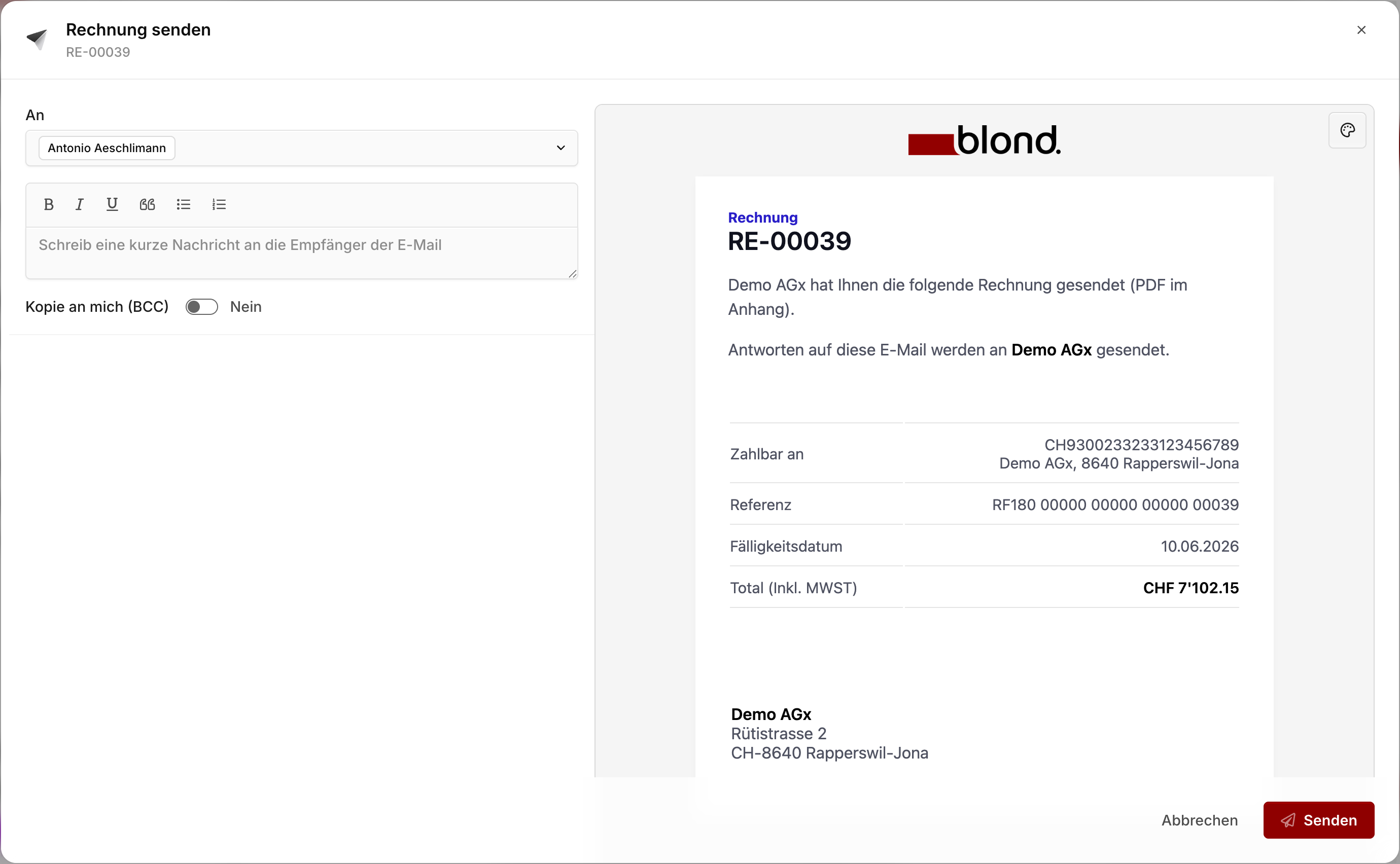
Recipients: The main contact's email is prefilled. You can add more recipients or pick from other contacts of the same company.
Message: Prefilled from the default text in your invoice settings. Use the writing assistant in the top right to have the AI draft a message from the invoice itself.
Send copy to me (BCC): Sends a BCC copy to your login email — handy as a personal record that the email went out.
Adjust invoice date to today: Only visible while the invoice is still a draft. Shifts the invoice and due dates to today when you send — useful if the draft has been sitting around for a few days.
Attachments: Tick any extra documents to send along with the invoice PDF. The list includes attachments from the invoice itself and — if linked — from the assigned project. Use Attach unbilled third-party costs to also include receipts for every billed expense.
Note
Sending locks the invoice — line items can no longer be changed, and the invoice number and booking date are assigned. If you need to adjust something afterwards, you can revert to draft via Unlock in the status dropdown.
Status of an invoice
An invoice moves through several statuses in Blond. The current status appears in the Status block in the sidebar — derived automatically from sending, due date, and any recorded payments.
| Status | Meaning |
|---|---|
| Draft | Editable, no invoice number yet, not sent |
| Open | Sent (or at least locked); number and booking date are assigned |
| Overdue | Open and past its due date — but no reminder has been sent yet |
| Dunned | At least one payment reminder has gone out |
| Partially paid | A payment less than the invoice total has been recorded |
| Paid | Fully settled — either manually or via the banking integration |
What the customer sees
The customer receives an email with the invoice PDF attached — including the Swiss QR payment slip if you've set up a bank account with a QR-IBAN.
The email also contains a link to the web view of the invoice, where they can download the PDF again at any time.
Record a payment
Once the customer has paid, there are two ways to capture the payment in Blond:
Automatically via the banking integration: If you import CAMT.053 files, Blond matches incoming payments to invoices by QR reference. You don't have to do anything.
Manually: Click Mark as paid … in the sidebar. The dialog asks for the payment date, optionally an exchange rate (for foreign-currency invoices), and whether the customer should receive a confirmation email. The full open amount is recorded as a payment.
Recording partial payments
If a customer only transferred part of the amount, record it in the Payments block of the detail view via Record payment. Besides date and amount, you pick the bank account the payment arrived on and can optionally add a booking text. The invoice then counts as partially paid.
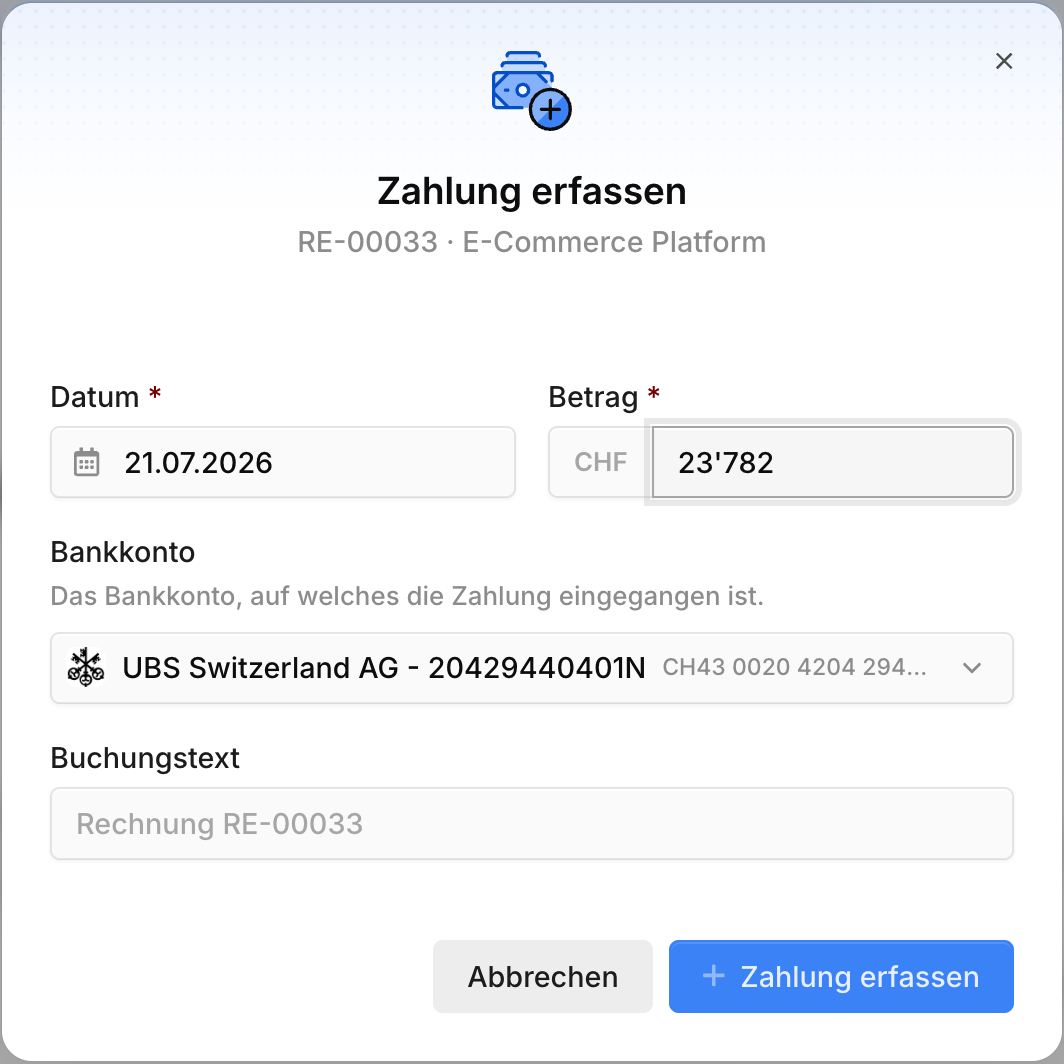
The outstanding amount stays visible, and the dropdown next to the remainder lets you:
Create credit note: Books the remainder as customer credit, which you can apply to a future invoice.
Grant cash discount: Books the difference as a discount — the invoice counts as fully settled.
Write off as bad debt: Writes off the outstanding remainder, for instance when a claim is uncollectible.
Overpayments
If a customer accidentally transferred too much, simply record the amount that actually arrived. Blond flags the overpayment right in the dialog: the difference to the open amount is automatically credited to the customer as customer credit and can be applied to a future invoice.
Payment reminders and dunning
Once an invoice is overdue, Blond can send a payment reminder automatically. Three things need to be in place:
1. Reminder levels are configured. In your invoice settings, you define when each level triggers and what text appears in the email and on the PDF. See Configuring reminder levels below.
2. Automatic sending is on. The toggle Send payment reminders automatically in the invoice settings has to be enabled. Blond then sends reminders daily at 04:00 UTC for all invoices that are due according to your reminder configuration.
3. The reminder level increases automatically. Every reminder bumps the invoice into the next level — from a friendly first nudge to a formal final notice.
Note
A payment reminder is technically a re-send of the invoice — with extra reminder text in the email and on the PDF. The original invoice number and booking date stay unchanged.
Send a reminder manually
You can trigger a reminder by hand any time. Click Send to … on an overdue invoice — the send dialog shows an extra option:
Send as payment reminder: Appears when the invoice is overdue and hasn't been dunned yet. Sets the invoice to reminder level 1 on send and adds the reminder text.
Auto-increase reminder level: Appears for an invoice that's already been dunned. Bumps the invoice up one level on send — and includes the matching reminder text.
Configuring reminder levels
In your invoice settings, the Invoice reminders block lists every configured reminder level. Click an existing level to edit it, or use + New reminder level to add another.
For each level, you define:
Days overdue: How many days after the due date this level triggers.
Title: Shown as the email subject and as the heading on the PDF (e.g. "Payment reminder", "First reminder").
Text: The reminder message itself. Use placeholders like {invoice_nr}, {invoice_total}, {due_date}, or {days_until_next_level} to personalize the text dynamically.
TIP
Most Swiss SMBs use three levels: a friendly nudge after 7 days, a first formal reminder after 14 days, and a second reminder after 30 days.
Recurring invoices
If you send the same invoice on a regular basis — monthly retainers, yearly licenses — you can mark the invoice as recurring when creating or editing it. Pick an interval (monthly, yearly) and optionally an end date.
Blond then generates a draft copy automatically on each due date. You can still tweak it and send it like any other invoice.
In the sidebar of the original invoice, you can see when the next copy is due — and trigger the next one manually if needed via the actions menu.
What's next
- Manage customer credit — if a customer overpays or you issue a credit note, the credit shows up under Customer credit.
- Bill a project — if the invoice came from a project, the project view shows what's already been billed and what's still open.