
Managing hourly rates
Define separate hourly rates for the different kinds of work you do.
In Blond an hourly rate is more than a price: it's also the activity picked when tracking time. That's why the page is called Activities & hourly rates. There is no separate activity field — if you want to tell "Consulting" apart from "Installation", you create two hourly rates.
You'll find the list in the sidebar under Projects → Time tracking → Hourly rates.
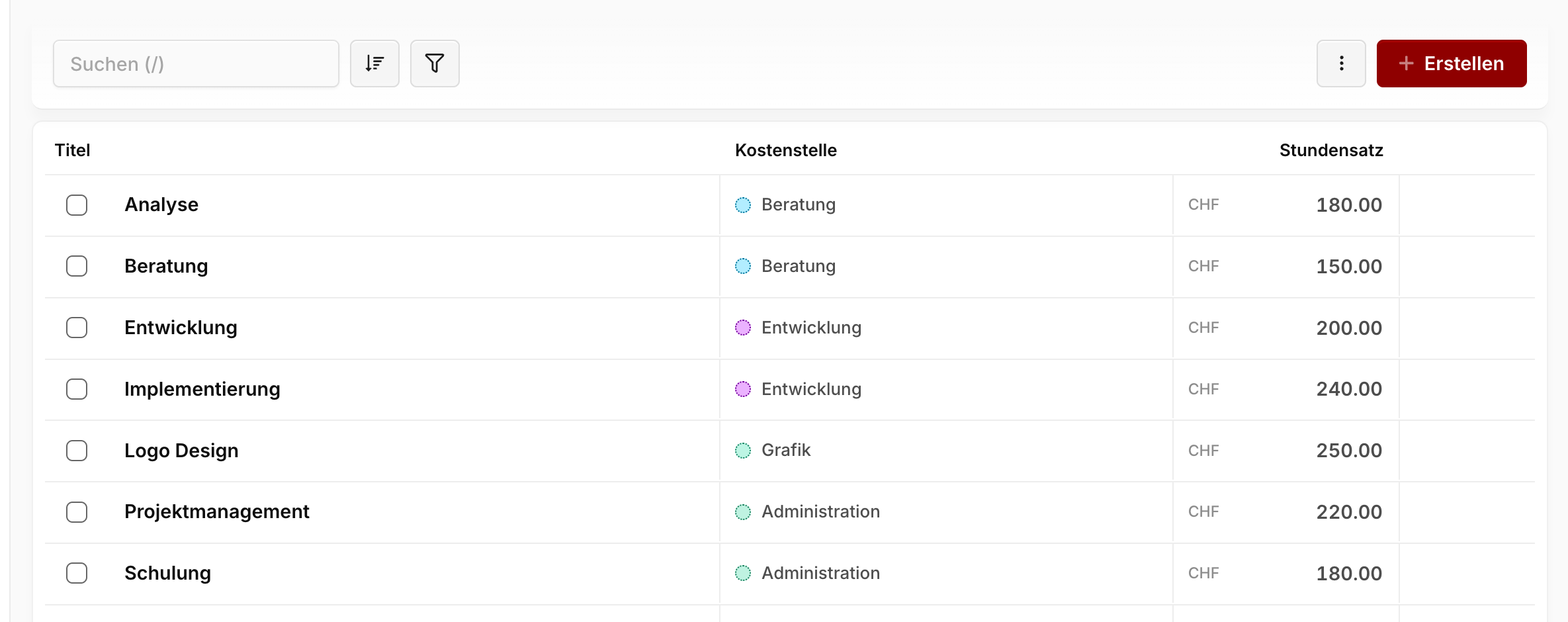
Creating an hourly rate
Click Create in the top right. An hourly rate has just three fields:
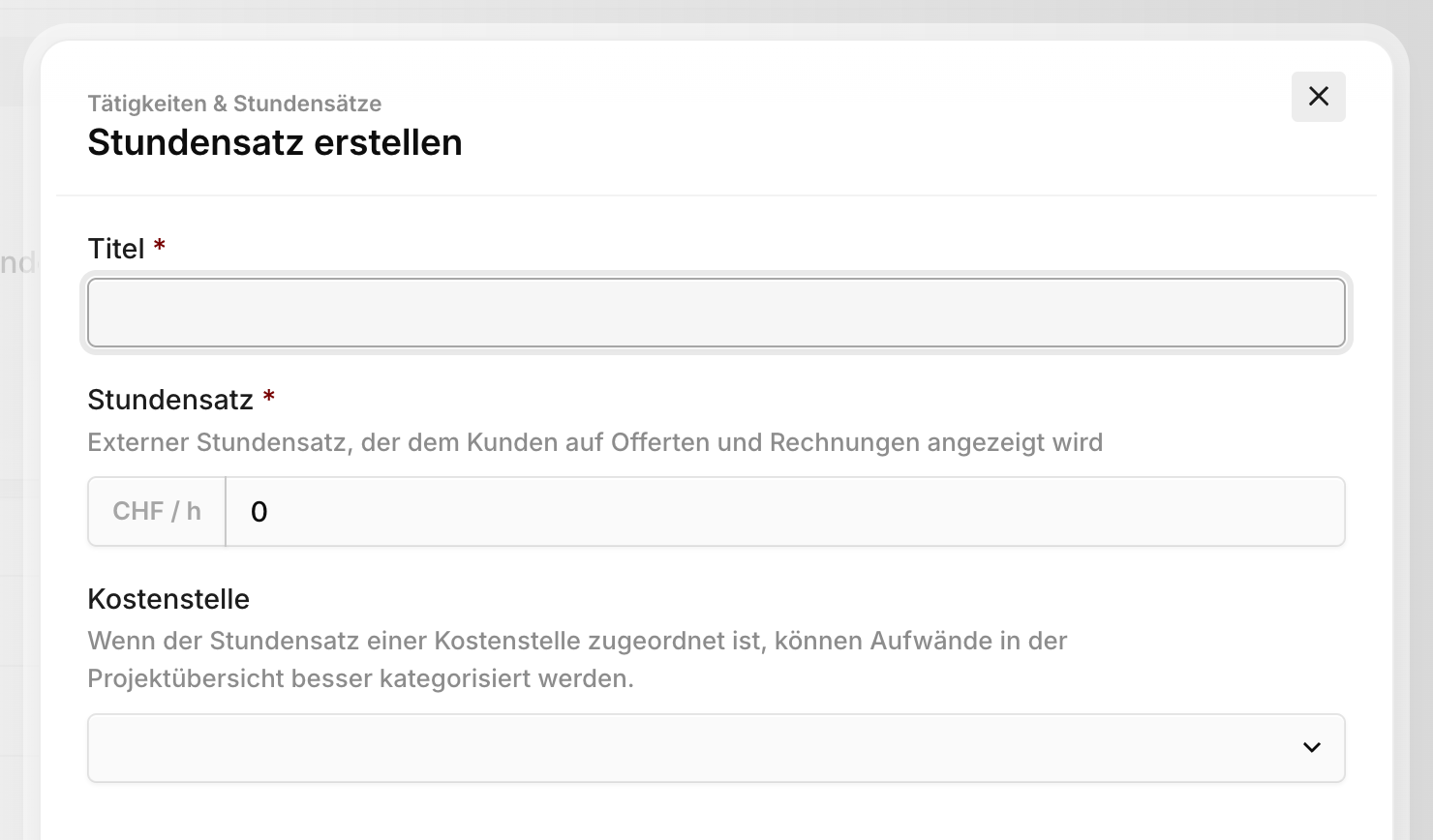
Title: The activity or type of work as your team will pick it when tracking time — for example "Consulting", "Design" or "Installation".
Hourly rate: The external rate in CHF that appears to the customer on quotes and invoices. The currency comes from your organization's country and can't be changed.
Cost center: Optional. Assigns the rate to a budget line.
Note
The hourly rate is not your internal cost rate. What an hour of work costs you is stored per team member as their internal hourly rate. Blond keeps the two apart: revenue comes from the hourly rate, internal cost from the member's rate.
What the cost center does
The cost center links tracked hours to the project budget.
When you approve a quote, it automatically becomes the project budget — grouped by the cost centers of the quote's line items. When someone later tracks time on an hourly rate with the same cost center, that work counts against exactly that budget line. In the project overview you then see, per cost center, how much was budgeted and how much has been used.
Rates without a cost center work fine — but their hours land in an "unallocated" bucket in the project overview and can't be compared against any budget line.
TIP
Deliberately use the same cost centers on your hourly rates as on your quote line items. Only then can you say afterwards whether the 20 budgeted hours of design really were 20 hours of design.
Restricting rates to team members
By default every team member can pick every hourly rate. If you assign specific rates to a person, those are the only ones they see when tracking time. That stops the apprentice from accidentally booking at the senior rate.
The assignment happens on the team member, not on the hourly rate.
Deleting hourly rates
Delete a rate from the list using the trash icon.
Note
Deleting only affects what can be picked on new time entries. Time already tracked keeps its hourly rate including title and price — so past billing runs and budgets stay correct.