
Manage your profile
Update your personal details, change your password and manage your organization memberships.
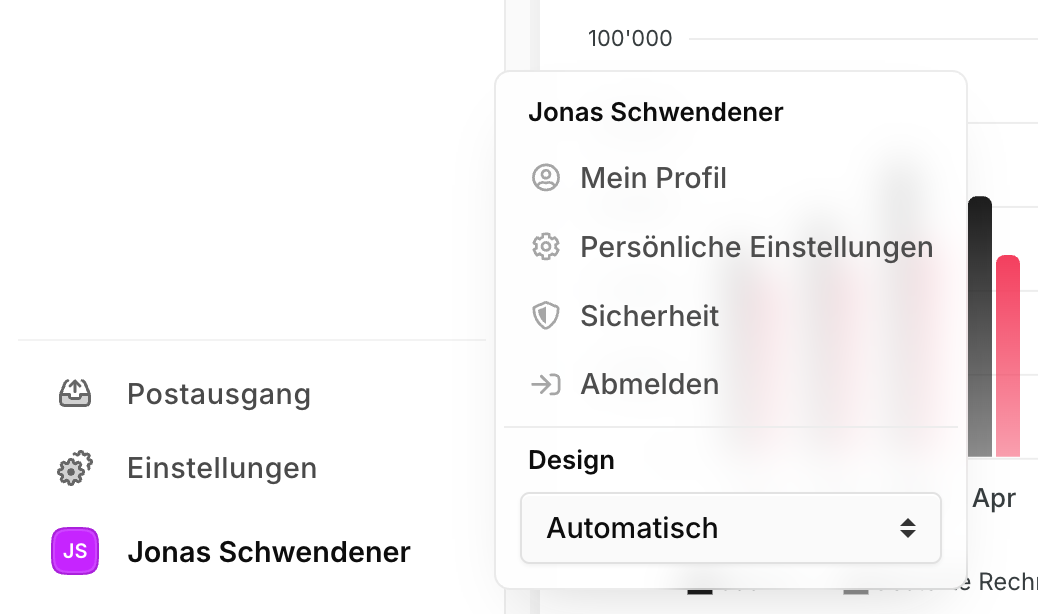
You can open your profile from the user menu at the bottom of the sidebar, or directly at https://app.blond.swiss/user/profile.
TIP
Your user account is independent of any organization. With the same profile, you can belong to several organizations and switch between them at any time.
Personal details
In the Details section, you enter the information that other team members, customers and contacts will see about you.
First name and last name: Use your real name. It appears on emails you send and on documents you create in Blond.
Email: This is the address you sign in with and where you receive notifications. Until you confirm it, you'll see the Email verification pending badge next to the field. Once confirmed, it changes to Verified.
Profile photo: Click Choose file to upload a JPG or PNG image. It is shown in the menu, in comments, and next to your activity.
Language: Choose between Deutsch, English and Français. The selected language applies to the entire interface, to email notifications and to help texts.
Click Save changes to apply your edits.
Note
When you change your email address, you'll need to confirm your current password. We then send a fresh verification link to the new address.
Change your password
In the Change password section, you can set a new password at any time.
- Enter the new password in the New password field.
- Click Change password.
- Confirm the change in the dialog that appears.
The new password is effective immediately. You stay signed in for the current session — you'll use the new password the next time you sign in.
TIP
Use a password you don't reuse anywhere else and store it in a password manager. We recommend at least 12 characters.
My organizations
Under My organizations, you'll see all organizations you're a member of.
- The currently selected organization is labeled Active.
- Organizations you own are labeled Owner.
Leave an organization: Click Leave next to an organization and confirm in the dialog. You'll lose access to all data in that organization.
Warning
As the sole owner, you can't leave your own organization. First transfer ownership to another person or delete the organization from the organization settings.
If you'd like to set up an additional organization, click Create an organization.
Delete your account
You can delete your account yourself at any time.
- Scroll to the bottom of the profile page to the Delete account section.
- Click Delete account and confirm with Yes, I want to delete my account.
Warning
We'll permanently delete all your data within 24 hours. If you're the sole owner of an organization, that organization — along with all its receipts, invoices and contact data — will be deleted as well.
If you only want to leave a single organization, use Leave organization in the My organizations section instead.