
Customer credit
Manage prepayments, overpayments and manual credits per customer — and apply the balance to future invoices.
What is customer credit?
The customer credit is a running balance per customer. It tells you whether you still owe the customer something (positive credit) or whether the customer owes you something on top of any open invoices (negative credit).
Every change is recorded as a single customer transaction — with date, amount, description and a linked bank account. The balance on the customer is always the sum of all transactions.
Note
Customer transactions are real bookkeeping entries. Each one produces a journal entry against the Customer prepayments account (or an equivalent prepayments / liability account). It's not just a memo — it affects your balance sheet.
Where to find customer credit
On a customer's detail page you'll see the Customer credit tab. When a balance exists, it's shown directly on the tab as a badge — blue for a positive credit, red for a negative one.
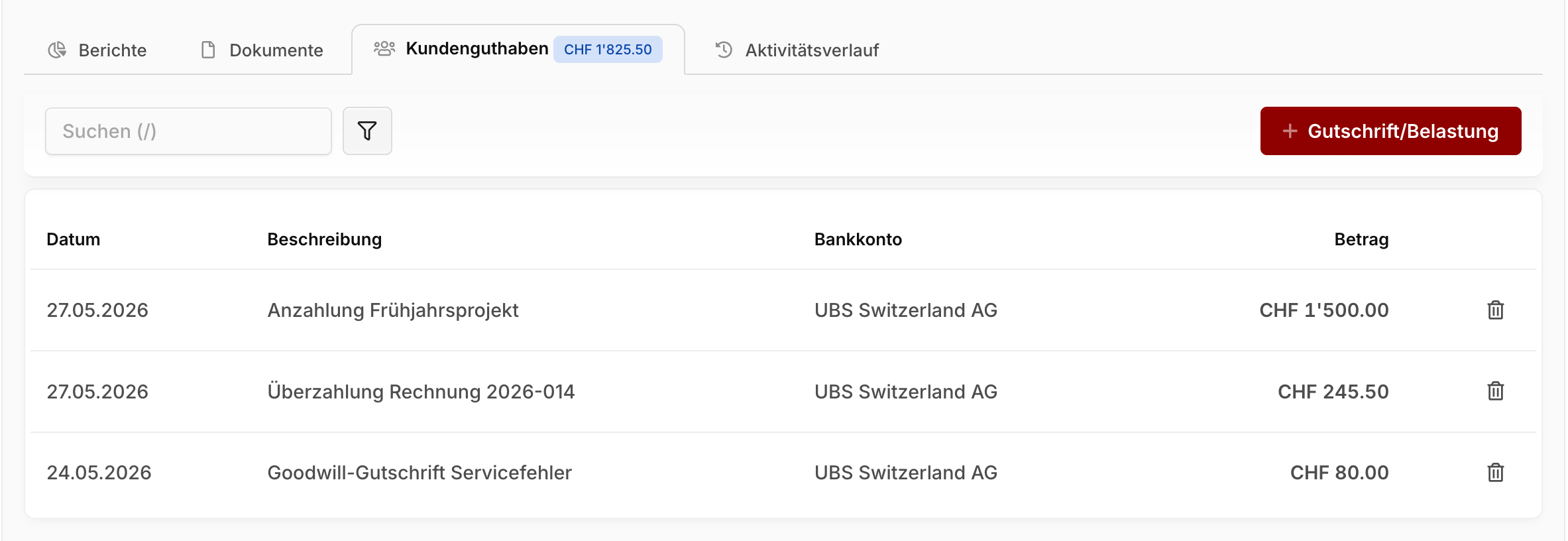
The tab lists all customer transactions chronologically — both the ones created automatically (from overpayments, bank reconciliation, prepayments) and any you've entered manually.
How credit gets created automatically
In three situations, Blond creates customer transactions for you — you don't need to do anything.
Invoice overpayment: When you record an incoming payment that's higher than the invoice's open amount, Blond asks whether to book the overage as customer credit. If you confirm, the invoice is marked paid and the excess lands on the customer as a positive customer transaction.
Bank reconciliation directly to a customer: When reconciling a bank transaction, you can assign it directly to a customer instead of an invoice — for a prepayment, a refund or a payment that doesn't clearly belong to a specific invoice. A customer transaction is then created automatically.
Prepayment on an invoice: Recording a payment of type Prepayment on an invoice credits the amount to the customer and lets you apply it to the final invoice later.
Entering credit manually
On the Customer credit tab, click + Credit/Debit to create your own entry.
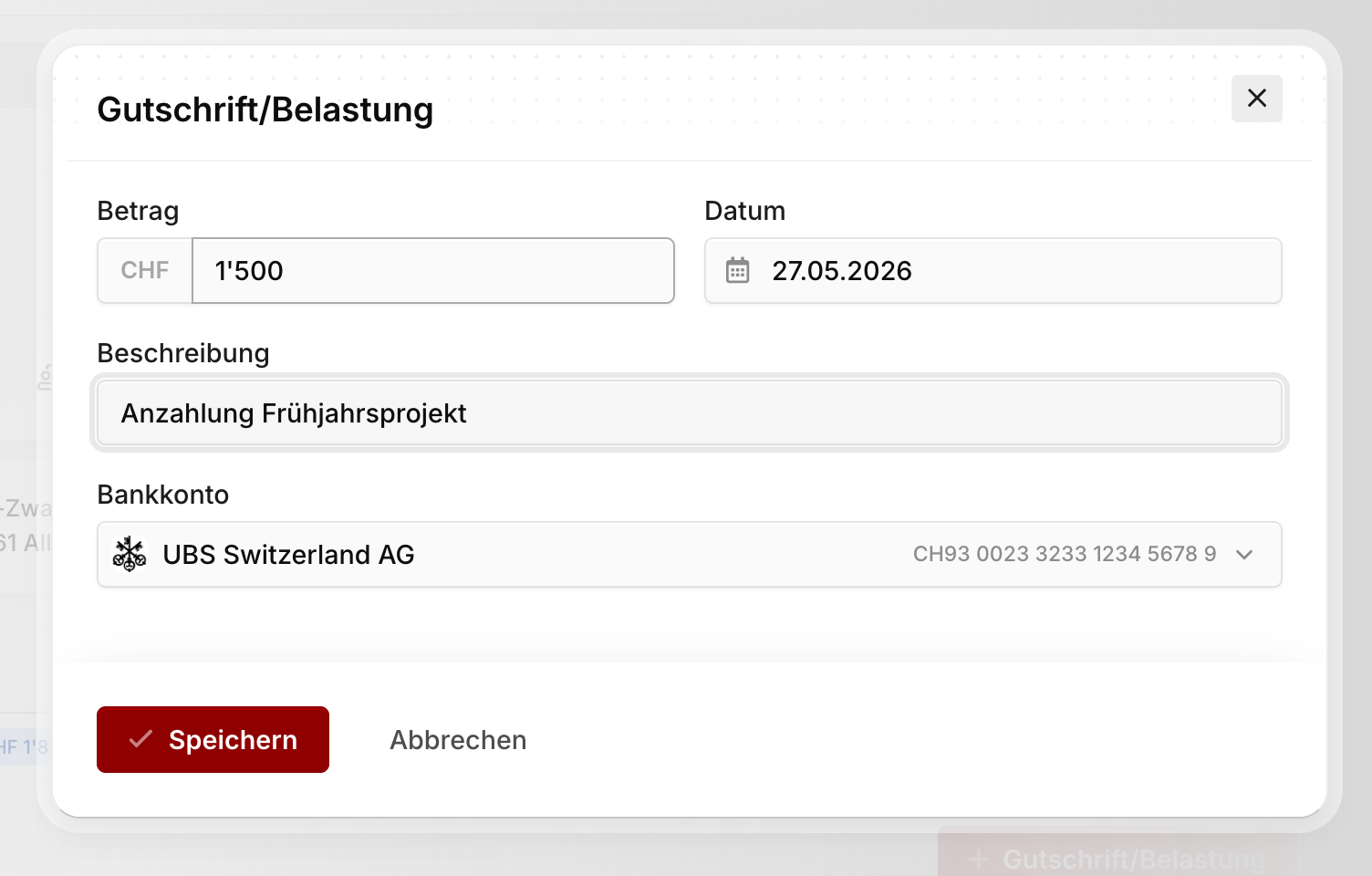
Amount: A positive value for credit to the customer, a negative value for a debit. The amount is added to the existing balance with its sign.
Date: The booking date for accounting purposes — usually the date the money moved or the correction took effect.
Description: A short reason so you (or your accountant) can make sense of the entry later (e.g. "Goodwill credit", "Cash deposit refund").
Bank account: Determines which asset account is debited or credited on the other side of the journal entry. Pick the bank account through which the movement actually went (or will go).
Applying credit to an invoice
If a customer has positive credit and you open one of their open invoices, a banner appears at the top showing the current balance and an Apply credit button.

A single click creates a payment entry on the invoice — either covering the full open amount (if the credit is large enough) or the available balance. The credit decreases accordingly and the invoice is marked (partially) paid.
Note
The payment entry also appears on the invoice the customer sees — in the PDF and in the customer portal. So it stays clear to the customer that part of the invoice was settled with their credit.
Deleting a customer transaction
Delete a manually entered transaction with the trash icon in the row.
WARNING
Transactions that were created automatically from an invoice payment (e.g. an overpayment) can't be deleted directly. You first have to remove the related payment entry on the invoice — the customer transaction disappears with it. That keeps the link between movement and source document intact.
Showing credit in the customer portal
By default, your customer doesn't see their credit. If you enable Show credit in the customer portal settings, the current balance is displayed in the portal — useful for transparency around prepayments, but rarely desired when the credit comes from internal corrections.