
Setting up default texts
Define headers, footers, email messages and terms once — every new document then starts with your texts already in place.
The default texts are spread across two settings pages: Settings → Invoices (open directly) and Settings → Offers (open directly).
Use variables
In all text editors you can insert variables (e.g. invoice number, payment terms, first name of the contact person). They're replaced with the real values when the document is created — so even a default text stays personal.
Default texts for invoices
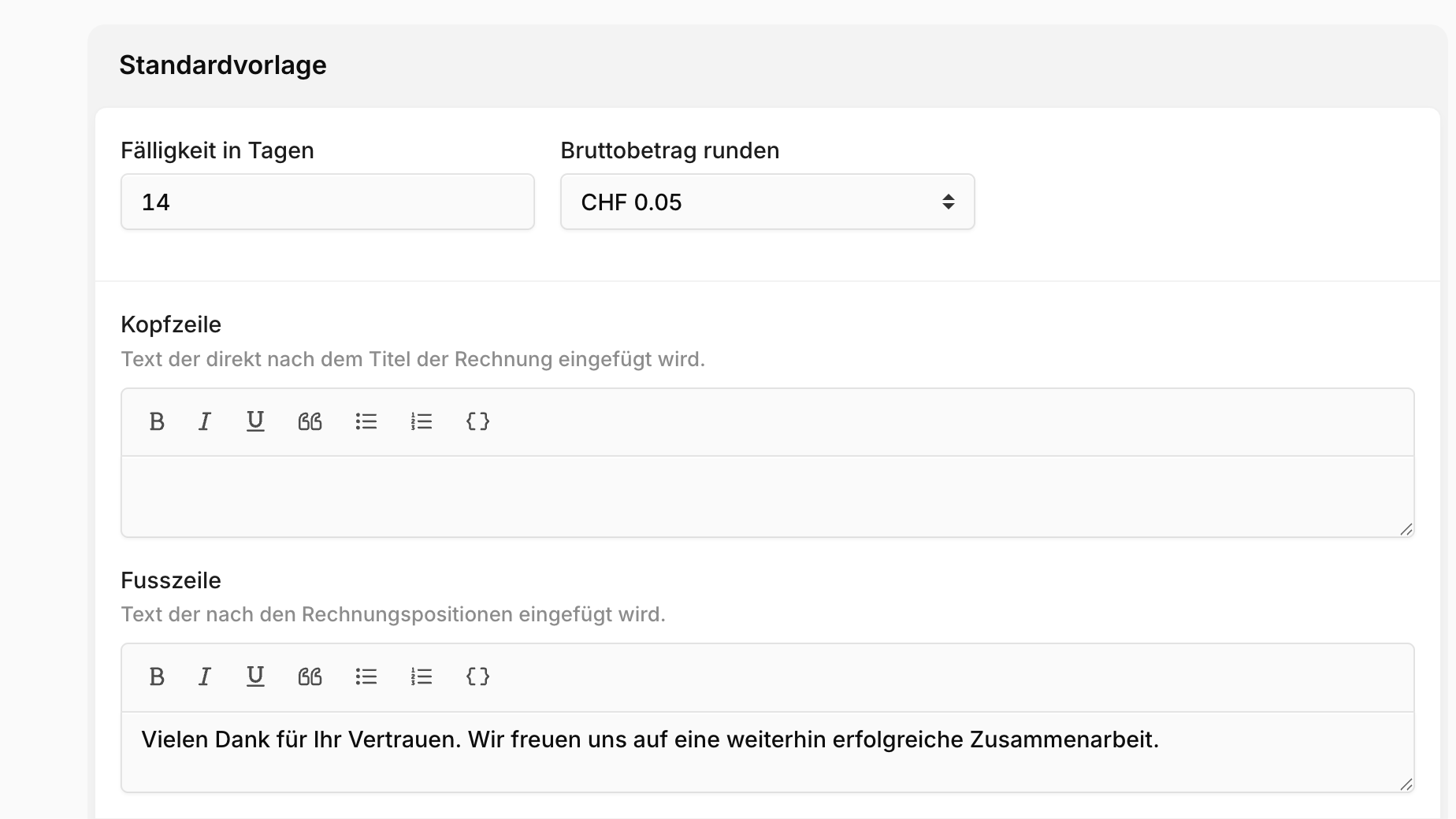
Under Settings → Invoices → Default template you configure:
Header: Text inserted right after the invoice title.
Footer: Text inserted after the invoice line items.
Email message: Text of the email the invoice is sent with.
Further down on the same page you'll find the text for the payment received notification — it lets you automatically inform customers that their payment has arrived.
Default texts for quotes
Under Settings → Offers → Default template you configure:
Header: Text inserted right after the quote title.
Footer: Text inserted after the quote line items.
General terms and conditions: A terms text that can be attached to quotes. It can be shown or hidden again on each individual quote.
Email message: Text of the email the quote is sent with (section Sending by email).
Default texts for billing from a quote
If you bill projects at a flat rate from a quote, invoices with a single summary position are created. You define their texts under Settings → Offers → Default texts for billing from quotes:
Position for single invoices: Text of the position when billing via a single invoice.
Position for partial invoices: Text of the position when billing via several partial invoices.
Default texts for billing by effort
If you bill tracked time by effort, two templates under Settings → Invoices → Default texts for billing by effort determine how individual time entries appear as a position. Dedicated variables such as description, hours, date and hourly rate are available here.
Order confirmations and delivery notes
Approved quotes can be printed as an order confirmation or as a delivery note (without prices). You define their headers and footers under Settings → Offers in the sections of the same name.
Note
On the respective document, these texts replace the header and footer of the original quote.