
Billing projects
Learn how to turn a project into an invoice — by hours and expenses, or as a flat rate.
How a project gets billed depends on its billing type. Both routes start from the sidebar under Sales → Bill projects (app.blond.swiss/billing/project).
The overview has two views: Bill by hours & expenses lists hourly projects with open time and expenses, Bill by quote lists approved quotes of flat-rate projects.
Note
There's no billing button on the project page itself. You always enter billing through Bill projects in the sidebar — or, from a quote, through Create invoice.
Billing by hours and expenses
Here you invoice the hours, products and expenses actually tracked. The screen is deliberately a cleanup stage: you tidy up the entries before the customer ever sees them.
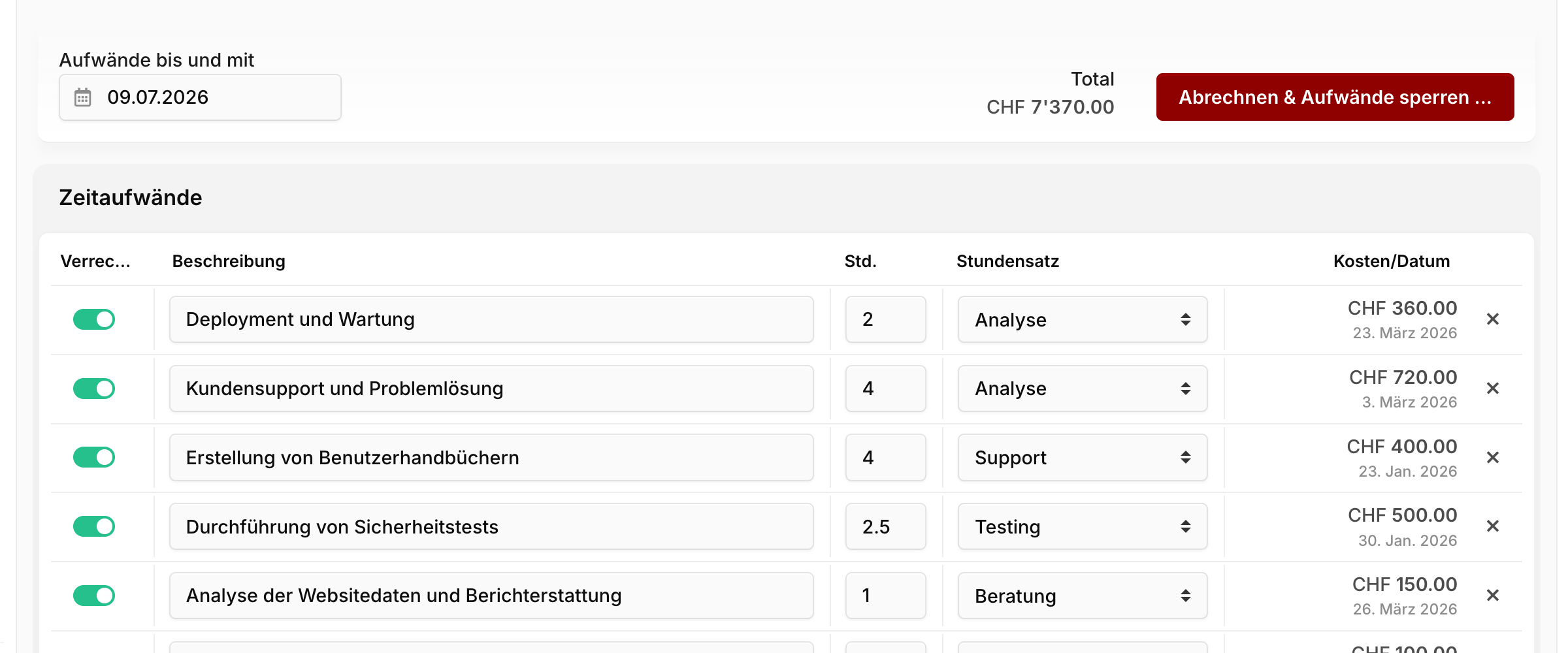
Expenses until and including: The cut-off date. Only entries up to this date make it onto the invoice. Useful for a clean month-end cut when work has already continued in the meantime.
Description, hours and hourly rate: You can adjust all three per row. What your team logged internally is rarely what the customer should read. These edits apply to the invoice only — the original time entry stays untouched.
For anything you don't want to bill there are two routes — and they do different things:
| Turn off Billable | × (Remove from this billing) | |
|---|---|---|
| On this invoice | doesn't appear | doesn't appear |
| The time entry afterwards | permanently marked as non-billable | unchanged, stays open |
| Next billing run | does not come back | shows up again |
So use Billable when you're writing the work off for good, and the × when you just want to push it onto the next invoice.
TIP
Expenses behave the same way: the Billable switch writes them off permanently, the × defers them.
Finally, click Create invoice & lock expenses. In the dialog that follows you pick the contact, the invoice date — and how far the entries get merged into invoice line items:
| Option | Result on the invoice |
|---|---|
| List individually | every entry as its own line item |
| Group by activity | one line item per activity or hourly rate |
| Group by date | one line item per day |
| Merge into a single line item | exactly one combined line item |
TIP
In the Invoice field you can pick an existing draft invoice instead of New invoice. The entries are then appended to it — handy when you want to bundle several projects of the same customer onto one invoice.
Warning
Billed entries are locked: they can no longer be edited and won't appear in any later billing run. Check the list before you press the button.
Billing a flat rate
On a flat-rate project you don't bill hours — you bill the fixed amount from the approved quote. Tracked hours only serve budget monitoring here; they don't affect the invoice.
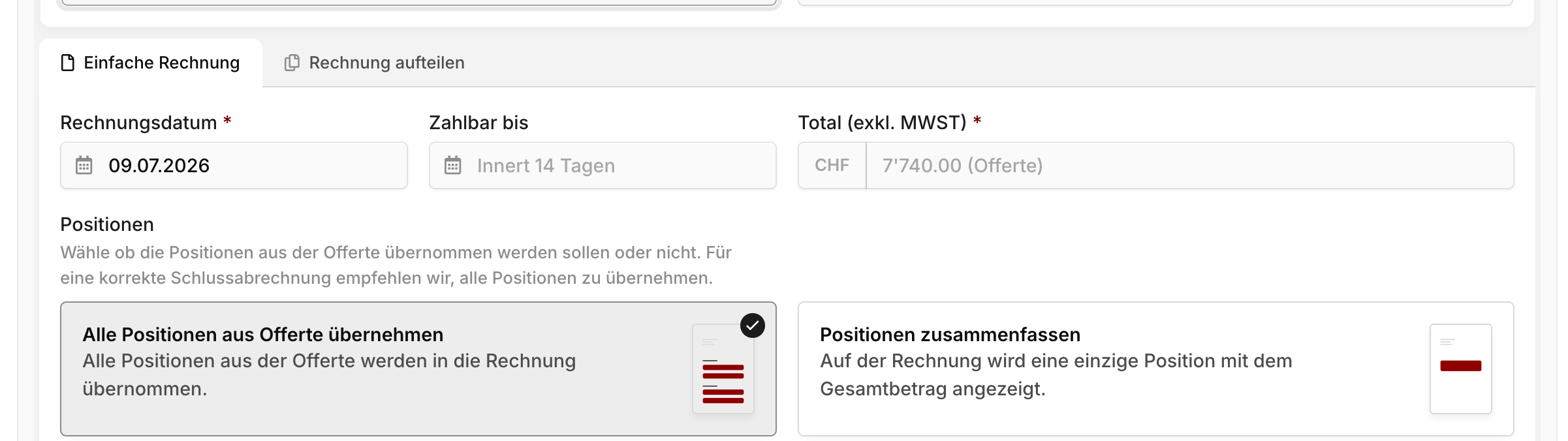
Single invoice
The whole quoted amount goes onto one invoice. The Total (excl. VAT) field is prefilled with the quoted amount. Below it you choose how detailed the invoice looks:
Detailed line items: The invoice lists every quote line item separately.
Single line item: The invoice carries one combined line item for the total.
Warning
If the quote contains line items with different VAT rates, the amount can't be collapsed into a single line item without losing the VAT breakdown. Blond automatically selects Detailed line items in that case, and warns you as soon as you switch to "Single line item".
Partial invoices
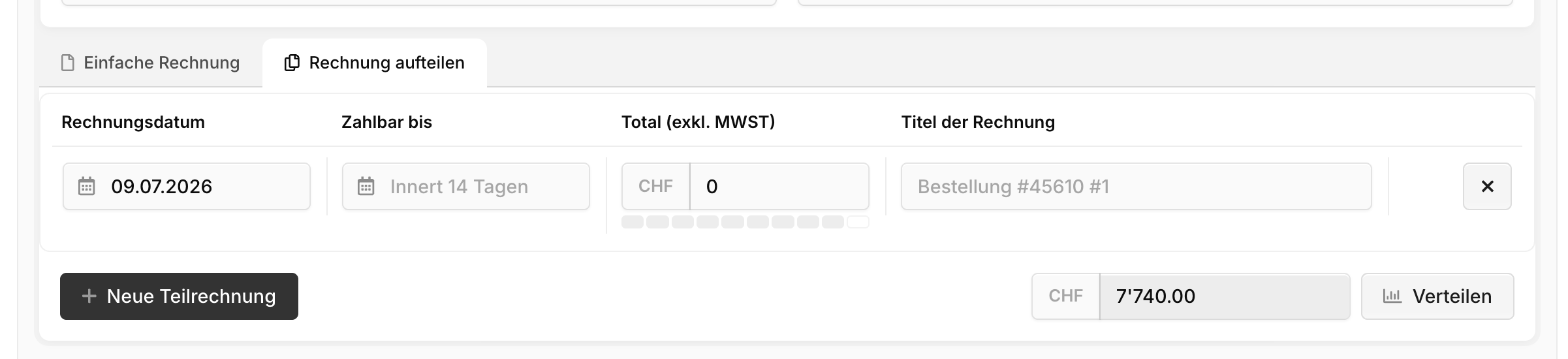
The Partial invoices tab spreads the quoted amount across several invoices — for deposits or milestones. Each instalment gets its own invoice date, payment term, total and title.
+ New partial invoice adds another instalment. The amount not yet distributed sits at the bottom right; Distribute spreads it across the existing instalments. Once they add up to the quoted total, a Costs covered indicator replaces the remaining amount.
What's next
Both routes produce an ordinary draft invoice. You can still adjust it before it goes out:
- Writing invoices — reworking line items, discounts and texts
- Sending invoices — sending, payments and reminders