
Submitting payments to your bank
Collect payment orders from your supplier invoices and upload them to your e-banking as a pain.001 file.
Creating payment orders
Payment orders are created right in your expenses: every supplier invoice gets a payment order with recipient, amount and execution date when you record it. See Recording expenses for how this works.
Downloading the payment file (pain.001)
You'll find all open payment orders under Payments → Payment orders (also reachable via Expenses → Payment orders). If you have several bank accounts, switch between them at the top right — each payment file belongs to exactly one account.
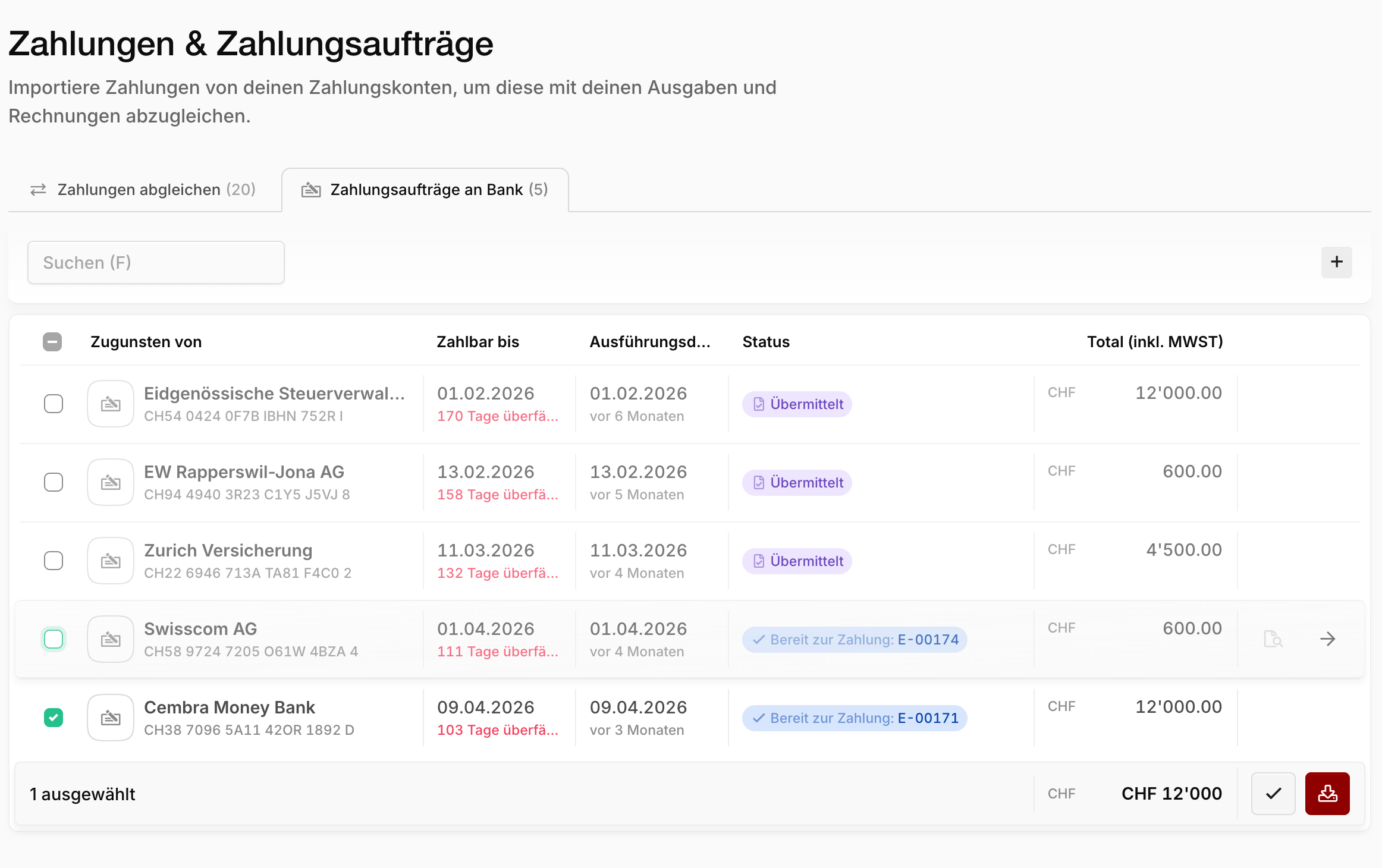
- Review the open orders and correct them if needed — clicking a row opens the related expense.
- Select the orders you want to pay.
- Click the Download button and download the payment file in pain.001 format (XML) — as a collective order or as individual orders.
- Upload the file in your bank's e-banking and release the payments there.
Not paid yet
Downloading the file doesn't execute any payment — that only happens once you upload and release the file in your e-banking. Accordingly, the expense in Blond only counts as paid after that.
Marking as executed
Once your bank has executed the payments, you close the loop during the next bank reconciliation: Blond recognizes the debits on your account and marks the corresponding payment orders as executed.
If you exceptionally paid something by hand outside of Blond, you can also mark the selected orders as executed directly in the list.