
Adding a bank account, cash box or credit card
Set up bank, cash and credit card accounts to create QR-bills, reconcile transactions and submit payment orders.
Account types
Blond's banking area distinguishes three types of payment accounts. The type determines what the account can be used for:
| Use case | Bank account | Cash box | Credit card |
|---|---|---|---|
| Creating QR-bills | ✓ | ||
| Incoming payments on invoices | ✓ | ✓ | |
| Credits/debits on customer accounts | ✓ | ✓ | |
| Outgoing payments on supplier invoices | ✓ | ✓ | |
| Reconciling imported transactions | ✓ | ✓ | ✓ |
Adding an account
Open Company → Settings → Banking and click + New payment account. Pick the account type first — the required details differ slightly:
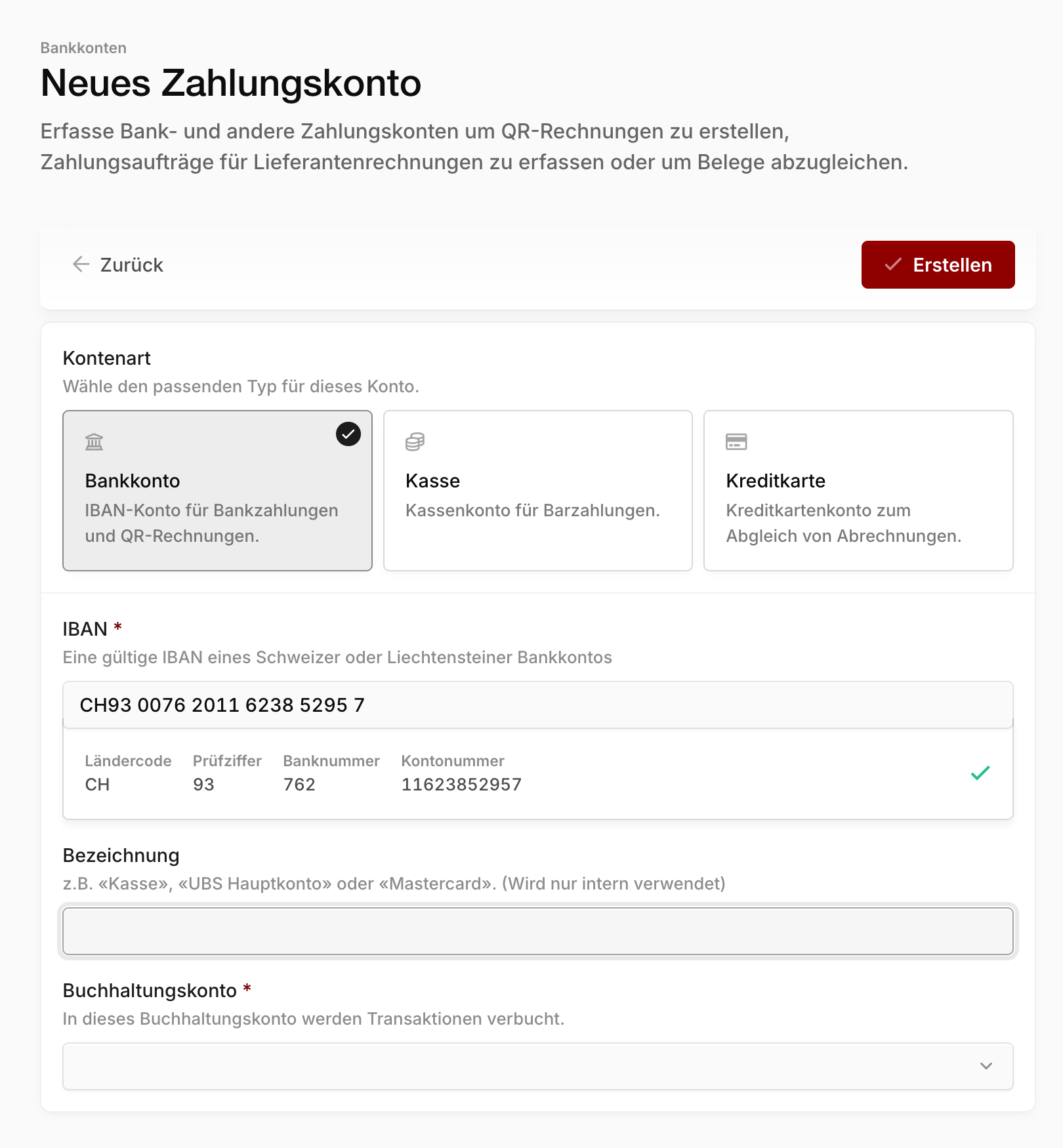
IBAN (bank accounts only): Enter the IBAN of a Swiss or Liechtenstein bank account. Blond validates it as you type and detects your bank automatically — you don't need to enter the bank name, BIC or account number yourself.
Name: A unique name under which the account appears throughout Blond, e.g. "Main account", "POS cash box" or "Visa main card". For bank accounts the name is optional.
Accounting account: Link the payment account to an account from your chart of accounts (see below).
QR-IBAN is not accepted here
Enter your account's regular IBAN, not the QR-IBAN (recognizable by a 3 in the fifth position). You'll add the QR-IBAN later when setting up QR-bills.
After creating a bank account you land directly in its detail view. There you can set up QR-bills, enter a differing account holder or adjust the duplicate detection for transaction imports.
Linking an accounting account
Payment accounts in banking and accounts in your bookkeeping are two different things: you can use bank accounts entirely without accounting, for example just for QR-bills. But for Blond to book incoming and outgoing payments automatically, each payment account must be linked to an accounting account.
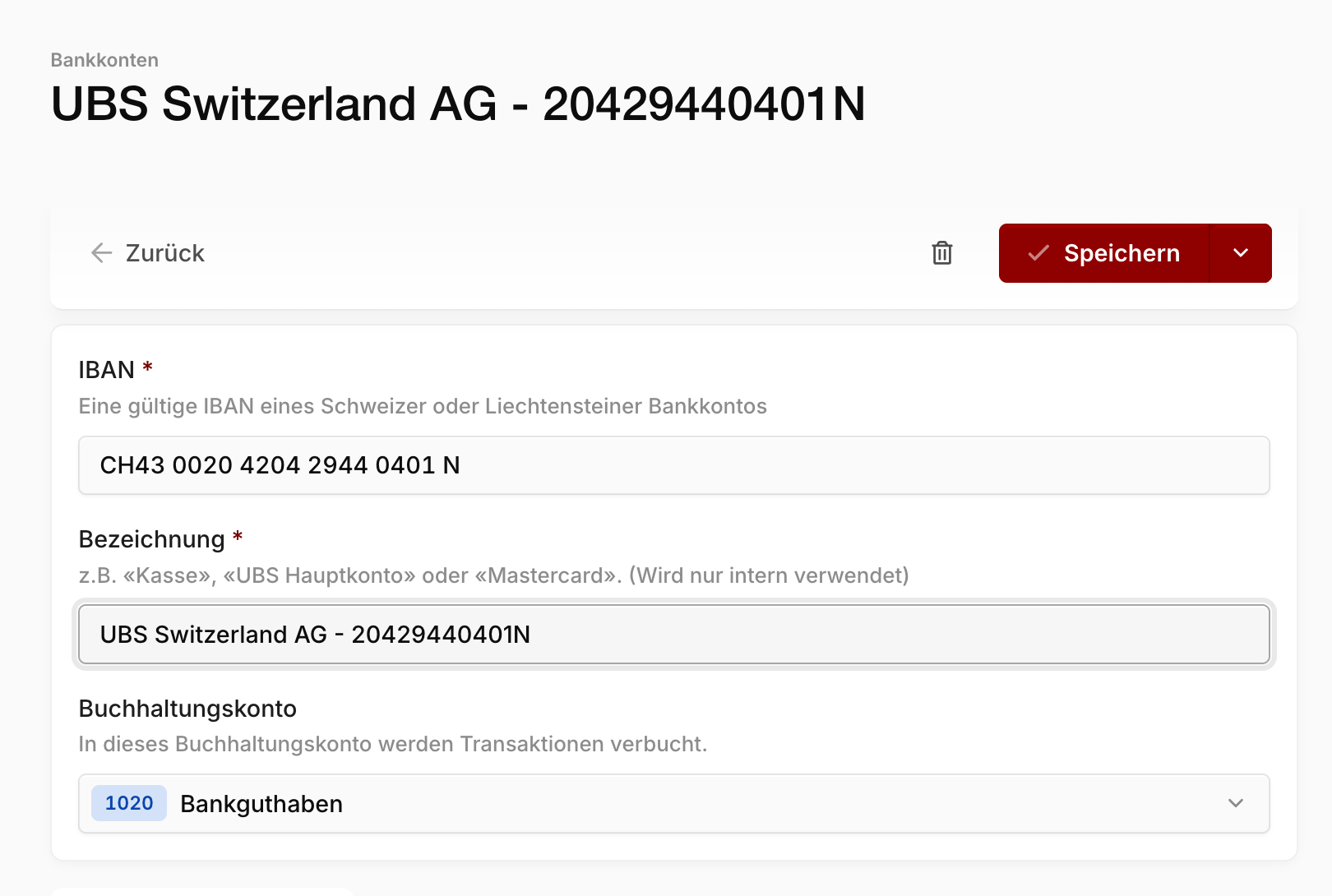
To do so, open the account under Company → Settings → Banking and pick the matching accounting account in the Account field — e.g. "1020 Bank" for a bank account or "1000 Cash" for the cash box.
TIP
Without a linked accounting account, the Manual entry option is missing during bank reconciliation — transactions can then only be matched with invoices, expenses or customer bookings.
If the right account doesn't exist yet, create it in your chart of accounts first. If accounting is enabled, linking is mandatory when creating new payment accounts.