
Tracking and managing project time
Track time on your projects, work with timers, and release hours for billing.
Warning
Time tracking in Blond is project time tracking: it records how much time went into which project, as the basis for budgets and billing. It is not the legally required working time tracking. You keep that separately in Blond under Team → Working hours.
Recording time
You'll find time tracking in the sidebar under Projects → Time tracking. Create a new entry with Record time in the top right.
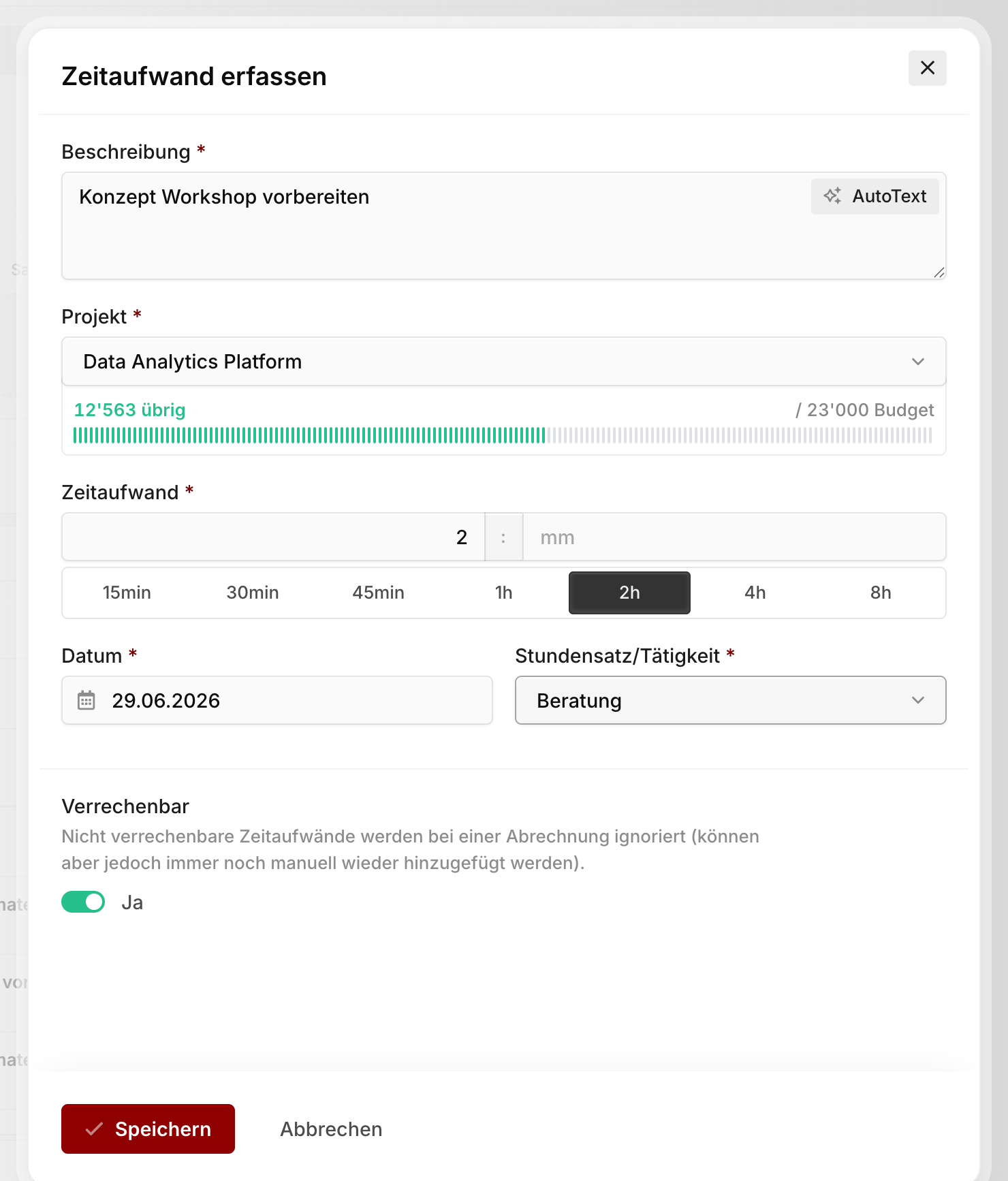
Most fields explain themselves. These three have consequences you can't see on the form:
Description: This text isn't just for you. It later appears on the time report you hand to your customer. So write it so the customer understands what the time went into. Use AutoText to have Agent Blond turn your note into a clean sentence.
Hourly rate / activity: The field is named that way for a reason — in Blond the hourly rate is the activity, there's no separate activity field. The rate you pick determines the amount billed and, through its cost center, which budget line the work counts against. See Managing hourly rates.
Billable: Non-billable entries are ignored in a billing run — but you can still add them back by hand there. Either way they count towards the project's total time and its internal cost. Only people allowed to manage invoices see this field.
TIP
As soon as you pick a project, Blond shows a budget bar below the field — so you see how much of the project budget is left while you're still recording.
Note
If you're not offered every hourly rate: rates can be assigned to individual team members. As soon as someone has at least one rate assigned, those are the only ones they can choose from.
If your organization keeps products that can be tracked as an add-on, an extra Additional services block appears. Use it to book material or flat fees onto the same time entry instead of adding them to the invoice by hand later.
Working with timers
Instead of estimating time after the fact, you can let it run. Start a timer with the stopwatch icon next to Record time. Timers keep running on the server — they survive a browser restart and are visible on all your devices.

You can have timers for several projects, but only one runs at a time. Clicking Resume on a paused timer automatically pauses the currently active one. That's how you switch between projects without stopping anything by hand.
When you finish a piece of work, click Stop and save. Only then do you add the description and hourly rate — the timer itself only knows the project.
TIP
Always on top undocks the timers from the browser window so they stay visible above every other program. The button only appears in Chromium browsers (Chrome, Edge), since only those support the required picture-in-picture feature.
Warning
A timer that runs for more than 8 hours without a break is paused automatically. That keeps a timer you forgot overnight from recording a useless amount of time. Everything tracked up to that point is kept.
If you also use working time tracking, starting a timer has a side effect: if you haven't clocked in that day, Blond clocks you in for you.
Editing existing entries
Every time entry can be edited as long as it hasn't been billed. Click anywhere on the entry in the list to open it.
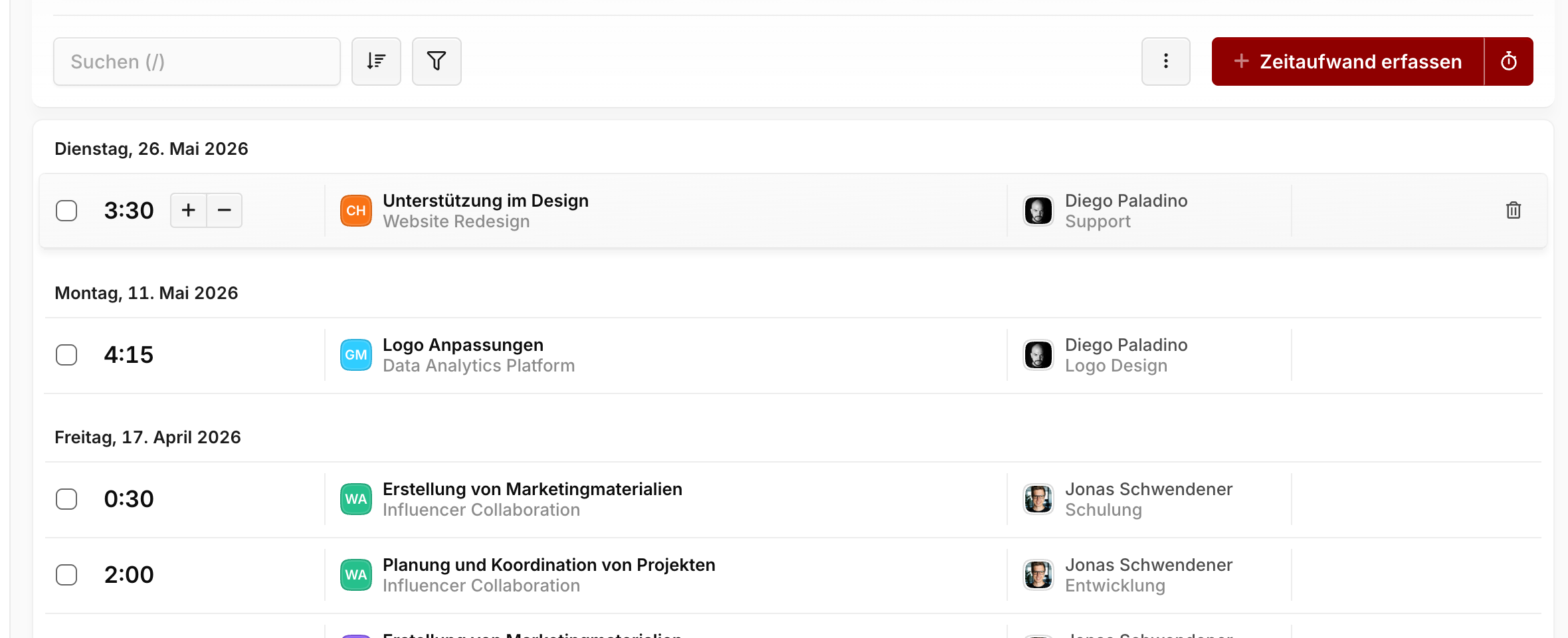
For pure time corrections you don't need to open the form at all — the +/− buttons next to the duration adjust it right in the list:
| Action | Step size |
|---|---|
| Click +/− | 15 minutes |
| ⇧ (Shift) + click | 1 hour |
Releasing billed hours
Once a time entry has made it onto an invoice, it's locked and shows a padlock icon in the list. Locked entries can neither be edited nor billed a second time.
If you do need to bill a position again, click the padlock and confirm with Unlock. To release several entries at once, select them and choose Actions → Release for billing in the selection bar.
Warning
Releasing an entry changes nothing about the invoice that already exists. The time simply reappears in the next billing run — you have to correct or cancel the old invoice yourself, otherwise you'll bill the hours twice.
Releasing requires permission to manage invoices.
Reassigning hours to another project
Booked onto the wrong project? You can fix that for many entries at once:
- Select every time entry you want to move
- Click Actions → Reassign to project in the selection bar
- Pick the target project
Entries that are already billed are skipped. To move those too, release them for billing first.