
Setting up the customer portal
Give your customers their own space to view open invoices, quotes and their credit balance.
What is the customer portal?
Every customer in Blond has a personal portal page. There they see at a glance:
- All open invoices with status and due date, including PDF download and account statement
- Open quotes, which they can view and approve or decline directly
- Their current customer credit — if you've enabled it
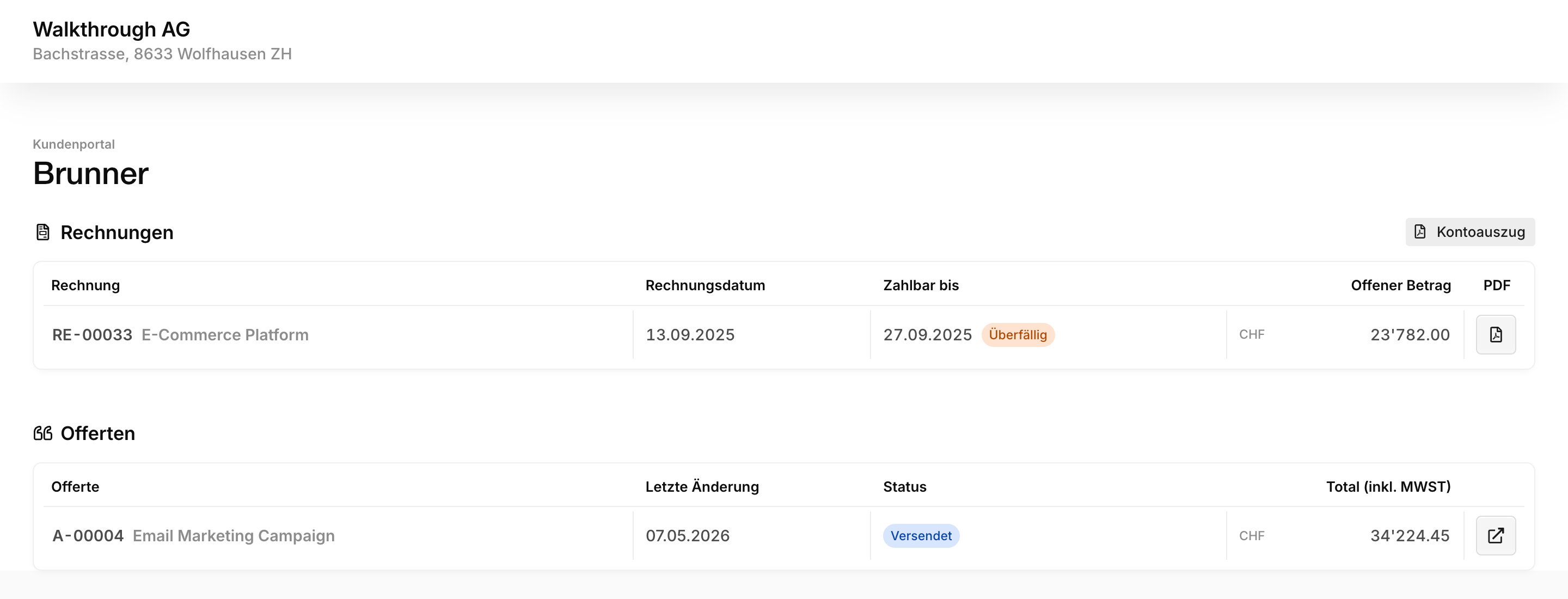
No login is required: access works via a personal link per customer. Your customers get there automatically — via the Customer portal button in the email of every invoice and quote, and via a QR code on the invoice PDF.
Note
The portal link is not password-protected. Anyone who knows the link sees the shared documents of that customer — so treat it like a delivered document, not a public link.
Activating the customer portal
Enable the portal under Settings → Customer portal. The settings always apply to all customers — there is no per-customer activation.
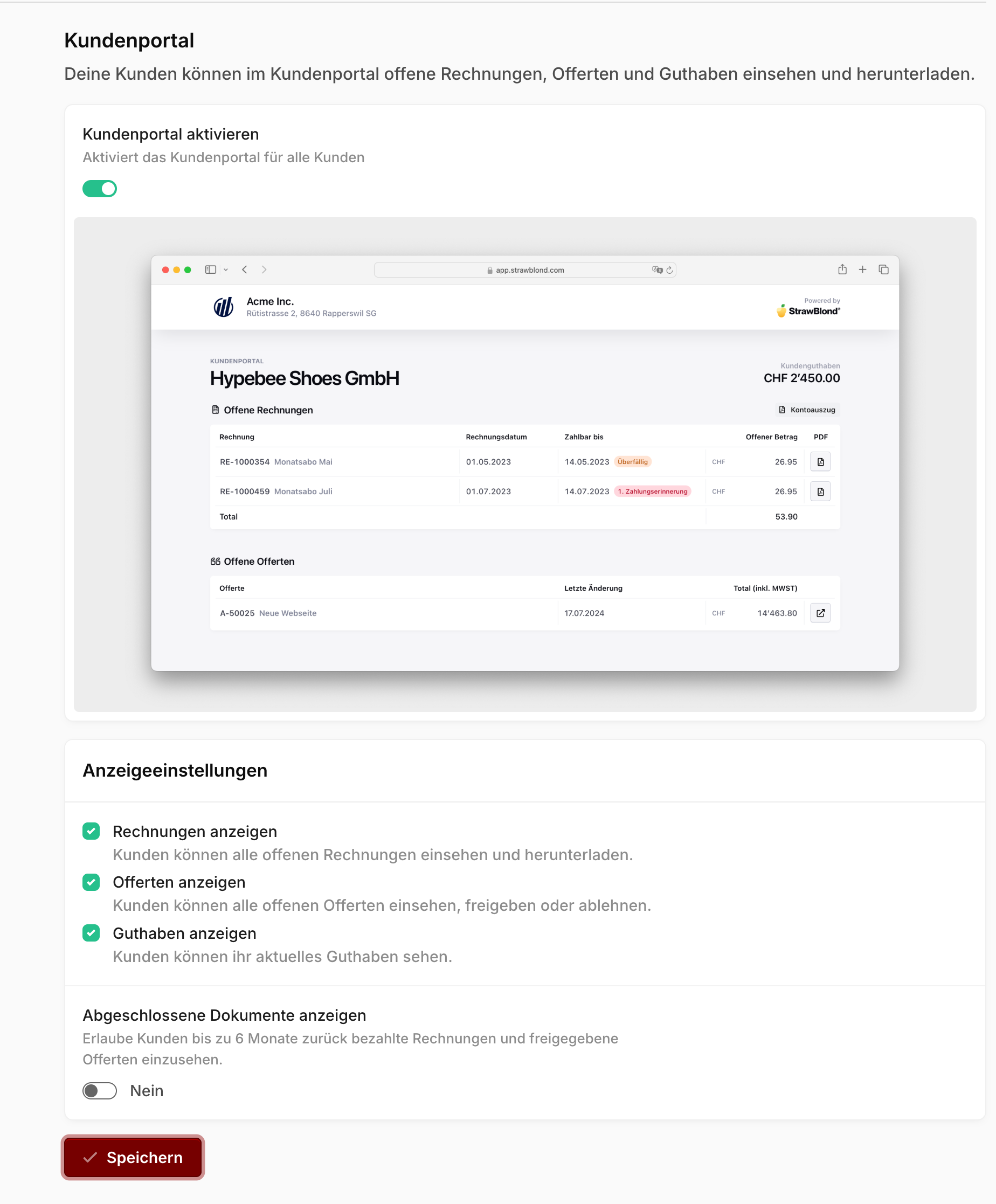
In the display settings you decide what your customers see:
Show invoices: View and download open invoices.
Show quotes: View, approve or decline open quotes.
Show credit: The current customer credit is displayed in the portal — useful for down payments and prepayments, less so when credit stems from internal corrections.
Show closed documents: Customers additionally see paid invoices and approved quotes up to 6 months back.
Opening a customer's portal
On a customer's detail page you'll find the Customer portal button — this shows you the portal exactly as your customer sees it, and lets you share the link directly if needed. If the portal isn't activated yet, the button takes you to the settings instead.