
Writing quotes
Learn how to create a new quote in Blond, add line items, and prepare it for sending.
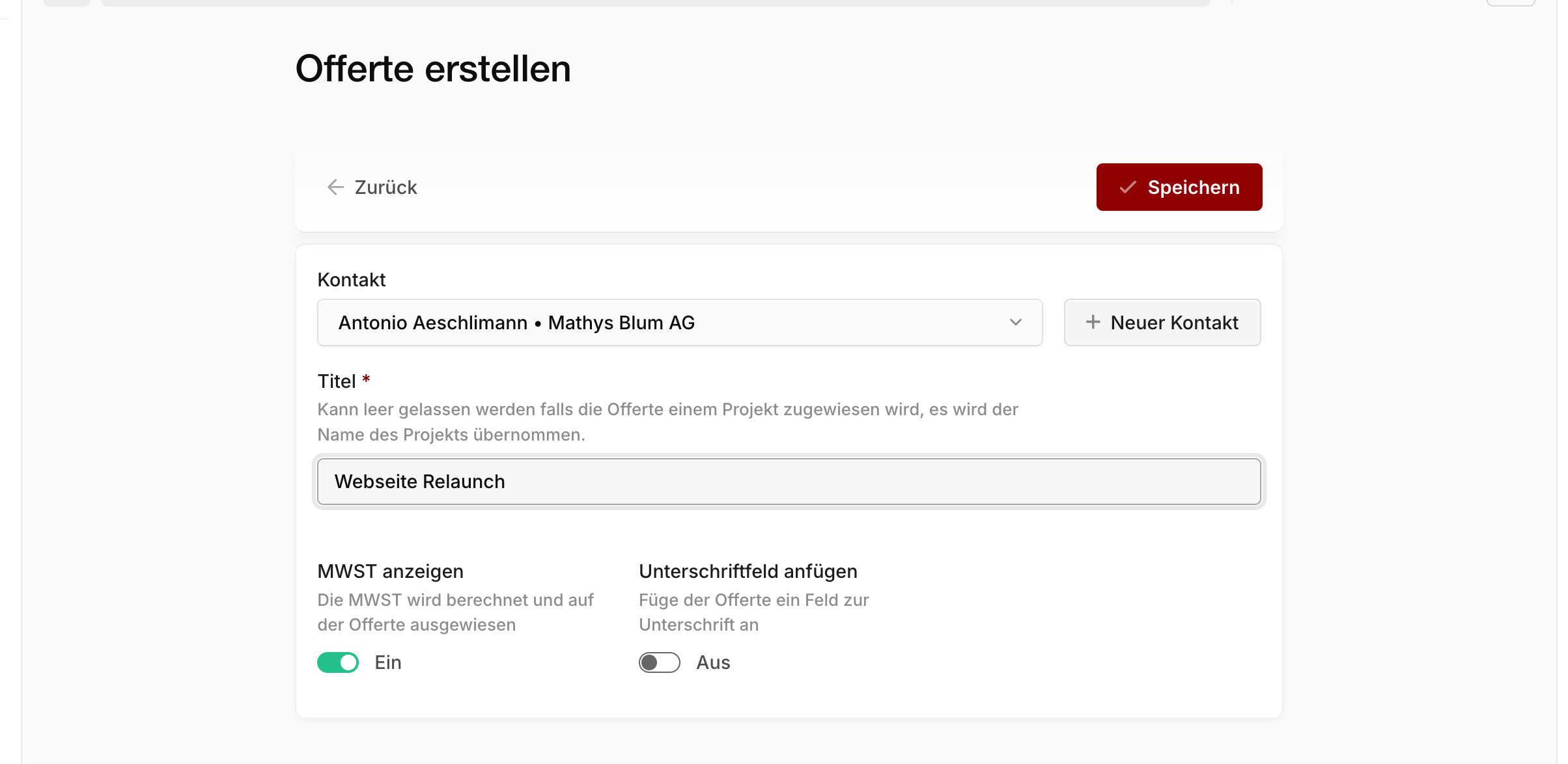
You create a new quote from Quotes → + Create quote or directly at https://app.blond.swiss/offer/create.
TIP
A new quote is always a draft — it has no quote number yet and isn't valid anywhere. The number and the Valid until date are assigned only when you send the quote. As long as it's a draft, you can change anything without consequences.
Fill in the basics
In the first step, you link the quote to a contact and set the title, tax, and signature options.
Contact: Pick an existing contact or create a new one directly from the search field. The recipient address is pulled from the contact and their company — you don't need to type it in.
Project: Optional. If the contact's company has active projects, you can assign the quote to one of them. Once accepted, the quote can be billed directly to that project.
Title: Optional when a project is assigned — the project name is used. Without a project, the title is required.
Add terms and conditions: Attaches your terms and conditions from your company profile at the end of the quote. Only visible if you've actually added terms.
Show VAT: Turn this off if you're not VAT-liable, or for a pure foreign quote without VAT. The default comes from your company profile.
Add signature field: Adds two lines for signature and date at the bottom of the PDF — handy if you let the customer sign on paper. Quotes accepted online don't need this.
Note
You edit the header and footer of the quote directly from the detail view after saving, or under Edit → Text. They're prefilled from your quote settings.
Add line items
Once you save the quote, you land on the detail view. This is where you add line items — the actual content of the quote.
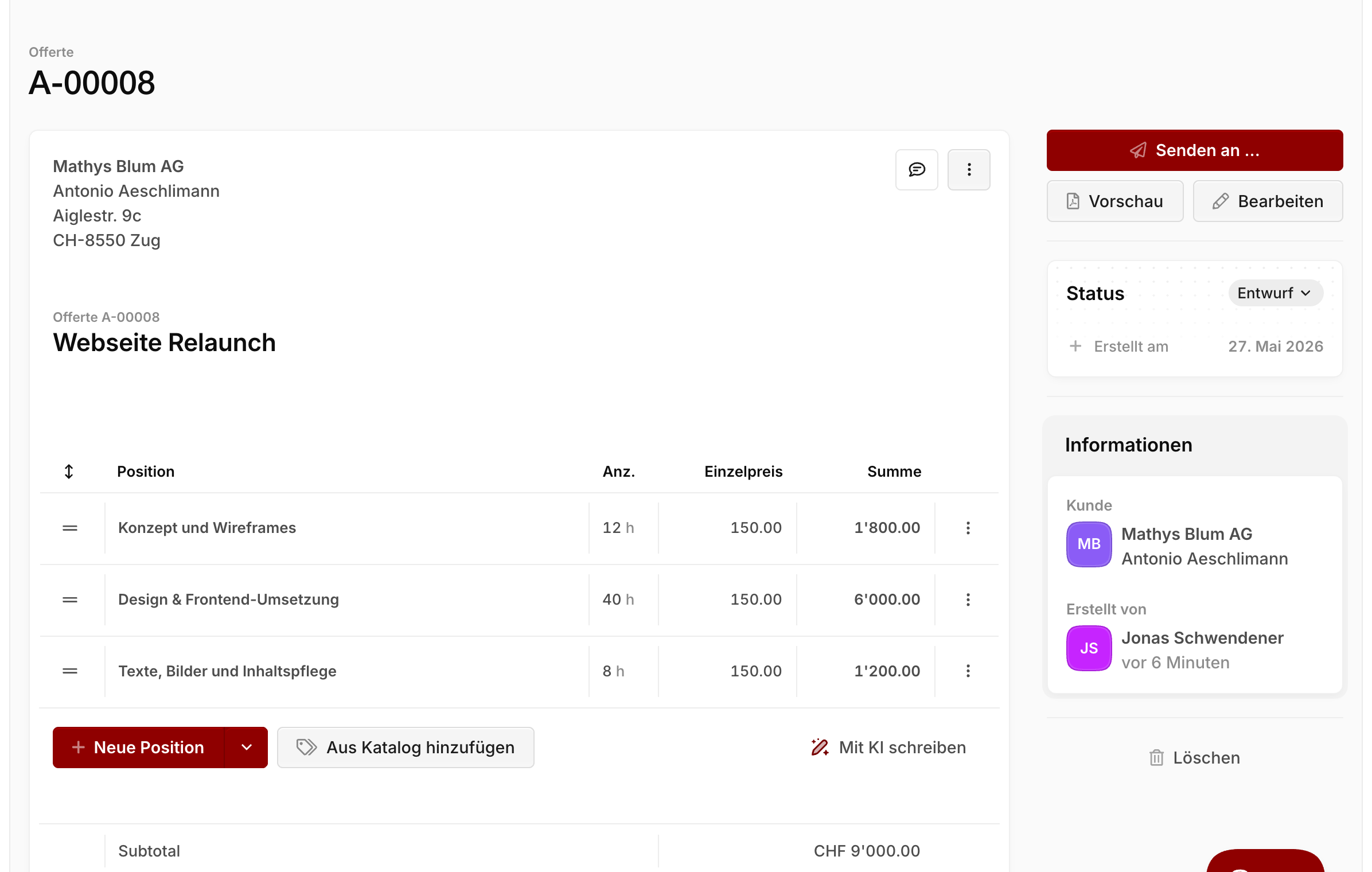
Click + Create and pick the type:
Standard item: A regular line with name, quantity, unit, and unit price. This is the default.
Heading: A plain text row without an amount — used to group longer quotes into visual sections.
Percentage item: A discount or surcharge in percent — applied to all standard items above it (up to the next subtotal). See Discounts and surcharges.
Subtotal: Shows a running subtotal and resets the reference point for percentage items that come after it.
Important
All prices are net (excl. VAT). VAT is shown separately at the bottom of the quote.
You can reorder items by dragging the grip handle on the left. As long as the quote is still a draft, click any item to open it and adjust details — VAT rate, line-level discount, revenue account, or team tag for reporting.
TIP
The PDF viewer in the sidebar gives you a live preview of the quote at any time, without sending it.
Optional line items
You can mark individual standard items as optional — for example, when you offer an add-on the customer can book on top.
In the line items table, open the item's right-side dropdown menu and toggle Optional on. The item then appears separately below the total and doesn't count towards the main sum.
| Behavior | Standard | Optional |
|---|---|---|
| Counts towards the total | yes | no |
| Appears on the PDF | inside the table | separately below the total |
| Copied when converted to invoice | yes | no |
Percentage items can't be marked as optional — they always apply to whatever sits above them.
Insert from your product catalog
If you've added recurring products or services to your product catalog, you can drop them into a quote with a single click.
Below the line items table, click Add from catalog and pick one or more items. The name, description, unit price, and VAT are copied from the catalog — you can still tweak them on this one quote without touching the catalog entry itself.
The same works for hourly rates — handy for consulting, service, or time-based work.
Generate with AutoText
Instead of typing every line item, you can let the AI draft the quote from a few keywords.
When adding a line item, click the arrow next to + Create and pick Create with AutoText. Describe what you want to offer in a few bullet points — Blond suggests line items, descriptions, and header/footer text from there.
Build a small website
- Design & development 16h
- Logo design 8h
Note
You can drop the suggestion entirely with Undo suggestion or keep it with Keep suggestion. The items are only persisted after you keep them.
Always double-check the generated line items before sending — especially prices and hourly rates.
Discounts and surcharges
Discounts and surcharges work exactly the same as on an invoice — on two levels:
Per line item: Open the item and fill in the Discount field with either a percentage or a fixed amount. Negative values act as a surcharge.
On the whole quote (or a section): Add a percentage item. Positive values are surcharges, negative values are discounts. A percentage item applies to the sum of all standard items above it — up to the next subtotal. So with Subtotal → Percentage item you can discount only part of the quote.
For a full overview with examples, see Writing invoices → Discounts and surcharges.
Attachments sent with the email
Below the line items table you'll find the Attachments section. Upload extra documents here — contracts, technical data sheets, a visual portfolio — and they'll be sent alongside the quote PDF when you email the customer.
Important
Many email providers reject emails over 10 MB. If the sum of all attachments plus the quote PDF gets large, reduce the count or size.
What's next
Once the quote is in shape, everything that comes after — sending, status, approval, invoicing, project — lives in Sending quotes.